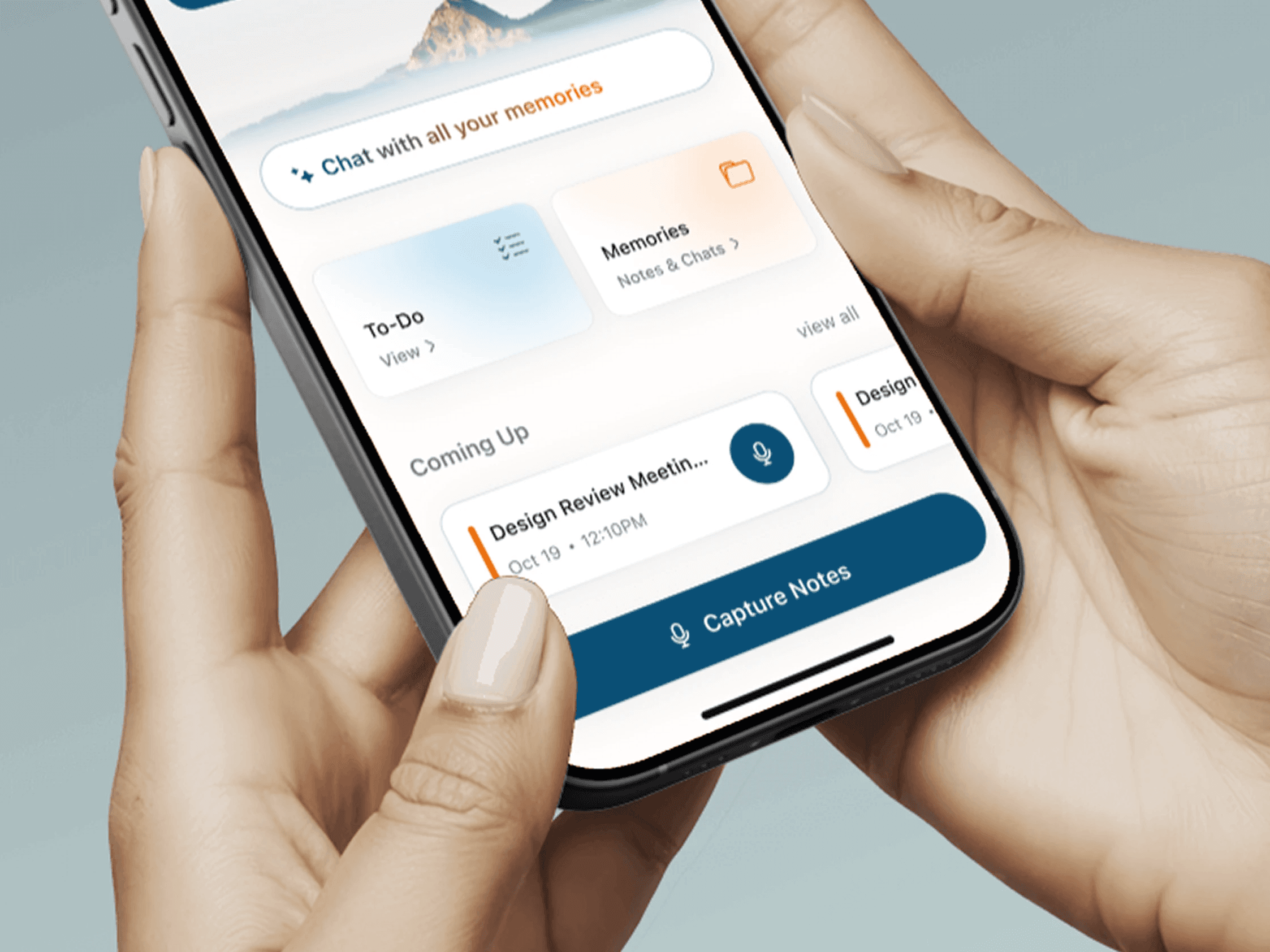
TwinMind syncs with your Google Calendar to show your upcoming meetings and events. To add more calendars, you’ll need to add them in Google Calendar first.
Select calendars to sync
If you have events in calendars from other accounts, you’ll need to share these with the Google account you’re using to log in to TwinMind. You can share calendars from another account by following the steps here.
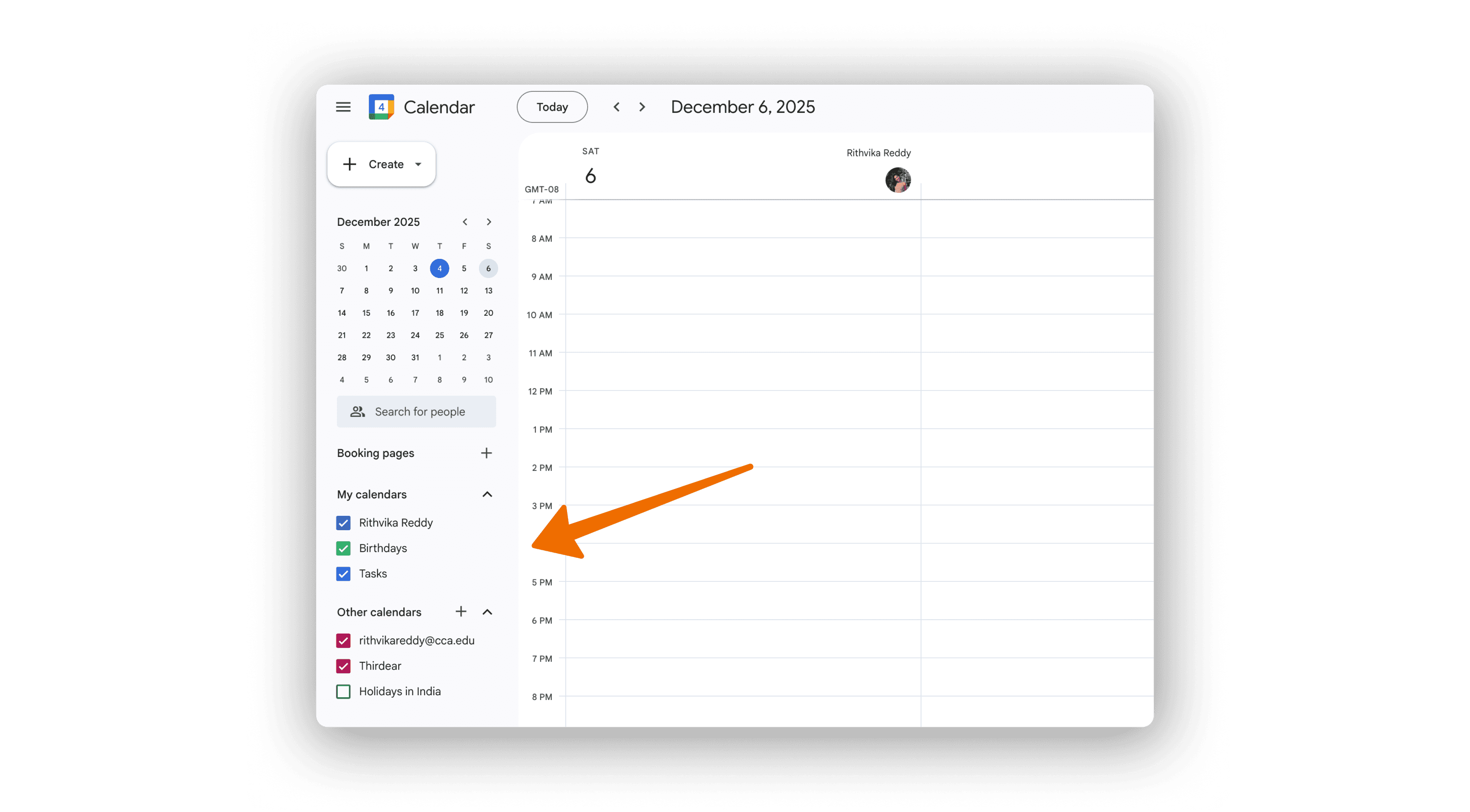
⚠️ Important: To sync calendars to TwinMind, you must check the calendar boxes on the desktop Google Calendar website (calendar.google.com). Checking them in the mobile app won’t work.
Once you’ve checked the calendars on the Google Calendar website, they should show up in TwinMind within a few minutes.
Adding your Outlook calendar
If you use Outlook for your work calendar, you’ll need to connect it to Google first.
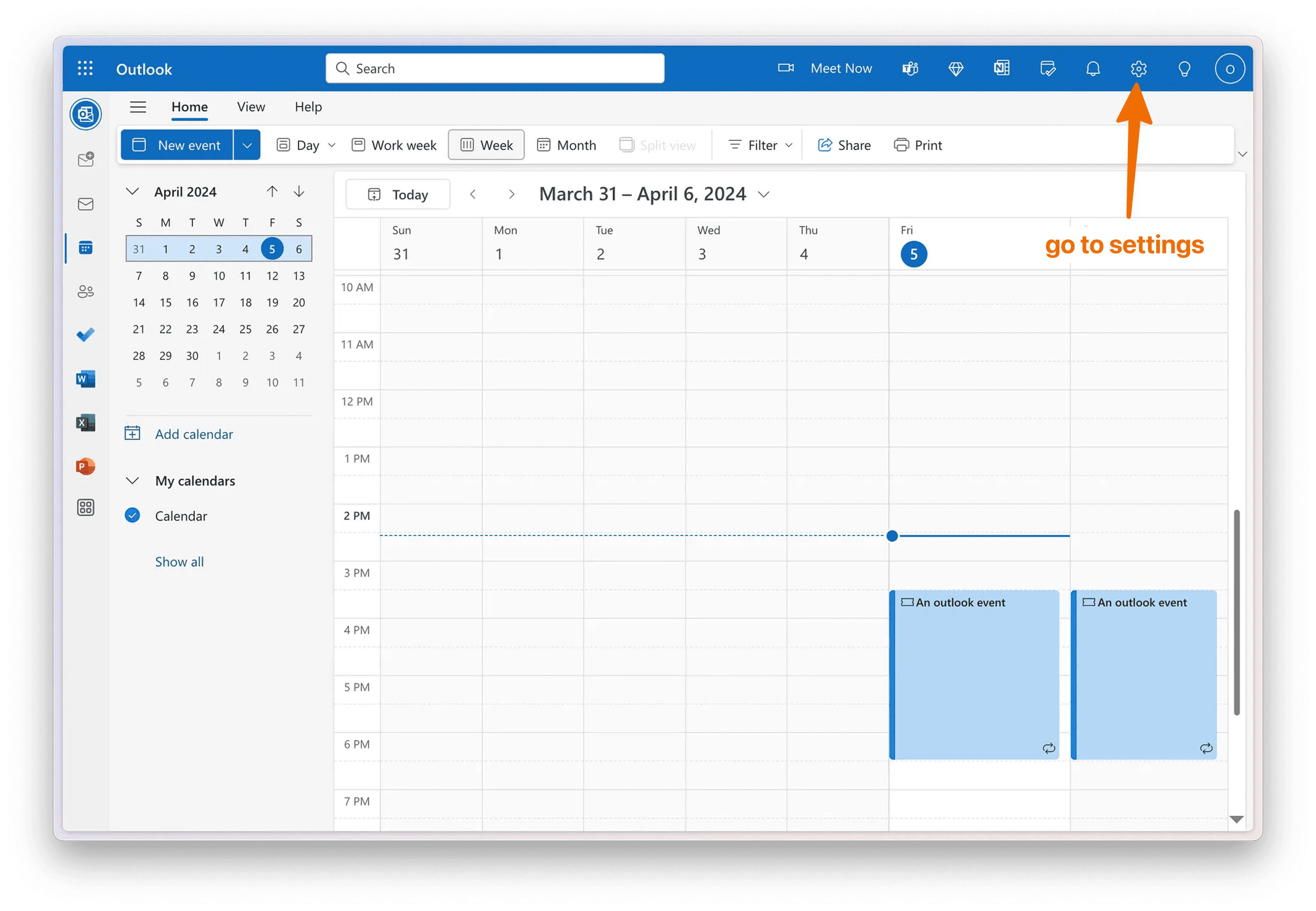
1. Open settings on Outlook.com
Head to outlook.com and sign in with your work account, then open settings.
2. Get a publish URL for your work calendar
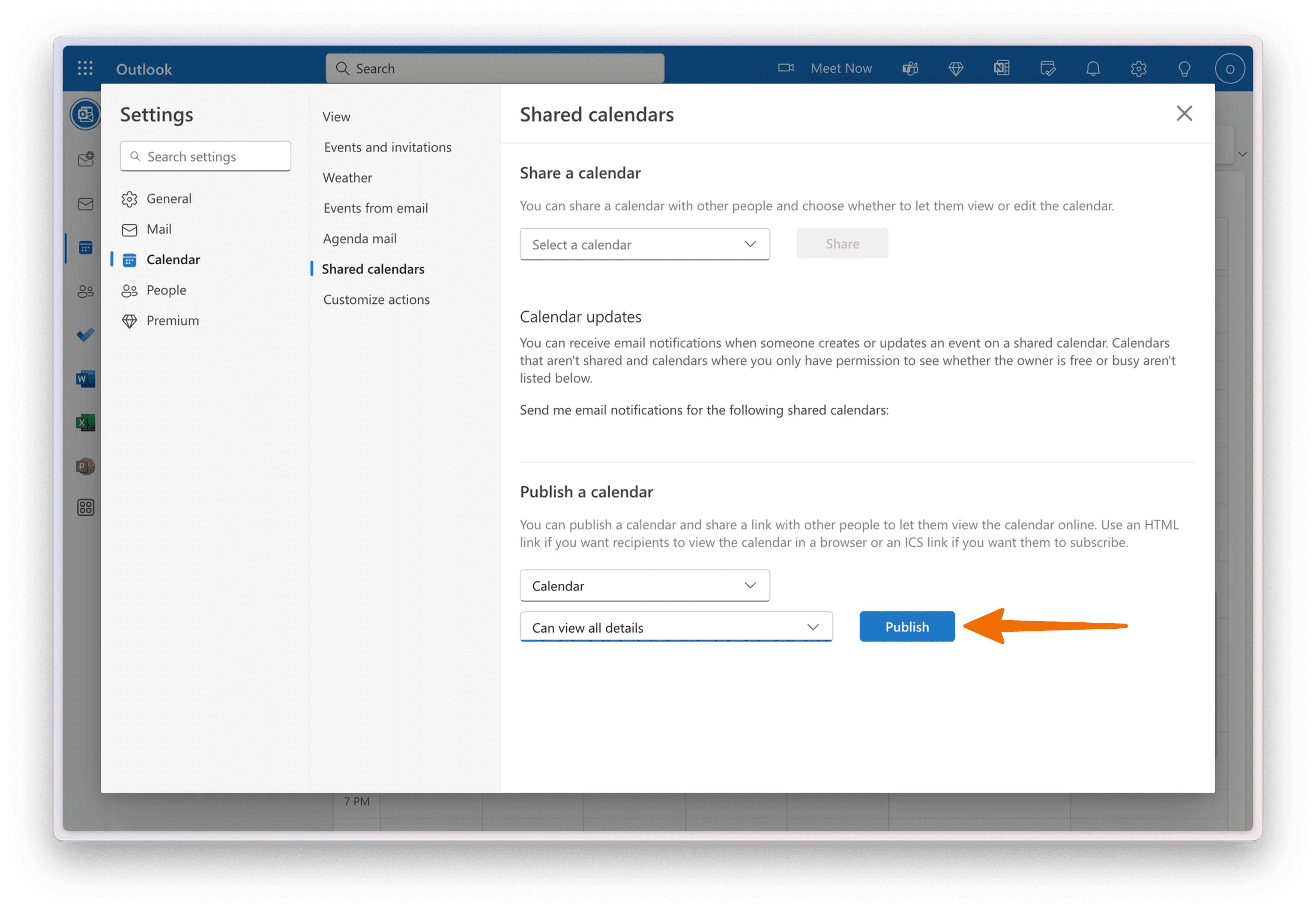
In settings, navigate to
Calendar→Shared CalendarsUnder
Publish a calendar, select your main work calendar and then selectCan view all detailsfrom the dropdownClick
Publish
Click the
ICSurl and then copy it
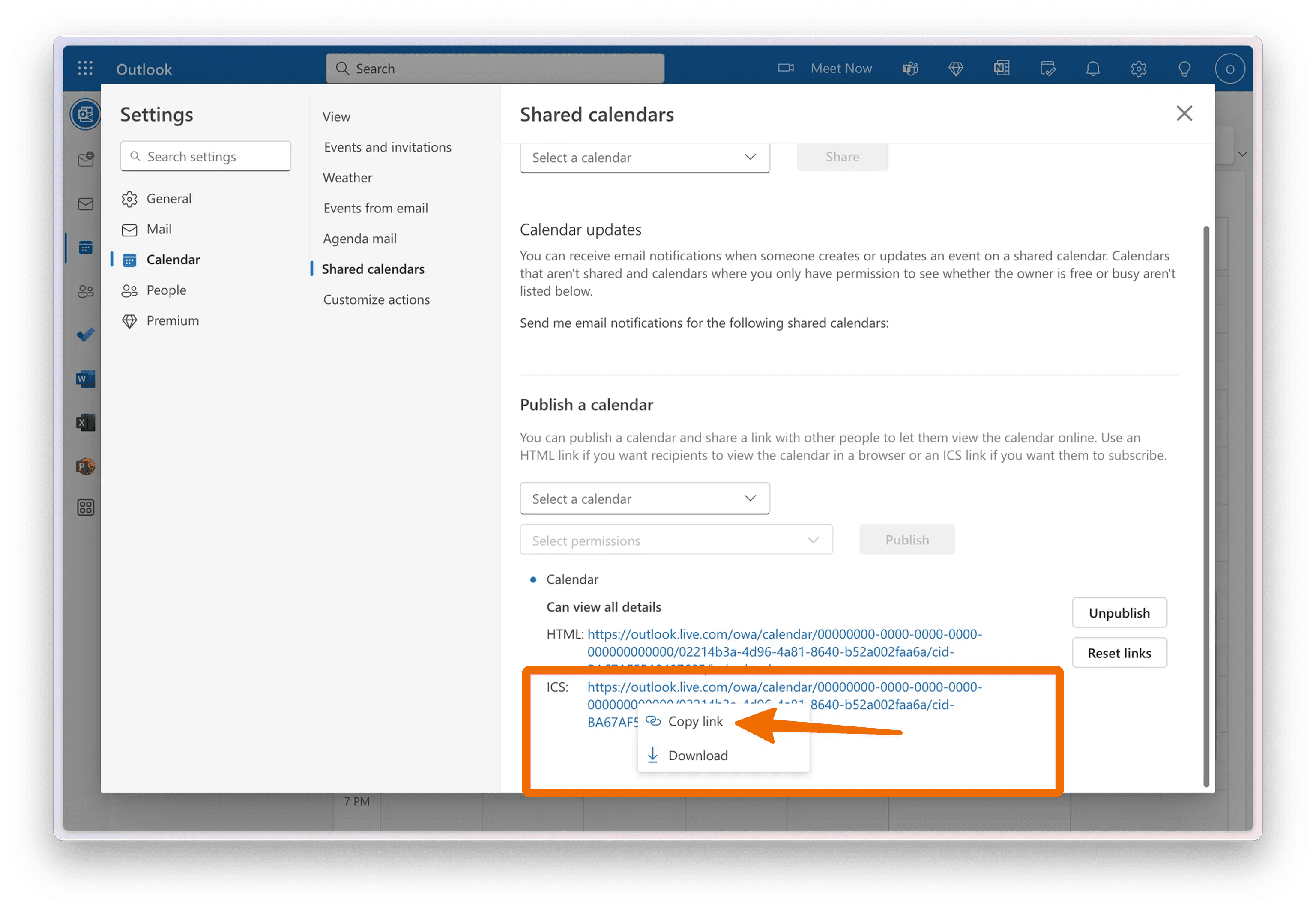
⚠️ Make sure you copy the ICS link, not the HTML link. Some organizations disable calendar publishing - if you don’t see the publish option, contact your IT admin.
3. Import into Google Calendar
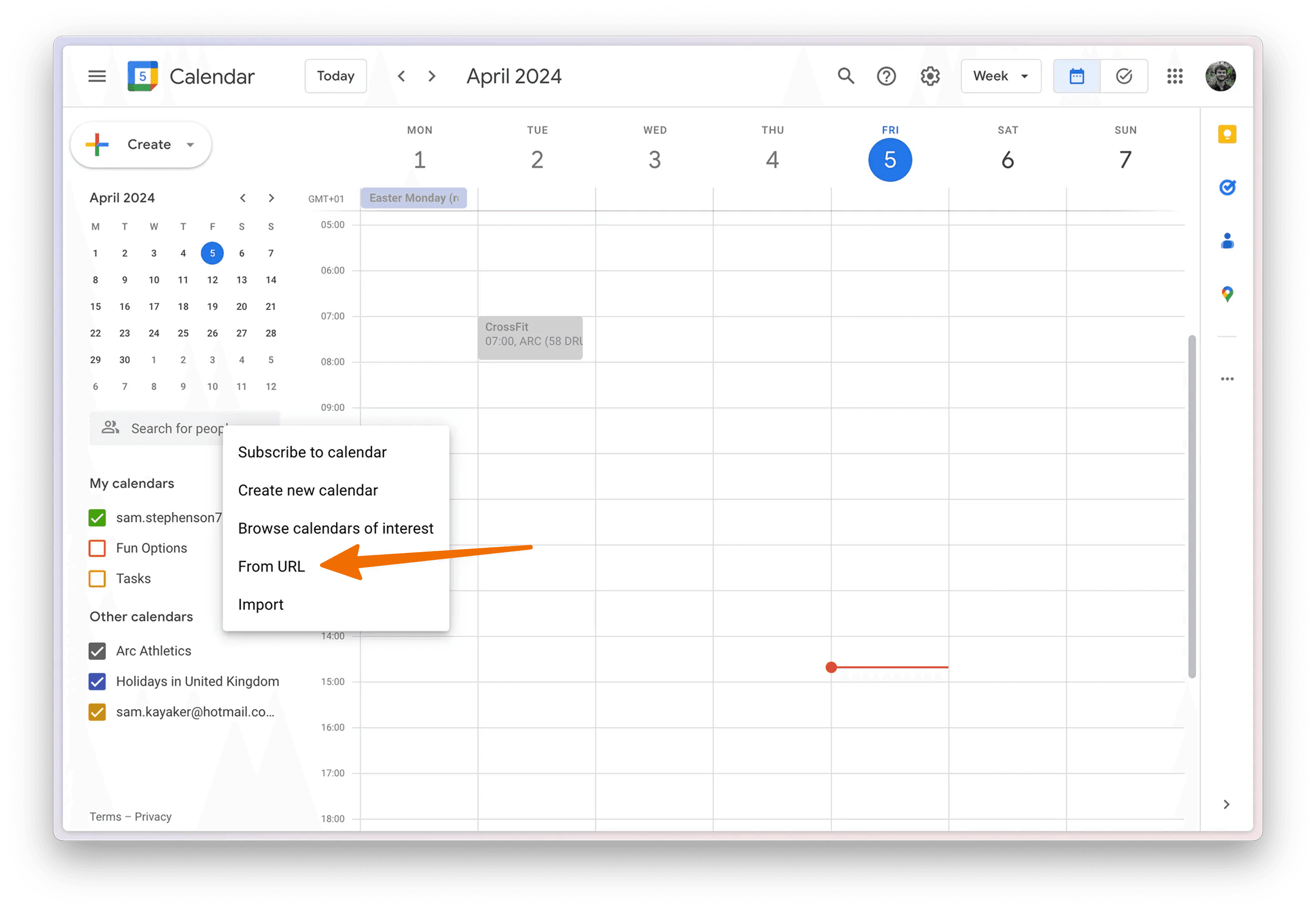
Head to Google Calendar (calendar.google.com).
Click the plus next to Other Calendars and then select From URL
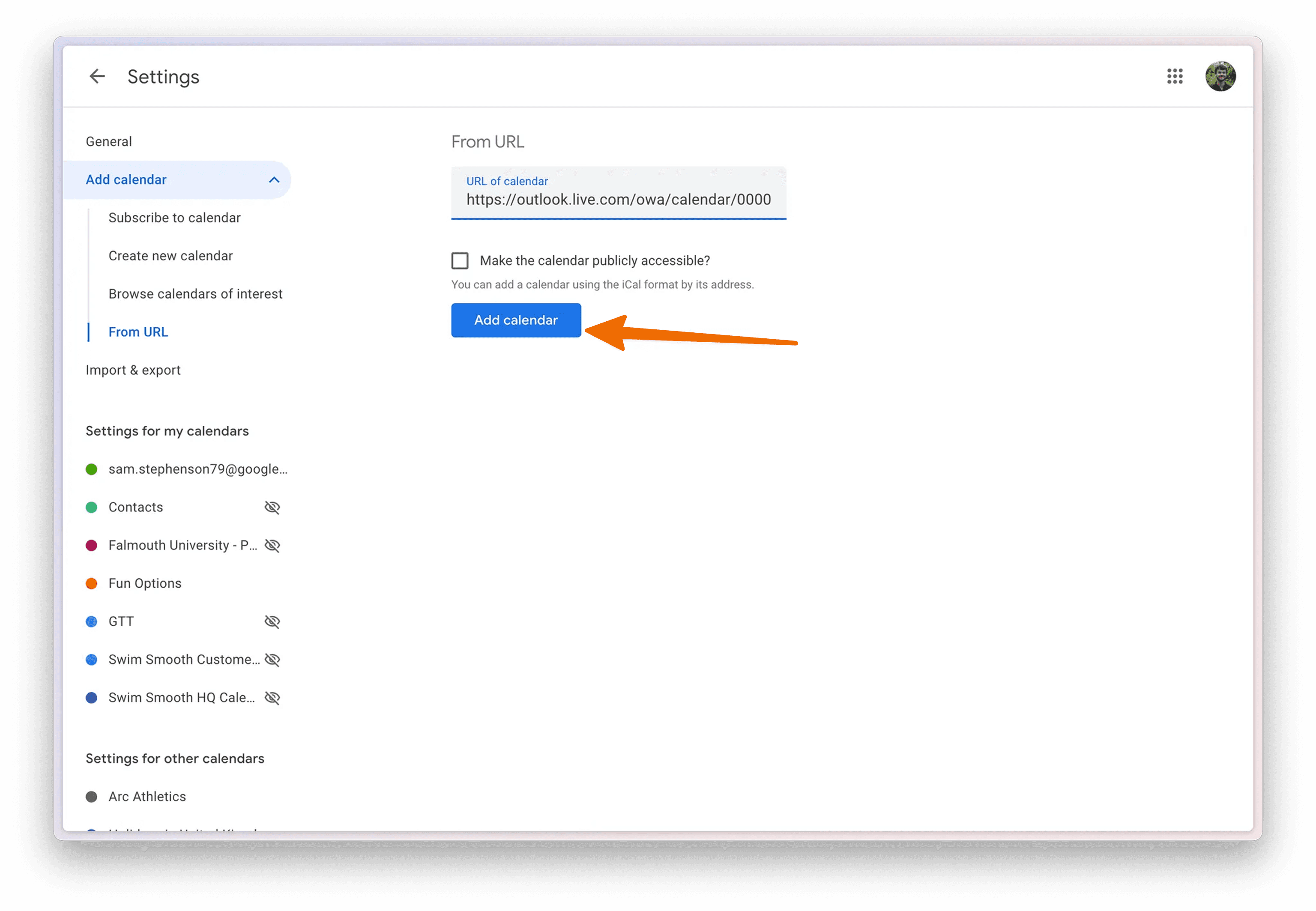
Paste the link you got from Outlook and click Add Calendar
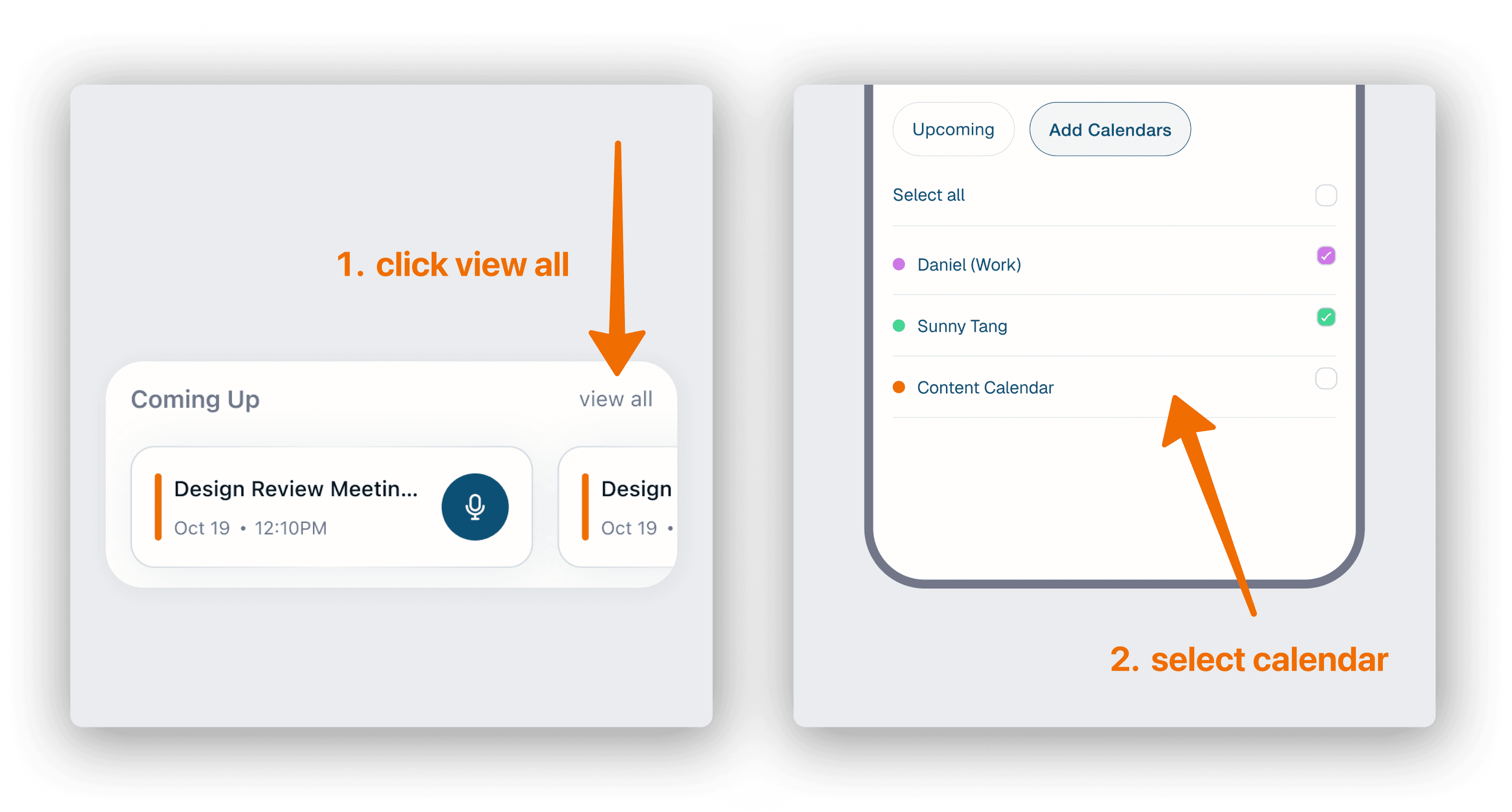
4. Select new calendar in TwinMind
In TwinMind, click the view all next to Coming Up. Your recently added calendar should appear in this list. Toggle it on to see your Outlook events.
If calendars aren’t showing up
Wait a few minutes - syncing takes time
Check Google Calendar first - make sure the calendar appears there
Verify visibility - ensure the calendar is checked/enabled in Google Calendar
For Outlook calendars - confirm you copied the complete ICS URL
Try reconnecting - disconnect and reconnect Google Calendar in TwinMind settings
Facing Any Issues? We’re Here to Help!
💬 Contact Us!
If you have any questions, run into issues, or have feedback, please join our community and contact us on Discord! We’d love to hear from you.
Helpful Links
Written by

UI/UX Designer
Share this