Managing email can get overwhelming when conversations, follow-ups, and important updates start piling up. TwinMind Email Assistant helps organize your inbox, draft replies using your emails and meetings, and save time on everyday email work. This guide explains how it works and how to get started.
What Does TwinMind Email Assistant Do?
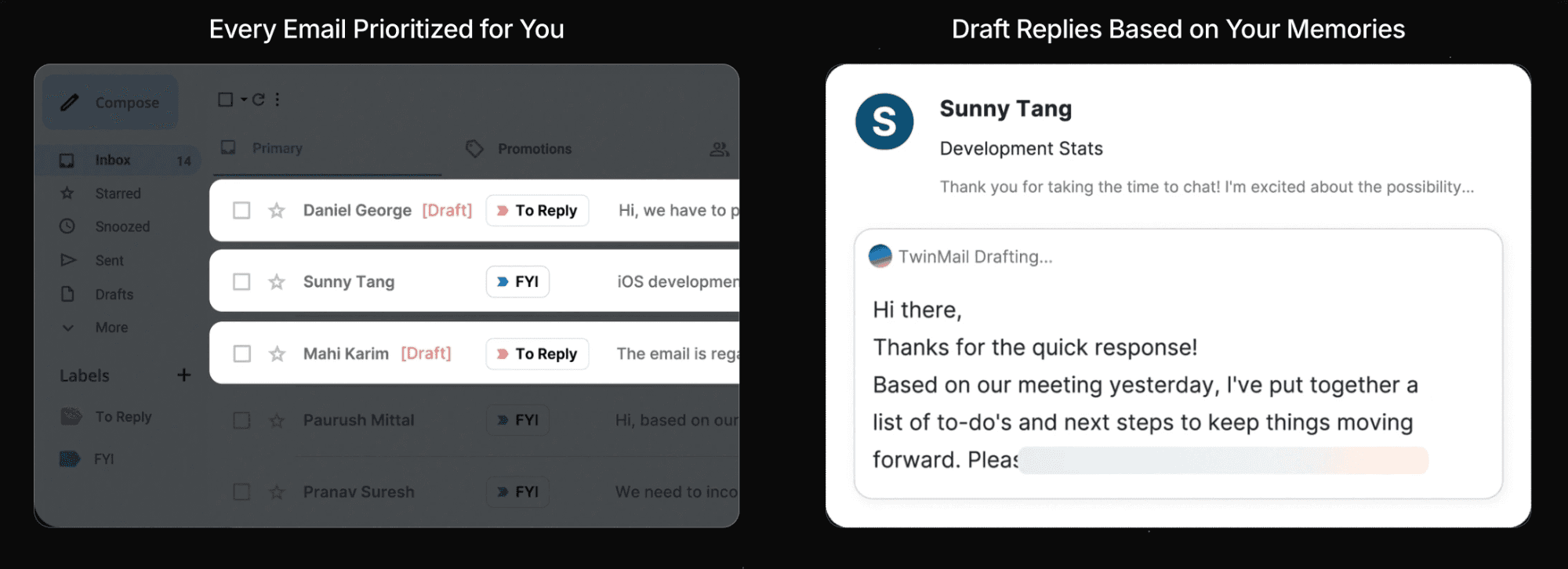
1. Inbox Sorting & Organization
TwinMind automatically sorts incoming emails into simple labels like To Reply and FYI.
Emails that need your response stay easy to find, while lower-priority updates are kept separate. This helps you quickly see what needs action and what you can read later.
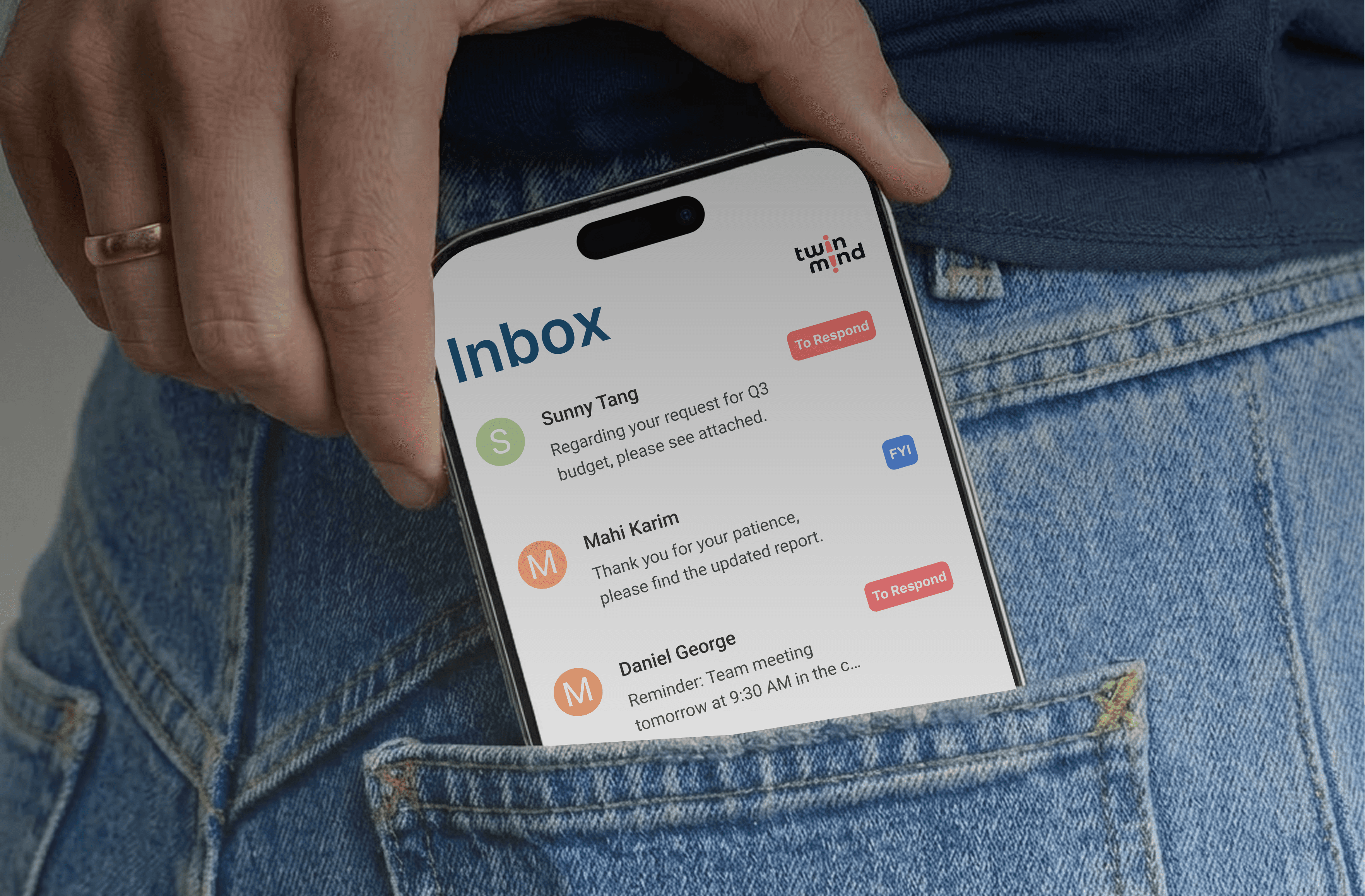
2. Drafts Replies in Your Voice
TwinMind can draft replies using context from:
your previous emails
meeting notes
conversations captured through TwinMind
For example, if someone references a discussion from a recent meeting, TwinMind can use that context while generating the draft reply.
3. Save Up to 1 Hour on Email Every Day
Instead of switching between email threads, meeting notes, and follow-ups, TwinMind keeps important context in one place.
This helps reduce inbox clutter, speeds up replies, and makes day-to-day communication easier to manage.
How to Use TwinMind’s Email Assistant
Getting started takes only a few minutes. Follow the steps below:
Step 1: Connect Your Gmail
Connect your Gmail account, and follow the onboarding steps.
Step 2: TwinMind Organizes Your Inbox
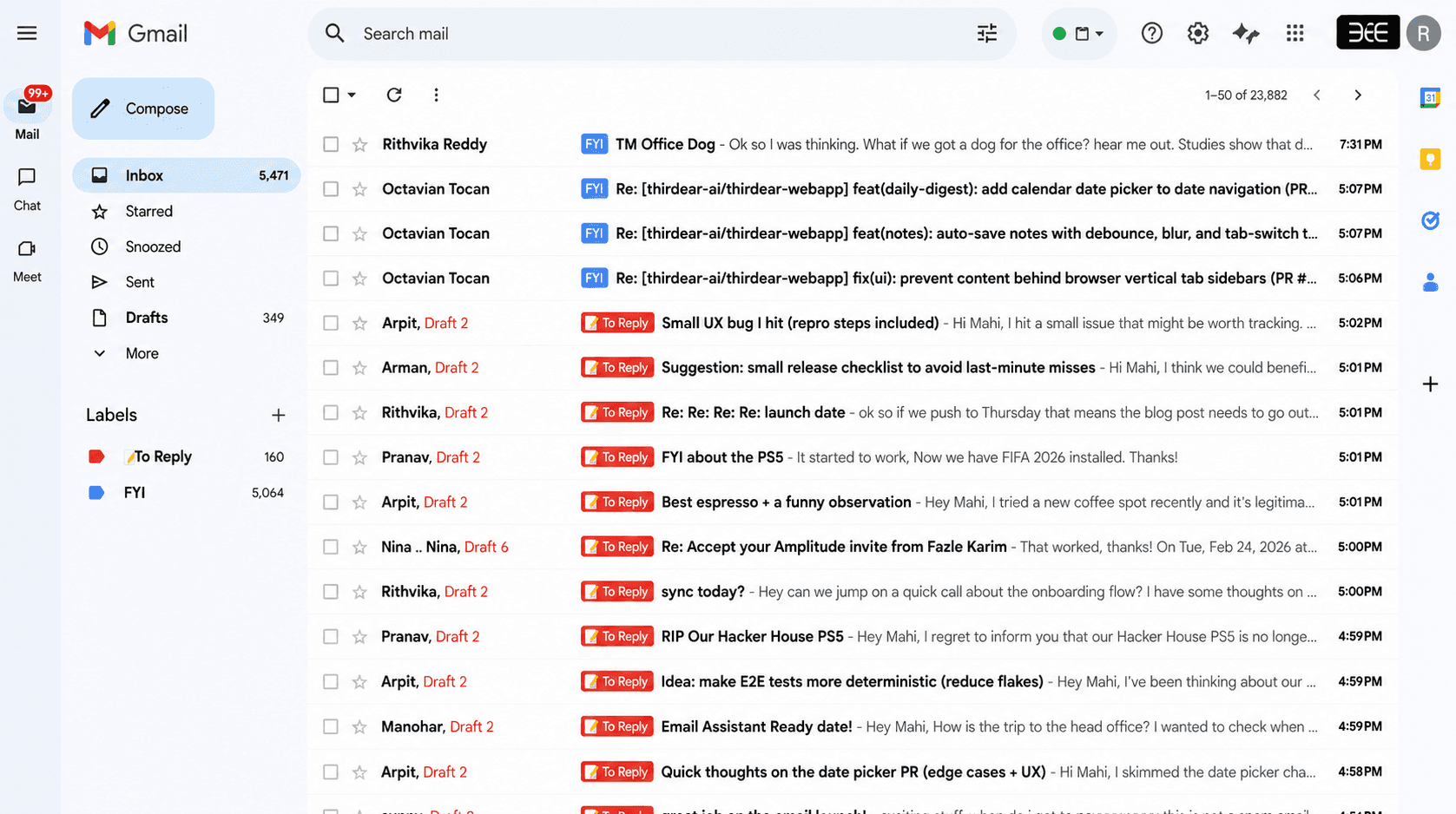
Once connected, TwinMind starts sorting your emails into simple groups like To Reply and FYI, so you can quickly see what needs your attention.
Step 3: TwinMind Drafts Replies Using Your Emails and Memories
TwinMind automatically creates draft replies for emails marked as To Reply.
You can review each draft, make changes if needed, and send it when you’re ready.
Want to Connect Another Inbox?
You can connect or change your Gmail account anytime from Settings.
Go to https://app.twinmind.com/?settings=apps, open Connected Accounts, and connect the Gmail account you want to use.
Note: Email Assistant currently works with Gmail only. Support for more inboxes is coming soon.
How TwinMind Learns Your Writing Style
TwinMind improves over time as it learns from the way you write and communicate. Here’s how it learns your voice:
Your email history: TwinMind looks at your past emails to understand your writing style, tone, and common phrasing.
Your meetings and memories: Meetings, notes, and conversations captured across TwinMind help provide additional context for draft replies.
Your edits and changes: As you review and edit drafts, TwinMind gradually adapts to your preferences.
Tip: Drafts get better when powered by meetings and conversations. Use the TwinMind mobile app or Chrome extension to capture meeting notes and conversations.
Who Is TwinMind Email Assistant For?
TwinMind Email Assistant is useful for anyone who handles a lot of email every day, including professionals, managers, sales teams, consultants, freelancers, students, and researchers.
If your inbox takes up too much time, TwinMind helps you stay on top of it with less manual work.
Frequently Asked Questions
Is TwinMind Email Assistant included in all plans?
TwinMind Email Assistant is available with the TwinMind MAX plan. MAX includes unlimited email drafts, inbox sorting, meeting notes, mobile app access, Chrome extension, and support for 140+ languages.
How long does setup take? About 3 minutes. You connect your Gmail account, and TwinMind begins organizing your inbox immediately.
Is my email data safe? Yes. TwinMind connects securely to your Gmail, and you can remove access anytime from your Google account settings.
Do I need to use the mobile app for email drafting to work? No. The mobile app is not required, but it can improve drafts by adding meeting notes and real-life conversations as extra context.
Can TwinMind integrate with my existing tools? Currently, TwinMind Email Assistant connects with Gmail. Integration with additional email clients and productivity tools is on the roadmap.
What if I want to improve my drafts further? Simply edit the draft before sending. TwinMind learns from your edits over time, progressively improving future suggestions to better match your preferences.
Facing Any Issues? We’re Here to Help!
💬 Contact Us!
If you have any questions, run into issues, or have feedback, please join our community and contact us on Discord We’d love to hear from you.
Helpful Links
Written by

UI/UX Designer
Share this