Welcome to TwinMind, Your Second Brain. We’re excited to help you capture your thoughts, conversations, and ideas. This guide will walk you through the essentials to get you started.
1) Your Home Screen
When you open TwinMind, you’ll land on your personalized home screen, your central hub for everything. You’ll see your daily highlights, upcoming priorities, memorable moments, and quick access to Capture a new note or Ask anything across your memories.
2) How to Capture a Note
Tap the orange Capture button at the bottom of your home screen to start capturing any conversation, lecture, or voice note.
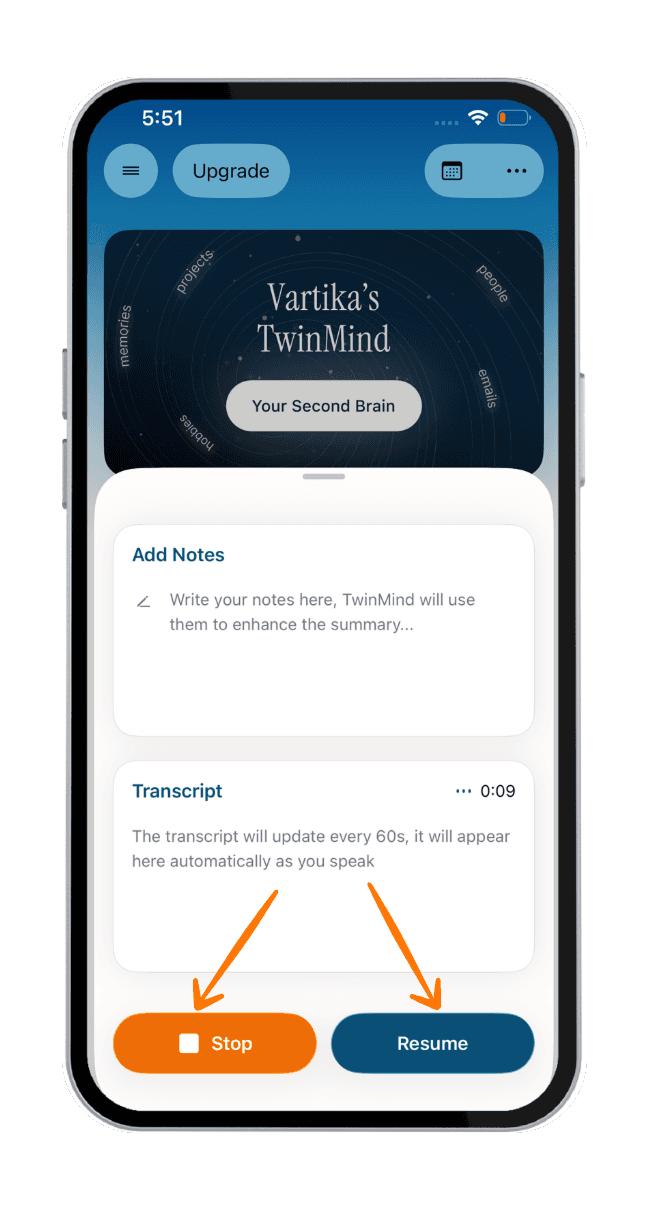
A bottom sheet will slide up showing two sections: Add Notes (where you can type your own notes to enhance the summary) and a live Transcript that updates automatically as you speak.

Use Stop to end the capture or Pause to take a break. When paused, the Pause button changes to Resume so you can pick up right where you left off.
Keep capturing while you browse: TwinMind minimizes the capture, so you can browse the app or ask questions about the ongoing conversation while it keeps capturing.
⚠️ Important Note:
Due to restrictions on both iOS and Android, if another app is using the device’s microphone during a call, TwinMind can’t access the microphone at the same time and therefore can’t capture the call.
Looking for alternatives? You can still capture calls using:
📞 Phone Call Recording — Record calls natively without microphone conflicts
⌚ Apple Watch — Use your watch as a secondary capture device, without relying on your phone’s microphone
3) How to Capture Calendar Events
TwinMind syncs with your Google Calendar so you can capture events with a single tap.
Tap the calendar icon in the top-right corner of your home screen to see your upcoming events. Tap the microphone icon next to any event to start capturing. It automatically links the note to that calendar event.

Manage your calendars: Switch to the Add Calendars tab to select or deselect which calendars appear in TwinMind.

💡 Using Apple Calendar, Outlook, or other calendars?
TwinMind currently supports Google Calendar directly. To see events from Apple Calendar, Outlook, or other providers, you’ll need to add them to your Google Calendar first. Tap “Learn how to add Outlook and other calendars” at the bottom of the Add Calendars tab for step-by-step instructions.
4) Connect Email & Calendar to Build Your Wiki
TwinMind can automatically generate a Wiki, a living knowledge base built from your emails, calendar, and captured notes, organized around the things that matter most to you, so the right context is always at your fingertips.
How to connect:
Go to Settings from the ☰ menu on your home screen.
Tap Connect Accounts and select Connect Email and/or Connect Calendar.
Grant the requested permissions. Your transcripts, notes and chats are never used to train AI models.

💡Pro Tip: The more you capture, the richer your Wiki becomes and evolves. Connecting both email and calendar gives TwinMind the full picture to surface the most relevant context at the right time.
5) What to Do After Capturing
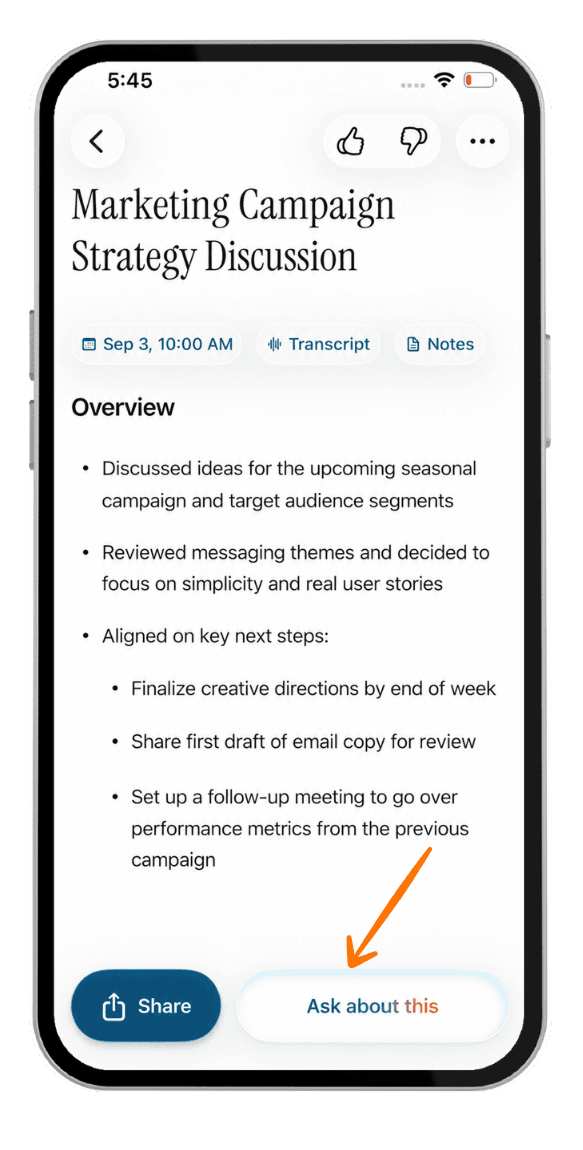
Once you hit Stop, TwinMind generates a detailed summary with an Overview, key points, and a full Transcript.
Tap into any note to see the detail view. At the top you’ll find the note title, the capture date, and quick-access pills for Transcript and Notes.
The Overview section highlights the most important takeaways from your conversation.
At the bottom of the note, you’ll see Share (to send the summary) and Ask about this (to chat with just this note).

More options: Tap the ⋯ menu in the top-right corner of any note to access additional actions:
Edit Title - Rename the note
Edit Summary - Modify the generated summary
Replay Audio - Listen back to the audio (only if Save Audio is enabled)
Separate Speakers - Identify individual speakers in the transcript (available in the paid plan)
Delete - Remove the note
💡 Pro Tip: Customize Your Summaries!
You can customize how TwinMind creates summaries by using custom instructions or templates. This lets you tailor the format and content to match your specific needs!
6) How to Access Your Past Notes and Chats
Need to find something from last week? There are two easy ways to get back to your past content.
Past notes: Tap the ☰ menu in the top-left corner of your home screen to browse all your past notes. You can also tap your profile in the menu to access account settings.
Past chats: Tap Ask anything at the bottom of your home screen, then tap the history icon in the top-right corner to see all your previous conversations.
7) How to Chat with Your Memories
Chat is your primary way of interacting with your memories.
Ask about a specific note: Open any note and tap Ask about this at the bottom of the screen. You can ask questions like “What were the main decisions made?” or “Turn this into an email.” The chat will only refer to that note’s transcript.
Ask anything across all your memories: From the home screen, tap the Ask anything button at the bottom. This lets you search and chat across your entire personal archive, all your past summaries, transcripts, and calendar events.

Pro Tip: Chat with Files!
Need to ask questions about a PDF or document? Simply use the TwinMind Web App to upload files and chat with them. This feature is coming to the mobile app soon!
8) How TwinMind Protects Your Privacy
Your privacy is our top priority. You own your data, period.
Audio is not saved: Audio is deleted after transcription by default. Only text data is saved unless you opt in to Save Audio in Settings. When Save Audio is enabled, recordings are stored until you delete them.
Optional Backups: You can choose whether to back up individual notes in settings.
Best in Class Encryption: All your data is protected with military-grade encryption, both at rest and in transit.
Enterprise Grade Compliance: TwinMind is HIPAA-ready with a BAA and has completed a SOC 2 audit with Vanta.
No Training on Your Data: We never use your personal conversations, transcripts, or data to train our models.
Ask for Consent: We highly recommend you ask for consent based on local laws, especially if you use the “Save Audio” feature in settings.
9) How to Delete Your Data
You have full control over your information.
To delete a single note or chat: Open the note/chat, tap the ⋯ menu, and select Delete or long press it to delete.
To delete your account: You can permanently delete your entire account and all associated data from the Settings menu.
Facing Any Issues? We’re Here to Help!
💬 Contact Us!
If you have any questions, run into issues, or have feedback, please join our community and contact us on Discord! We’d love to hear from you.
Written by

Product Growth & User Comms
Share this