Connect TwinMind MCP to Other Apps
Connect your AI tools to your TwinMind notes, transcripts, and tasks with TwinMind MCP. Once connected, you can use this to: search through your notes, find specific topics discussed in past conversations, retrieve full transcripts, review action items and decisions, check your tasks and deadlines, and answer questions based on your conversation history.
TwinMind MCP is generally available. Features and availability may be updated over time.
Pre-requisites
A TwinMind account with existing notes
Any app that supports MCP (or connector/plugin wherever applicable)
Most likely you will need a paid account on your AI tool.
Connect to ChatGPT
Requirements: A ChatGPT account with access to plugins/connectors
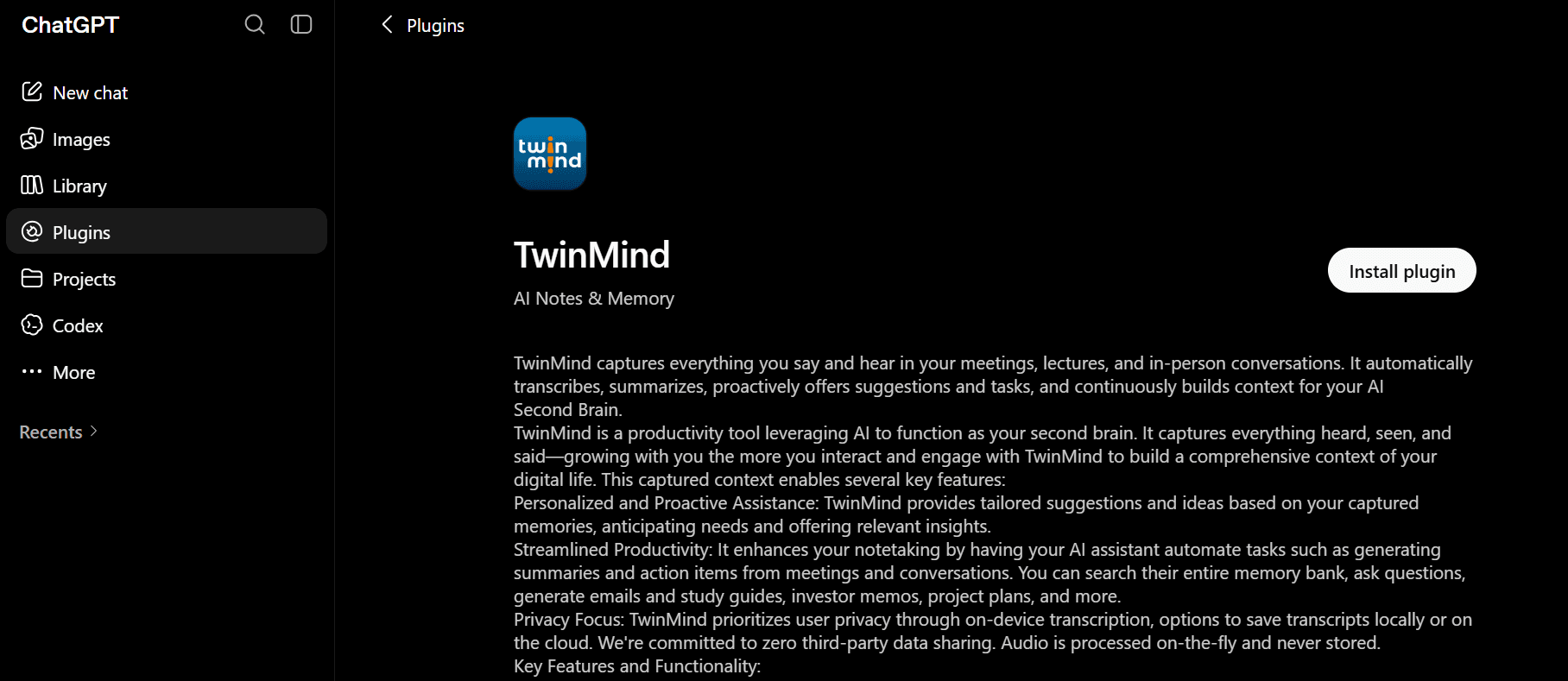
Step 1 — Open Settings
Go to chatgpt.com/plugins/twinmind and click Install plugin
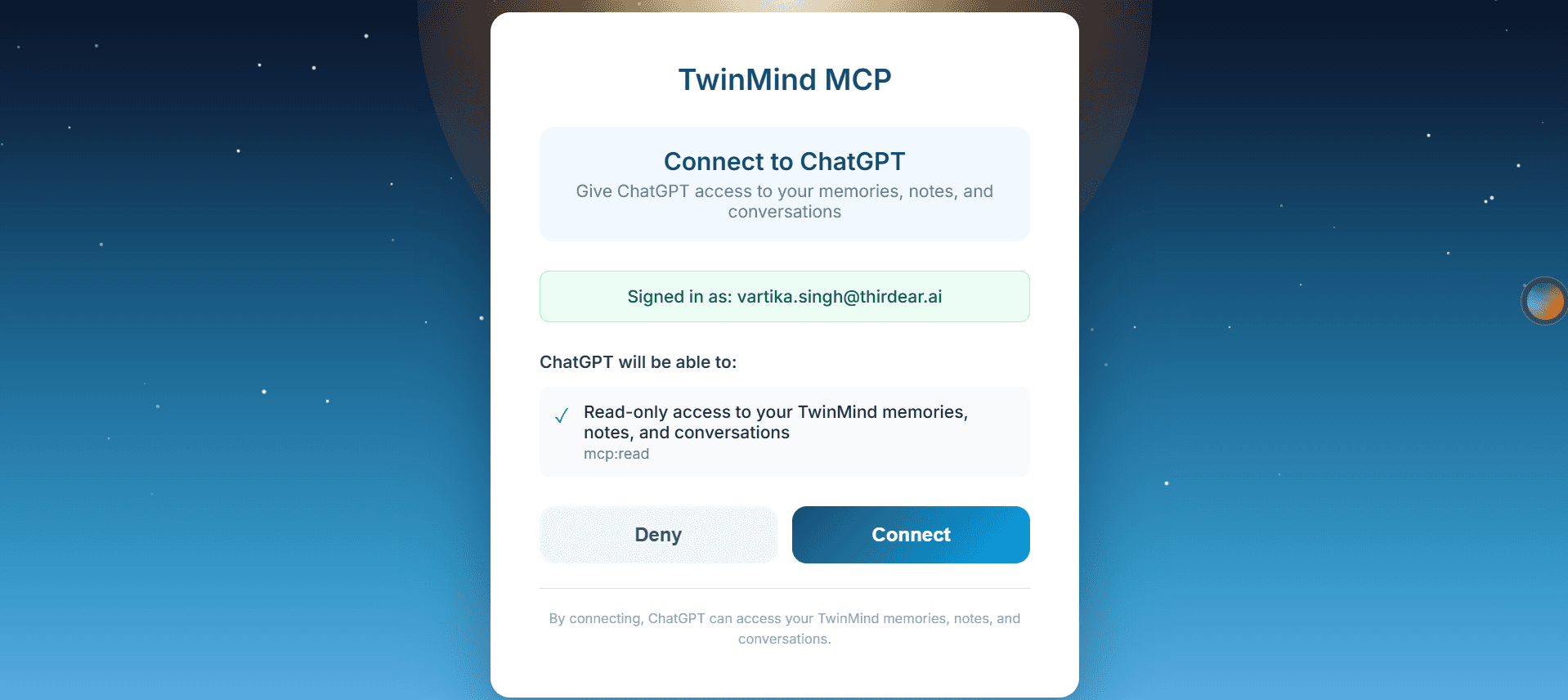
Step 2 — Authenticate
You’ll be redirected to the TwinMind sign-in page. Sign in and approve access to grant ChatGPT read-only access to your memories, notes, and conversations.
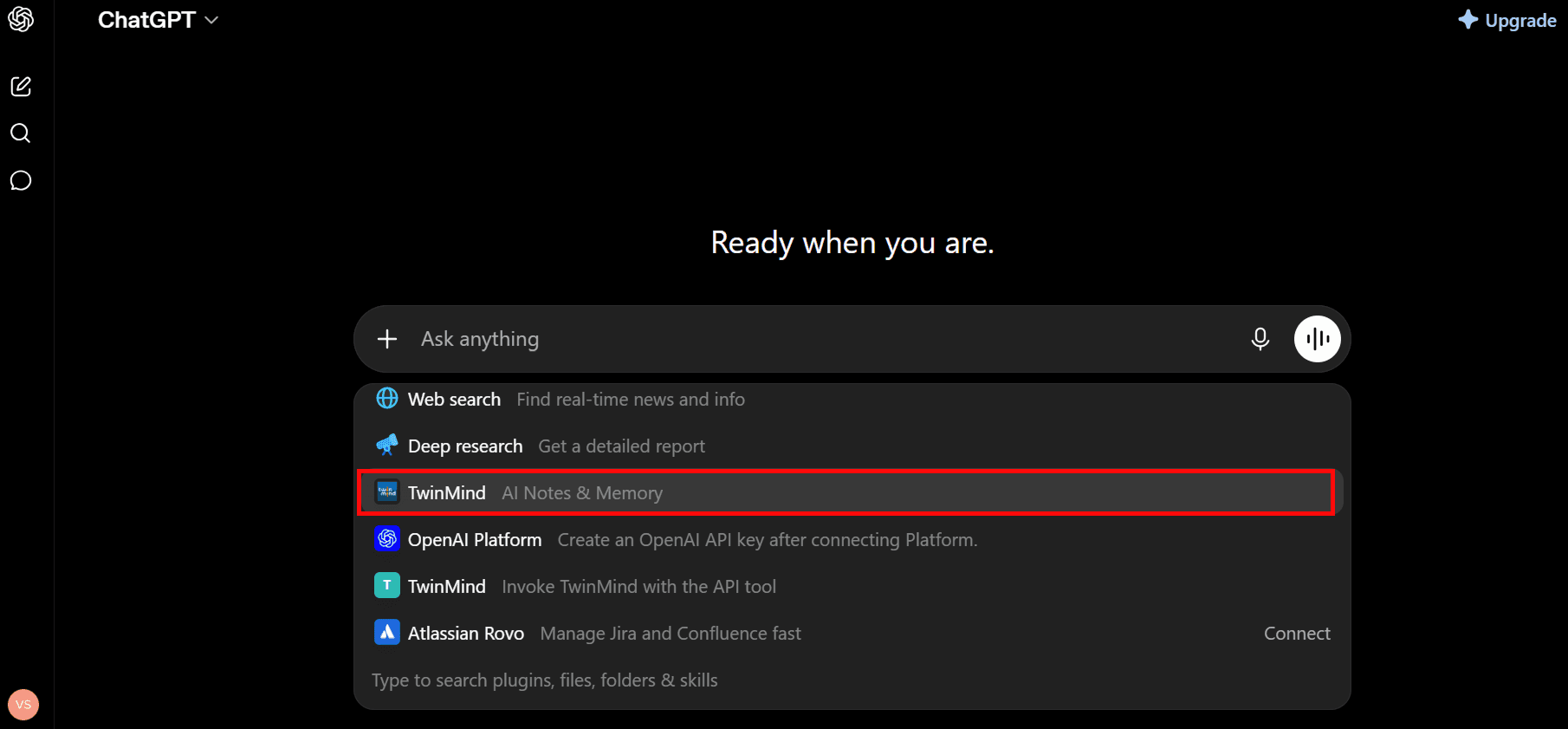
Step 3 — Enable TwinMind in Your Chat
In a new chat, click the + button in the message composer and select TwinMind from the list.
Step 4 — Start Asking Questions
Type a query like “Recap my day with TwinMind” and ChatGPT will pull data from your memories and notes.
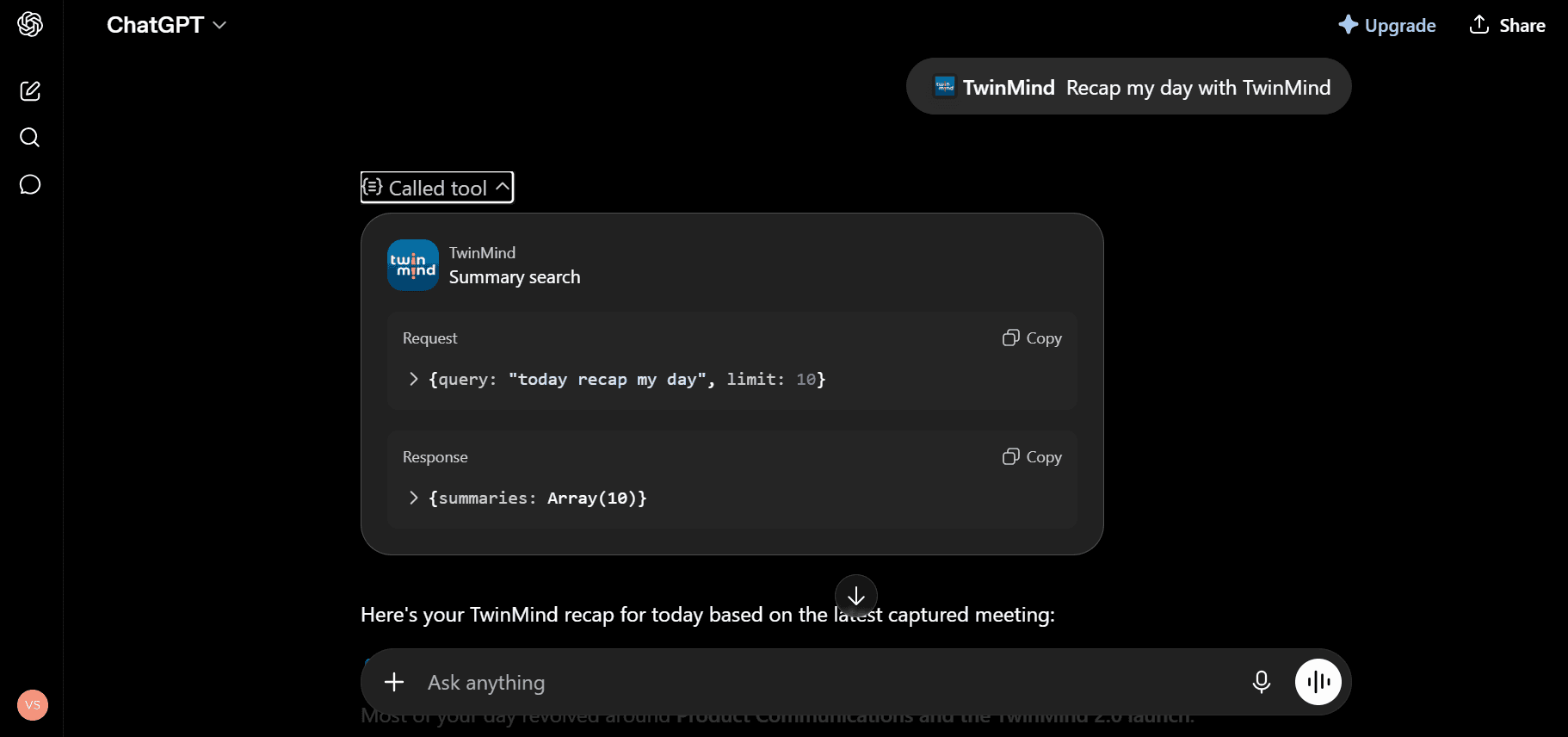
You’re all set — ChatGPT can now access your TwinMind memory.
Connect to Claude
Requirements: A Claude account at claude.ai
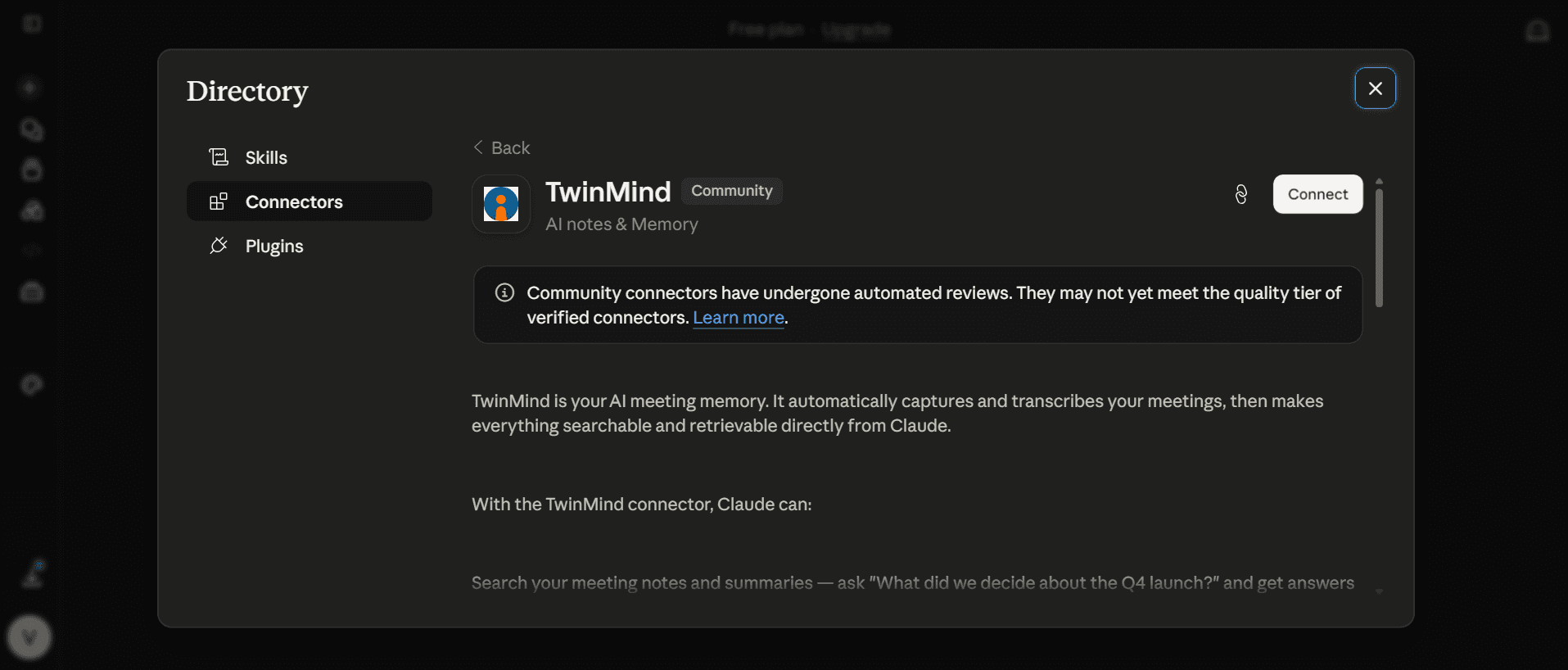
Step 1 — Open the TwinMind Connector Page
Go to claude.ai/directory/connectors/twinmind-app and click Connect.
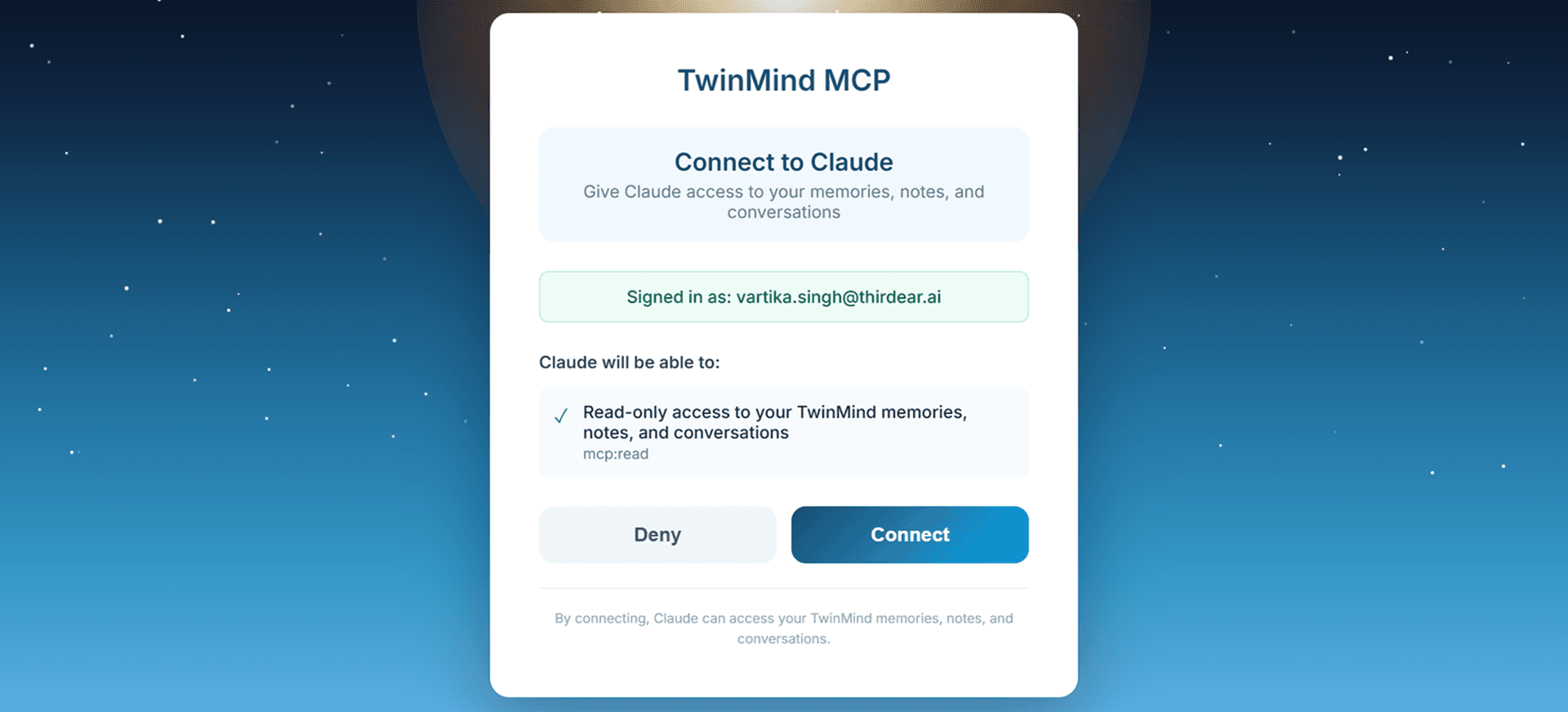
Step 2 — Authenticate
You’ll be redirected to the TwinMind sign-in page. Sign in and approve access to grant Claude read-only access to your memories, notes, and conversations.
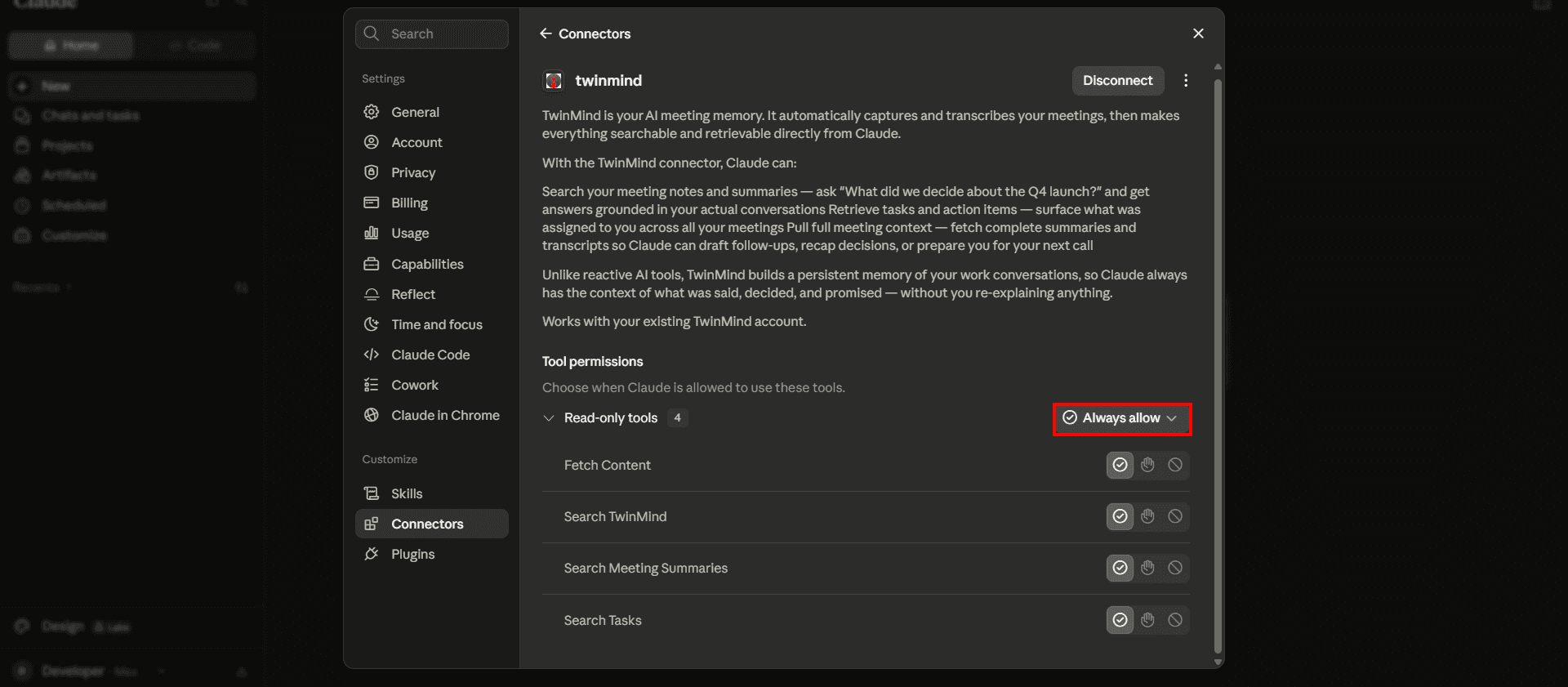
Step 3 — Enable in Chat
Your connector page should now show TwinMind as connected. Select “Always allow” under Tool permissions to allow tool use.
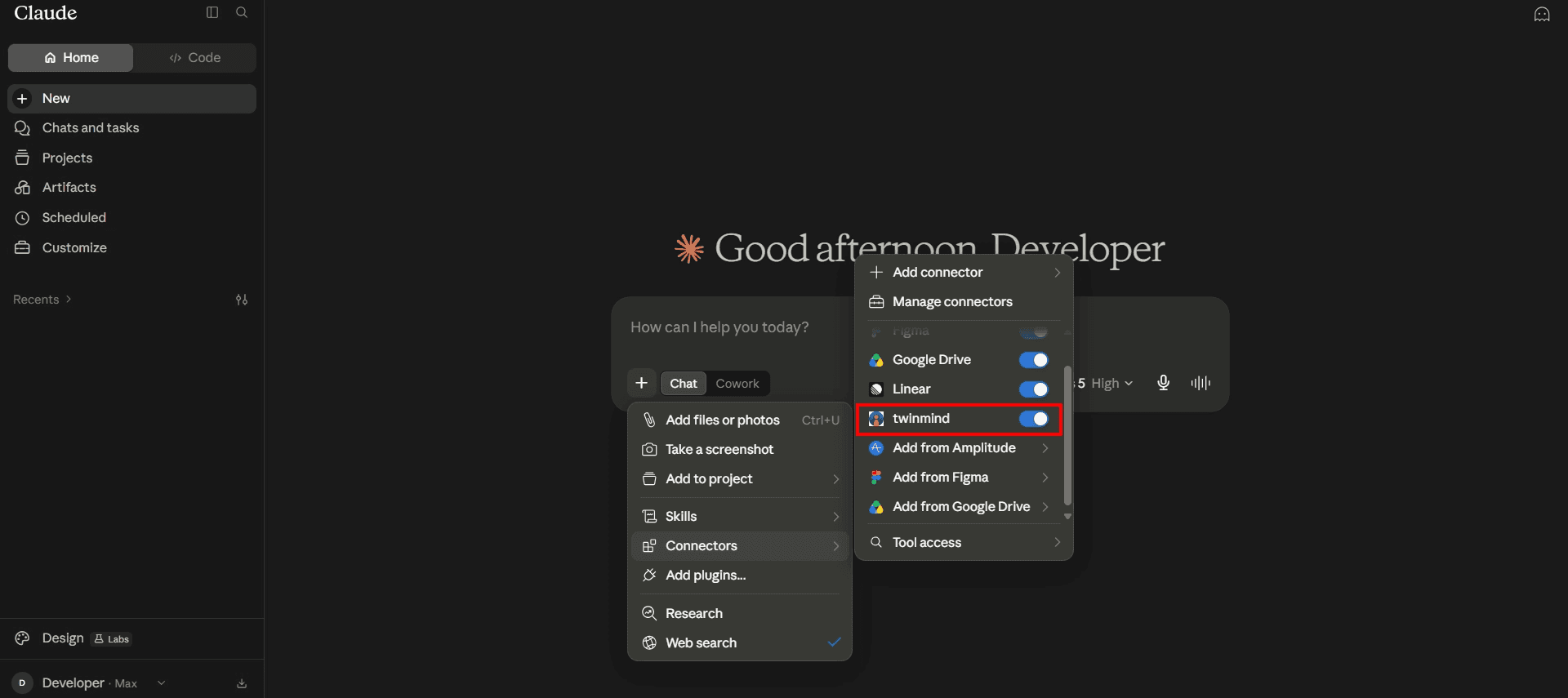
To use it in a conversation, make sure the TwinMind toggle is enabled in the chat toolbar.
Step 4 — Start Asking Questions
Type a query like “List the high priority tasks in my TwinMind” or “What was discussed in yesterday’s call?”
Click Always Allow (if prompted) to access your TwinMind memories.
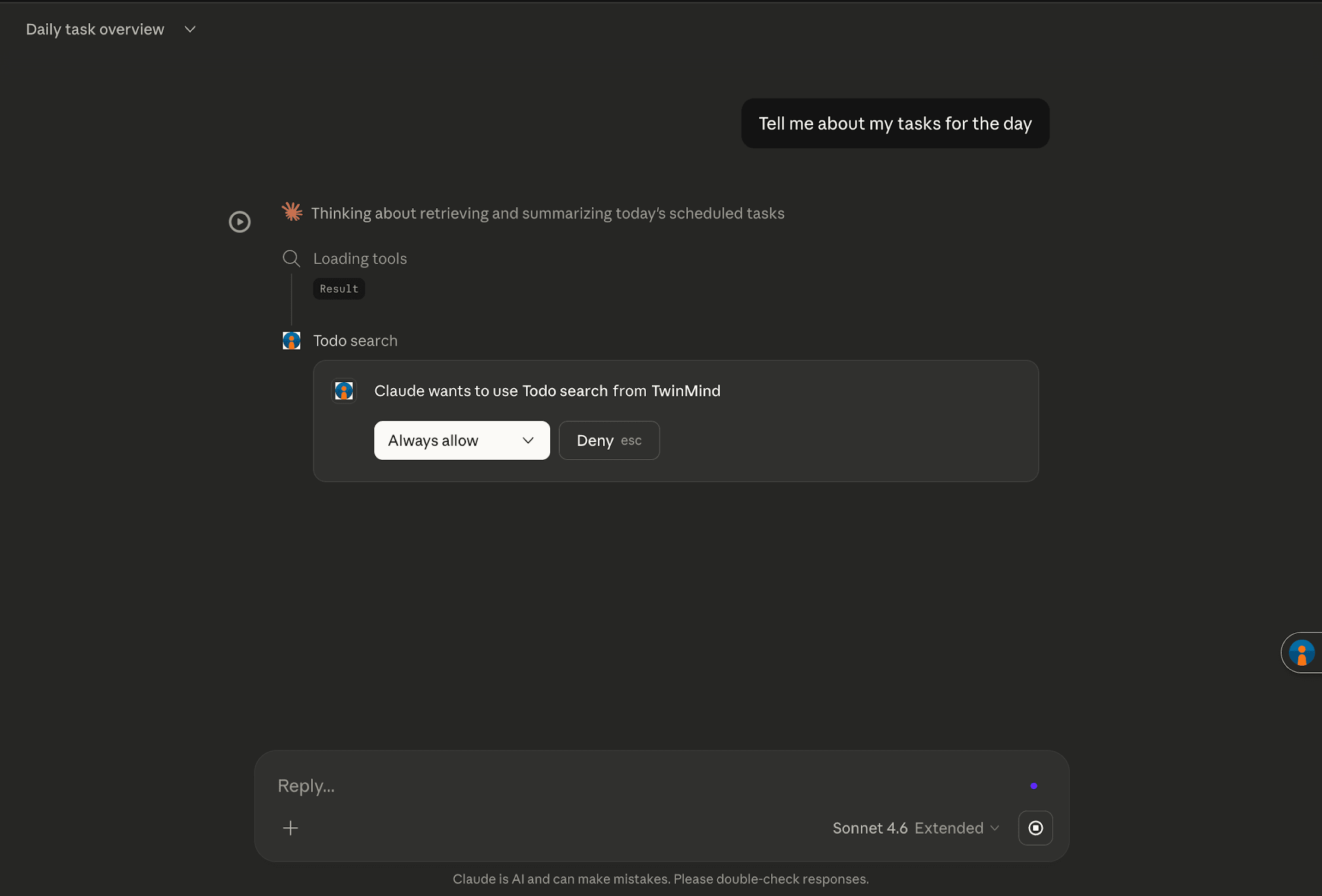
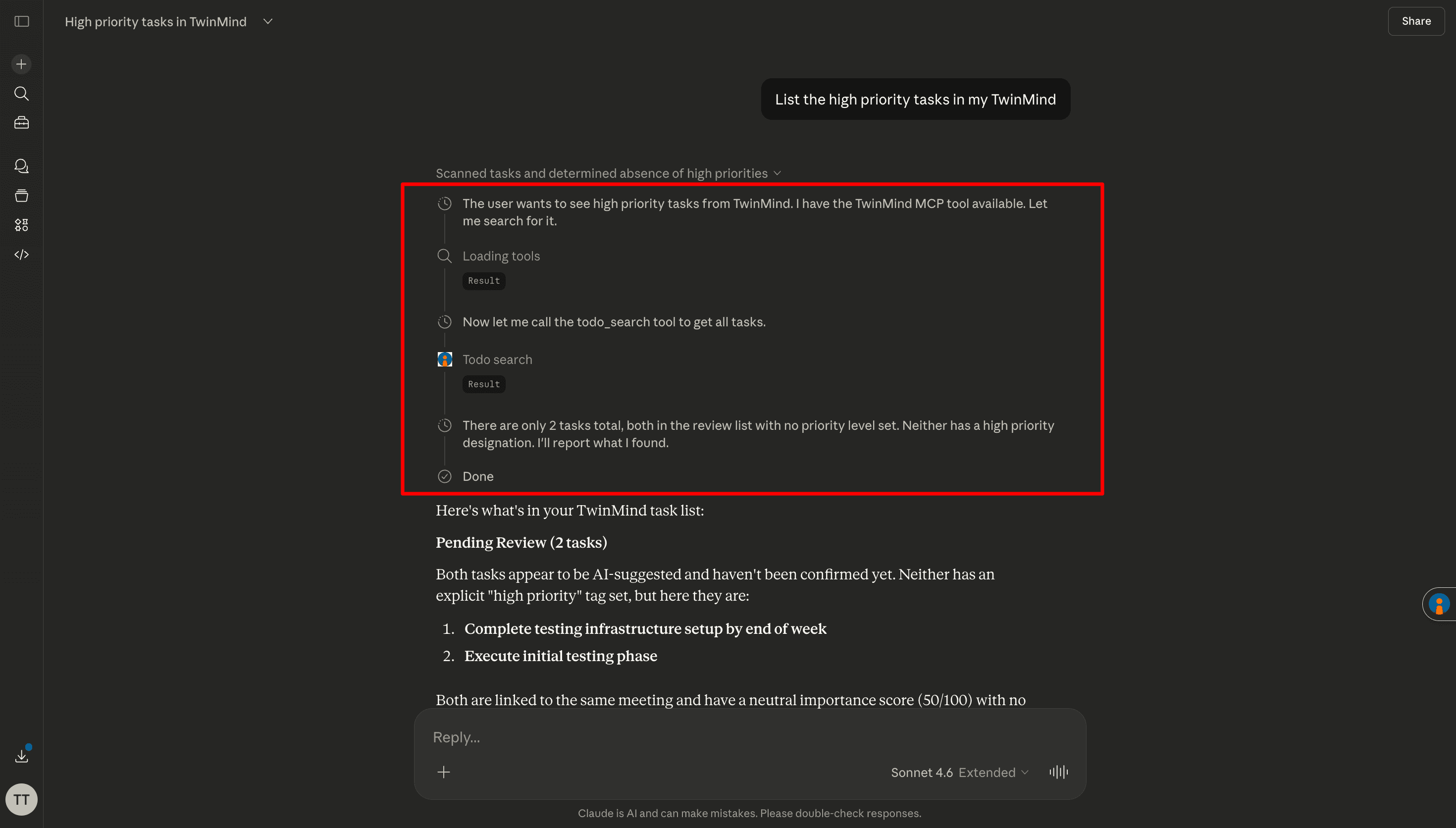
That’s it — Claude can now search your TwinMind memories to answer your questions!
Connect to Claude Code (CLI)
If you’re using Claude Code in the terminal, you can connect to the TwinMind MCP server using the command below-
claude mcp add --transport http twinmind <https://api.twinmind.com/mcp>
Open a new terminal tab and run
claudeagainRun
/mcp, select the TwinMind MCP, and select AuthenticateAsk Claude to reference your meetings
Connect other AI tools
You can manually connect to the TwinMind MCP by using the public URL below as a custom connection.
https://api.twinmind.com/mcp
Your AI tool must support:
MCP client protocol using Streamable HTTP transport
OAuth 2.0 authentication — the server uses browser-based OAuth, so your tool needs to be able to open a browser window for the user to sign in to TwinMind. After sign-in, the tool receives a bearer token to include in subsequent requests.
Each user authenticates individually through the browser OAuth flow. There is no API key or service account access method for MCP.
Tools and descriptions
Tool | What it does | Example prompts |
|---|---|---|
| Search across your notes and tasks by keyword or topic. | “Find all meetings where we discussed the product launch.” |
| Browse your summaries with filters for keywords, topics, and date ranges. | “What meetings did I have about hiring last week?” |
| Get the full details of a specific memory, including the complete transcript. | “Show me the full transcript from my Monday standup.” |
| View your tasks and action items with their deadlines, priorities, and status. | “What are my pending tasks and their deadlines?” |
Example prompts by use case
Finding past meetings
“What did we discuss in last week’s product planning meeting?”
“Find all my meetings with Sarah from January.”
Retrieving transcripts
“Pull the full transcript from my engineering sync on Monday.”
“What exactly did the client say about the timeline?”
Reviewing action items
“What action items came out of our investor pitch prep?”
“What are the remaining tasks for each person on this project?”
Checking tasks
“Show me all my pending tasks and their deadlines.”
“What tasks are due this week?”
Tracking decisions across meetings
“Summarize everything we’ve discussed about the Q3 roadmap.”
“What decisions did we make about pricing in the last month?”
Preparing for upcoming meetings
“Give me a summary of all past conversations with Acme Corp before my call tomorrow.”
“What open action items should I follow up on in today’s standup?”
Permissions
TwinMind gives your AI tool read-only access to your account. Your AI tool can search and view your memories, transcripts, and tasks but cannot create, edit, or delete anything in your TwinMind account.
Disconnecting
You can disconnect TwinMind from your AI tool at any time:
Go to Settings > Connectors/Plugins in your AI tool
Find TwinMind and click Disconnect
This revokes your AI tool’s access to your TwinMind data immediately.
Troubleshooting guide
MCP tools not working
If your AI tool says it can’t access your notes or use TwinMind MCP tools:
Re-authenticate: Disconnect and reconnect TwinMind in your AI tool’s settings.
Check your connection: Make sure you have a stable internet connection.
Restart the app: Close and reopen your AI tool.
Start a new conversation: Some issues resolve by beginning a fresh chat.
No results returned
Make sure you have existing notes in your TwinMind account.
Try broadening your search query — use general keywords rather than very specific phrases.
Check that you’re searching within the right time range.
Claude Code connection issues
If the MCP server doesn’t connect in Claude Code:
Verify the command was entered correctly:
claude mcp add --transport http twinmind <https://api.twinmind.com/mcp>
Open a new terminal tab and run
claudeagain.Run
/mcpto check the connection status.If the server shows as disconnected, try removing and re-adding it:
claude mcp remove twinmind
claude mcp add twinmind --transport http <https://api.twinmind.com/mcp>
General FAQ
Do I have to use the same email address for my AI tool and TwinMind?
No, you can use different accounts for your AI tool and TwinMind. During setup, you’ll authenticate the TwinMind account you want your AI tool to have access to.
Why can’t I find a certain memory?
The MCP tools can only access memories in your own TwinMind account. If a memory isn’t showing up, make sure it was captured and saved in TwinMind. Try broadening your search with different keywords or a wider date range.
Is my data sent to the AI tool?
When you ask a question, TwinMind sends the relevant data (such as notes, summaries, or transcript excerpts) to your AI tool so it can generate a response. Only data relevant to your query is shared — your full archive is not sent.
Can I use TwinMind MCP on mobile?
Yes — On Claude, visit claude.ai/directory/connectors/twinmind-app from your mobile browser to connect TwinMind, and it will be available in the Claude iOS and Android apps. Similarly on ChatGPT, visit chatgpt.com/plugins/twinmind to add the plugin.
Can I connect TwinMind MCP to my own internal AI tool?
Yes — any tool that implements the MCP client specification with Streamable HTTP transport can connect to TwinMind MCP. Your tool will need to handle the OAuth 2.0 browser authentication flow so that each user can sign in to their TwinMind account. See the “Other AI tools” section above for technical details.
If you’re building a custom integration and need help, reach out to support@twinmind.com.
Security and privacy
All data is transmitted securely over HTTPS/TLS.
TwinMind MCP provides read-only access — no data in your account can be modified.
Your AI tool only accesses data when you explicitly ask a question — nothing is accessed in the background.
You can revoke access at any time by disconnecting the connector.
For more details, see the TwinMind Privacy Policy.
Support
If you have questions or need help with TwinMind MCP:
Email: support@twinmind.com
Website: twinmind.com
Contact: twinmind.com/contact
Written by

Chief of Staff
Share this