The best thoughts show up at the worst times. Walking into a meeting. Right as you set your phone down. By the time you find the app and hit capture, the moment has moved on.
Widgets fix that. Put a TwinMind widget on your home screen, and you can start capturing or open chat right from there.
Capture or chat in just one tap
Add both TwinMind widgets to your home screen for instant access.
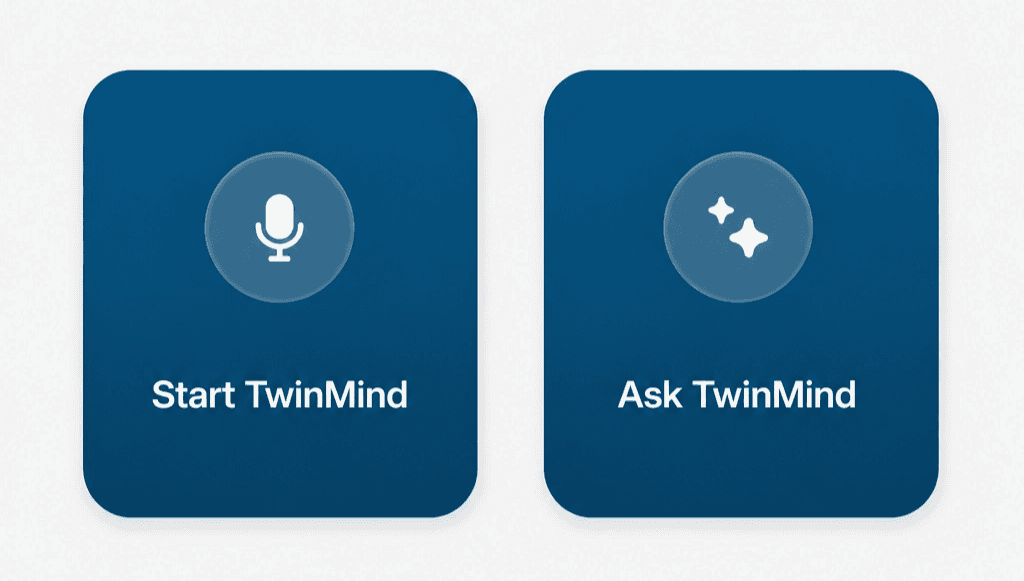
1. Capture
Tap it and the capture starts. It’s the quickest way to catch a thought or a conversation you didn’t plan for. Everything you capture syncs across your devices and transcribes on its own, so it lands in the same place as the rest of your notes.
2. Chat
Tap it and it opens a chat with your second brain. Ask a question, or pull up something you talked about last week, without digging through the app to find it.
How to add a widget
On iPhone
Touch and hold an empty area of your home screen until the apps jiggle.
Tap the edit button in the top-left corner.
Search for TwinMind and pick the widget you want.
Tap Add Widget, then place it where you like.
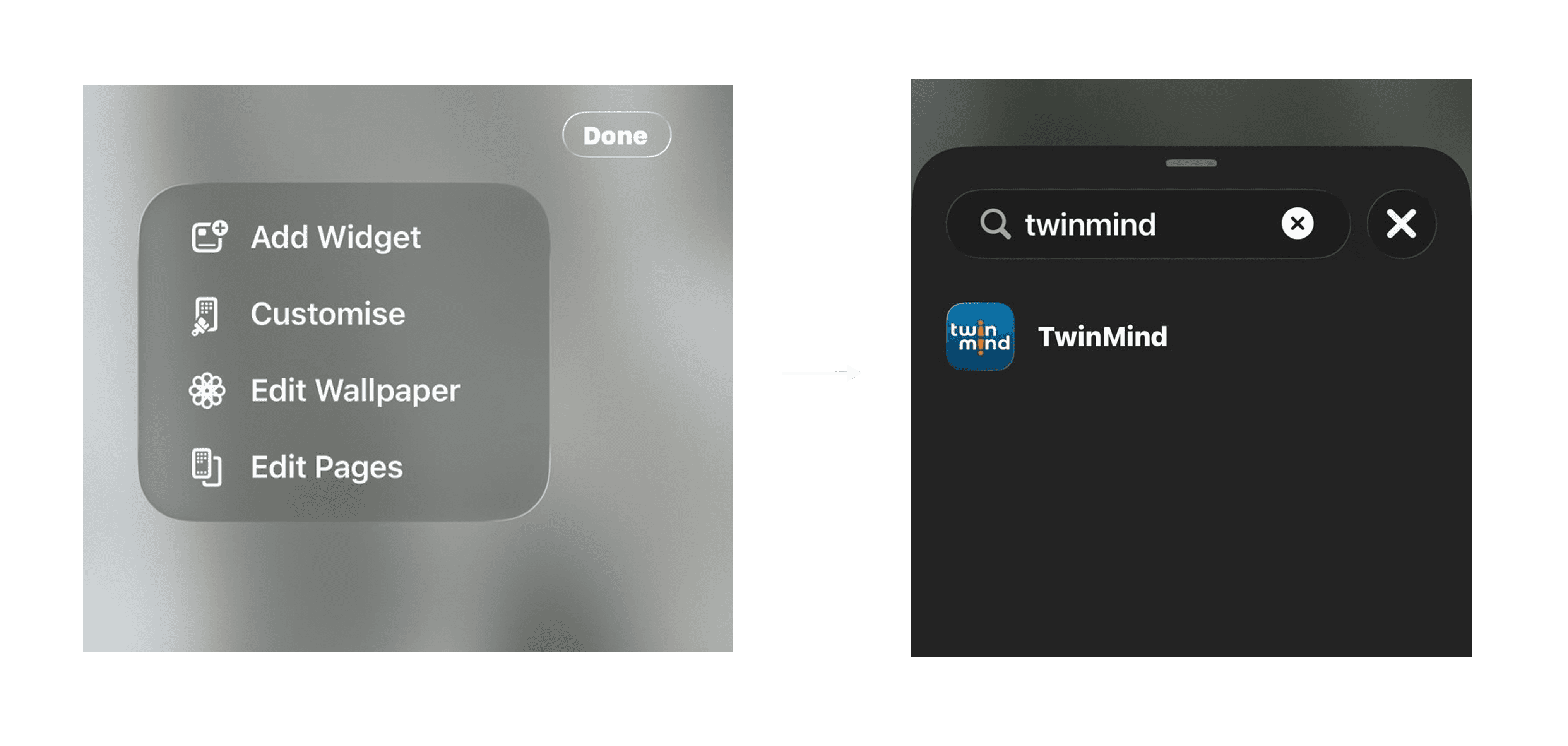
You can also put one on your lock screen: touch and hold the lock screen, tap Customize, choose Lock Screen, tap the area below the time, and add TwinMind.
Refer to Apple’s official guide on widgets for a quick walkthrough.
If you have an iPhone 15 Pro or later, the Action Button can do the same job as the Capture widget. One press starts the capture, without even unlocking your phone.
Open Settings, then Action Button.
Swipe across to Shortcut.
Tap Choose a Shortcut and pick the TwinMind shortcut.
One press now starts it, so the moment a thought lands, you press and talk. Refer to Apple’s official guide on action button for a quick walkthrough.
On Android
Touch and hold an empty area of your home screen.
Tap Widgets.
Find TwinMind in the list.
Touch and hold the widget, then drag it onto your home screen.
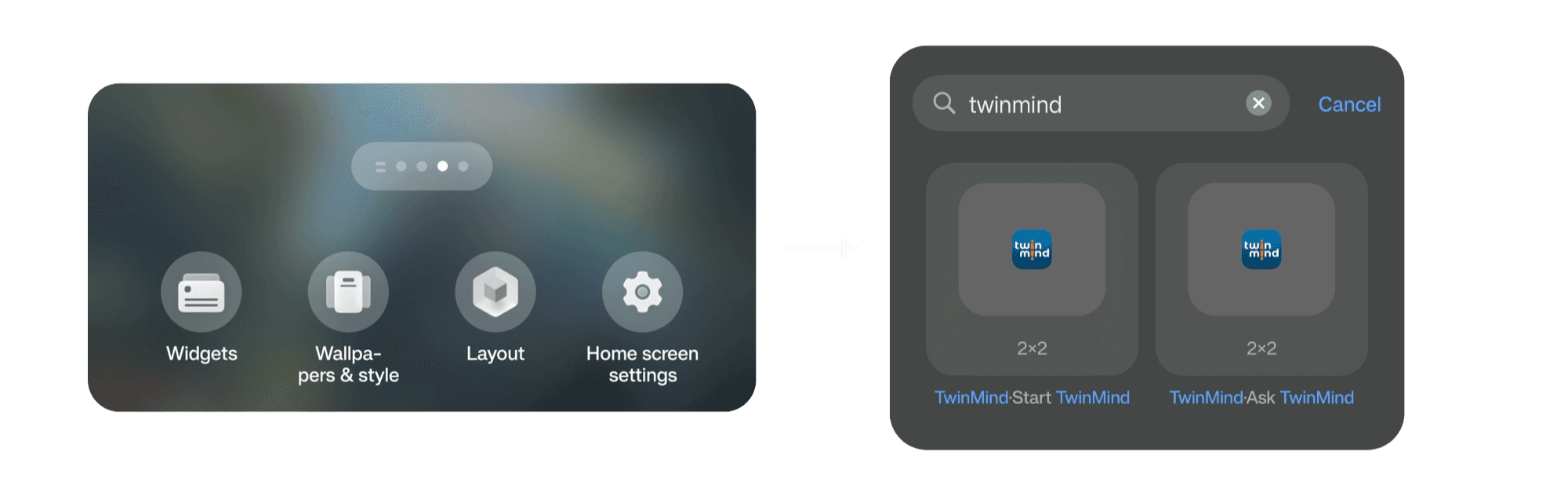
Exact steps vary slightly by phone and version. You can also refer to Google’s official guide on widgets.
Set it once
Add the widgets once and you’re done. From then on, the capture and chat widgets put TwinMind right where you already are, so the next time something is worth remembering, you’re not hunting for the app first.
Facing Any Issues? We’re Here to Help!
💬 Contact Us!
If you have any questions, run into issues, or have feedback, please join our community and contact us on Discord ! We’d love to hear from you.
Written by

Product Growth & User Comms
Share this