Subscription & Pricing
Subscription & Pricing
Is TwinMind free?
Is TwinMind free?
Yes, TwinMind offers a Free plan that includes unlimited transcription, unlimited AI chats and summaries and real-time suggestions
Yes, TwinMind offers a Free plan that includes unlimited transcription, unlimited AI chats and summaries and real-time suggestions
How much does the Pro plan cost, and what's included vs. the free plan?
How much does the Pro plan cost, and what's included vs. the free plan?
TwinMind currently offers the Pro plan at $15/month or $12.50/ month (billed annually)
It includes:
Everything in the Free plan
Premium transcription in 100+ languages
Access to the best AI models (e.g., ChatGPT, Claude, Gemini, etc.)
Larger context for deeper analysis
Priority support
TwinMind currently offers the Pro plan at $15/month or $12.50/ month (billed annually)
It includes:
Everything in the Free plan
Premium transcription in 100+ languages
Access to the best AI models (e.g., ChatGPT, Claude, Gemini, etc.)
Larger context for deeper analysis
Priority support
Is there a free trial?
Is there a free trial?
TwinMind provides a free trial (7 days) only on max plan
TwinMind provides a free trial (7 days) only on max plan
I referred someone / was referred via a link. Do both of us get Pro access?
I referred someone / was referred via a link. Do both of us get Pro access?
Yes, both the referrer and the new user receive a free Pro subscription for 1 month.
Yes, both the referrer and the new user receive a free Pro subscription for 1 month.
Does my Pro subscription work across all my devices? What happens if I change phones?
Does my Pro subscription work across all my devices? What happens if I change phones?
Yes, your Pro subscription is linked to your account, not the device. It applies across all devices where you are signed in with the same account credentials. Simply sign in with the same account on your new device and your Pro status will carry over.
Yes, your Pro subscription is linked to your account, not the device. It applies across all devices where you are signed in with the same account credentials. Simply sign in with the same account on your new device and your Pro status will carry over.
What is TwinMind Max — what does it cost, what's included, and how does it differ from Pro?
What is TwinMind Max — what does it cost, what's included, and how does it differ from Pro?
TwinMind Max is the top performance plan priced at around $39.99/month (with some early users getting discounted pricing).
It includes everything in Pro plus the TwinMind Email assistant. This means you get unlimited AI chats with any model, unlimited email drafts and tagging, the largest context window for Deep Memory Research, unlimited storage for photos, files, and URLs, and unlimited phone call hours and audio transcriptions.
You also get priority support, early access to beta features, and upcoming features like data exports, Memory API, and Speech API
TwinMind Max is the top performance plan priced at around $39.99/month (with some early users getting discounted pricing).
It includes everything in Pro plus the TwinMind Email assistant. This means you get unlimited AI chats with any model, unlimited email drafts and tagging, the largest context window for Deep Memory Research, unlimited storage for photos, files, and URLs, and unlimited phone call hours and audio transcriptions.
You also get priority support, early access to beta features, and upcoming features like data exports, Memory API, and Speech API
How do I manage subscriptions?
How do I manage subscriptions?
If you subscribed on iPhone, iPad, or Mac (Apple):
Open Settings on your device and tap your name at the top.
Tap Subscriptions.
Select TwinMind from the list.
From here you can change your plan, cancel, or update your payment method.
If you subscribed on Android (Google Play):
Open the Google Play Store app and tap your profile icon.
Go to Payments & subscriptions → Subscriptions.
Select TwinMind to change plans, cancel, or update payment details.
You can also manage it on the web at play.google.com/store/account/subscriptions.
If you subscribed directly through TwinMind:
Sign in at app.twinmind.com.
Open Settings and go to Manage Plan to upgrade, downgrade, or cancel.
If you subscribed on iPhone, iPad, or Mac (Apple):
Open Settings on your device and tap your name at the top.
Tap Subscriptions.
Select TwinMind from the list.
From here you can change your plan, cancel, or update your payment method.
If you subscribed on Android (Google Play):
Open the Google Play Store app and tap your profile icon.
Go to Payments & subscriptions → Subscriptions.
Select TwinMind to change plans, cancel, or update payment details.
You can also manage it on the web at play.google.com/store/account/subscriptions.
If you subscribed directly through TwinMind:
Sign in at app.twinmind.com.
Open Settings and go to Manage Plan to upgrade, downgrade, or cancel.
What counts as a successful referral?
What counts as a successful referral?
A referral is counted as successful when:
A new user downloads TwinMind using your referral link
They sign up for TwinMind for the first time
Once completed successfully, the referral will automatically be credited to your account.
Recording & Transcription
Recording & Transcription
How do I start recording a meeting or conversation, and does TwinMind notify other participants?
How do I start recording a meeting or conversation, and does TwinMind notify other participants?
Open the TwinMind app or Chrome Extension and tap/click the Capture button. Grant microphone permissions if prompted. The app will begin recording and transcribing in real time. TwinMind does not automatically notify other participants, it is your responsibility to inform others in compliance with local recording laws.
Open the TwinMind app or Chrome Extension and tap/click the Capture button. Grant microphone permissions if prompted. The app will begin recording and transcribing in real time. TwinMind does not automatically notify other participants, it is your responsibility to inform others in compliance with local recording laws.
Can I record Zoom, Google Meet, Microsoft Teams, or other virtual meetings?
Can I record Zoom, Google Meet, Microsoft Teams, or other virtual meetings?
Yes. Use the TwinMind Chrome extension while in a browser-based Zoom, google Meet, or Teams session. For desktop apps, place your phone near the speaker. TwinMind cannot capture conversations through mobiel based Zoom, Google Meet or Teams session.
Yes. Use the TwinMind Chrome extension while in a browser-based Zoom, google Meet, or Teams session. For desktop apps, place your phone near the speaker. TwinMind cannot capture conversations through mobiel based Zoom, Google Meet or Teams session.
My recording stopped early, produced no transcript, or the transcript is blank — what should I do?
My recording stopped early, produced no transcript, or the transcript is blank — what should I do?
This can happen due to microphone permission issues, Bluetooth headset conflicts, poor internet connectivity, or the app being minimized. Ensure microphone access is granted for TwinMind, the app stays active during recording, and you have a stable internet connection. For Bluetooth issues: Bluetooth headsets can sometimes conflict with the app's microphone access. If transcripts are empty when using Bluetooth, try switching to your device's built-in microphone or disconnecting the Bluetooth device before recording.. If issues persist, restart the app and try again. Contact support if the problem continues.
This can happen due to microphone permission issues, Bluetooth headset conflicts, poor internet connectivity, or the app being minimized. Ensure microphone access is granted for TwinMind, the app stays active during recording, and you have a stable internet connection. For Bluetooth issues: Bluetooth headsets can sometimes conflict with the app's microphone access. If transcripts are empty when using Bluetooth, try switching to your device's built-in microphone or disconnecting the Bluetooth device before recording.. If issues persist, restart the app and try again. Contact support if the problem continues.
Can I upload a pre-recorded audio file for transcription?
Can I upload a pre-recorded audio file for transcription?
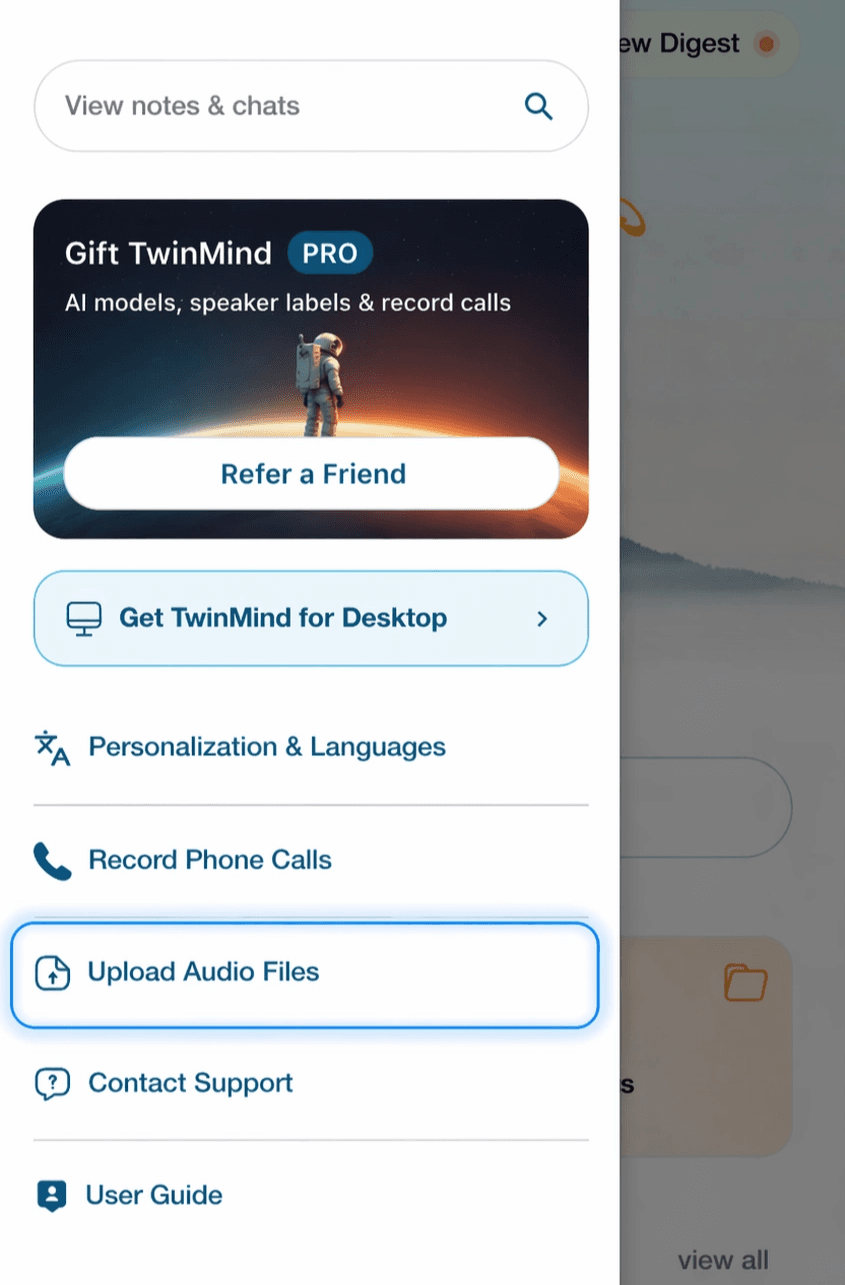
Yes, audio file upload is available in the web app. On mobile, you can access this by opening the hamburger menu, and clicking on the “Upload Audio Files” option which will redirect you to the web app where you can upload your audio file for transcription.
Yes, audio file upload is available in the web app. On mobile, you can access this by opening the hamburger menu, and clicking on the “Upload Audio Files” option which will redirect you to the web app where you can upload your audio file for transcription.
Is there a time limit for recordings?
Is there a time limit for recordings?
No, there is no fixed time limit. You can keep TwinMind running for extended periods, including throughout the day.
No, there is no fixed time limit. You can keep TwinMind running for extended periods, including throughout the day.
Can I pause and resume a recording?
Can I pause and resume a recording?
Currently, this functionality is present in TwinMind's Chrome Extension. For the mobile app, only a stop option is available during recording. You can start a new recording after stopping. Check future app updates for a pause/resume feature.
Currently, this functionality is present in TwinMind's Chrome Extension. For the mobile app, only a stop option is available during recording. You can start a new recording after stopping. Check future app updates for a pause/resume feature.
My transcription is in the wrong language — how do I fix this?
My transcription is in the wrong language — how do I fix this?
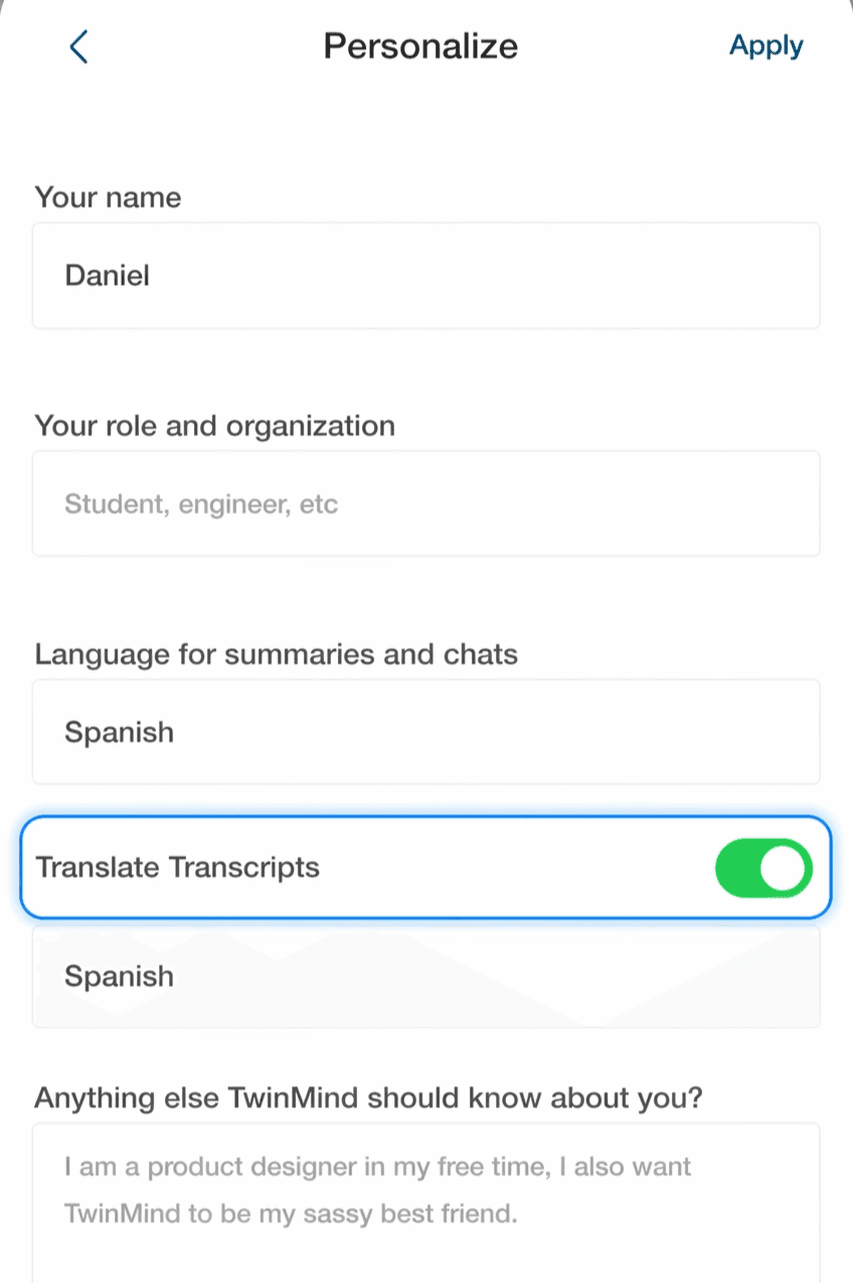
For language options, Go to Settings -> Personalization & Languages choose the language of our choice. You can also enable the "Translate Transcript" option. Summaries, chats and transcript will then be generated in that language. Pls note that this won’t convert the entire app UI into the desired language.
For language options, Go to Settings -> Personalization & Languages choose the language of our choice. You can also enable the "Translate Transcript" option. Summaries, chats and transcript will then be generated in that language. Pls note that this won’t convert the entire app UI into the desired language.
Account Settings
Account Settings
How do I change the email address on my account ?
How do I change the email address on my account ?
Changing your email address is a feature we're actively working on and will be available soon.
In the meantime, if you need to update your account email, please reach out to us at support@twinmind.com with your current login email and the new email you'd like to use. Our team can help you make that change manually.
Changing your email address is a feature we're actively working on and will be available soon.
In the meantime, if you need to update your account email, please reach out to us at support@twinmind.com with your current login email and the new email you'd like to use. Our team can help you make that change manually.
How do I disable or manage emails from TwinMind (daily brief, weekly recap)?
How do I disable or manage emails from TwinMind (daily brief, weekly recap)?
Please note that daily brief and weekly recap are the core part of the TwinMind product. However, If you do not wish to receive your daily brief emails, you can simply go over to that particular mail and click on "Unsubscribe from emails”
Please note that daily brief and weekly recap are the core part of the TwinMind product. However, If you do not wish to receive your daily brief emails, you can simply go over to that particular mail and click on "Unsubscribe from emails”
How to delete my TwinMind account?
How to delete my TwinMind account?
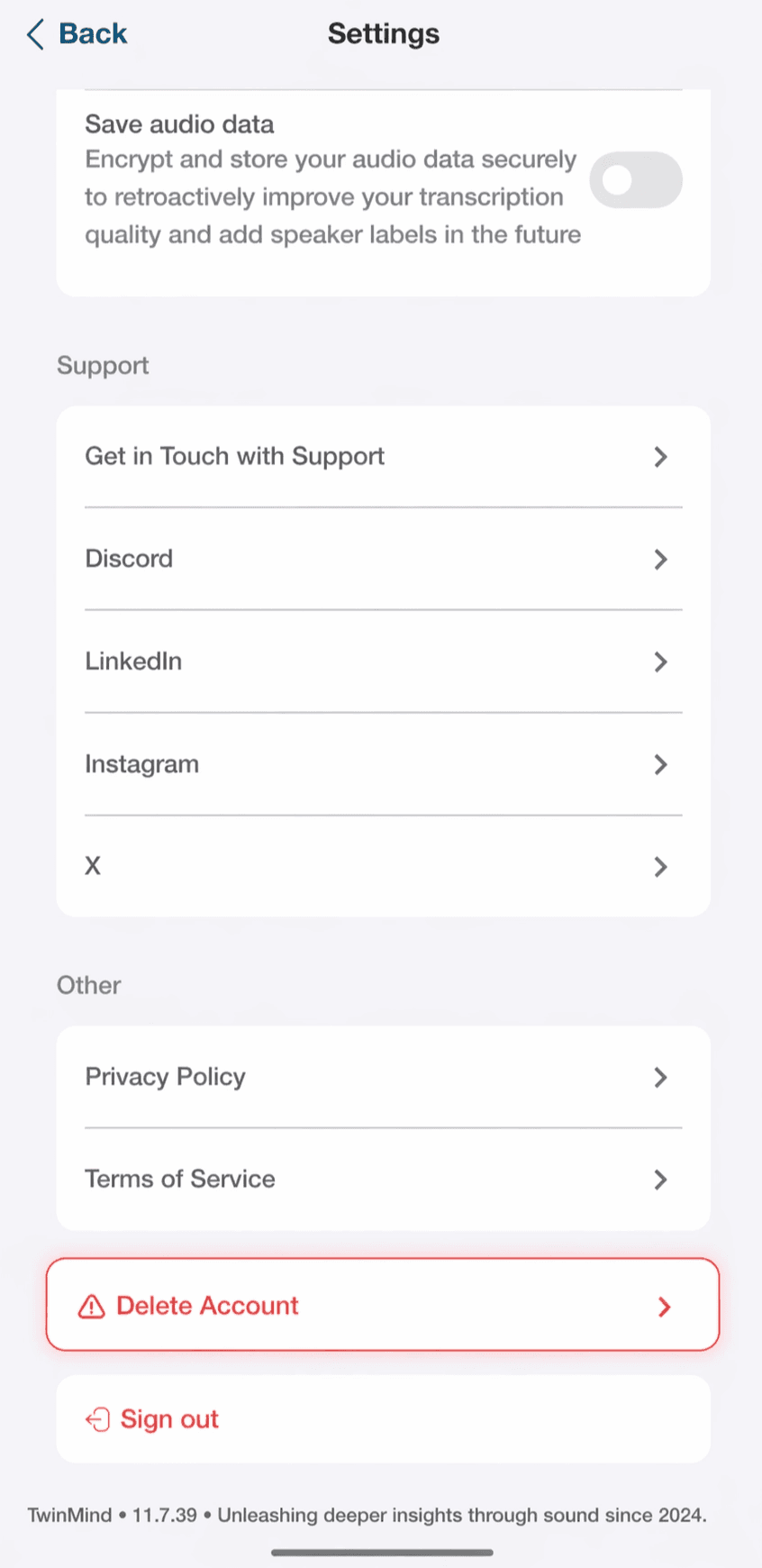
On iphone / Android phone
Go to Settings -> Delete Account
On iphone / Android phone
Go to Settings -> Delete Account
On Chrome Extension/ Web App
Click on your profile -> Manage account -> Delete account
On Chrome Extension/ Web App
Click on your profile -> Manage account -> Delete account
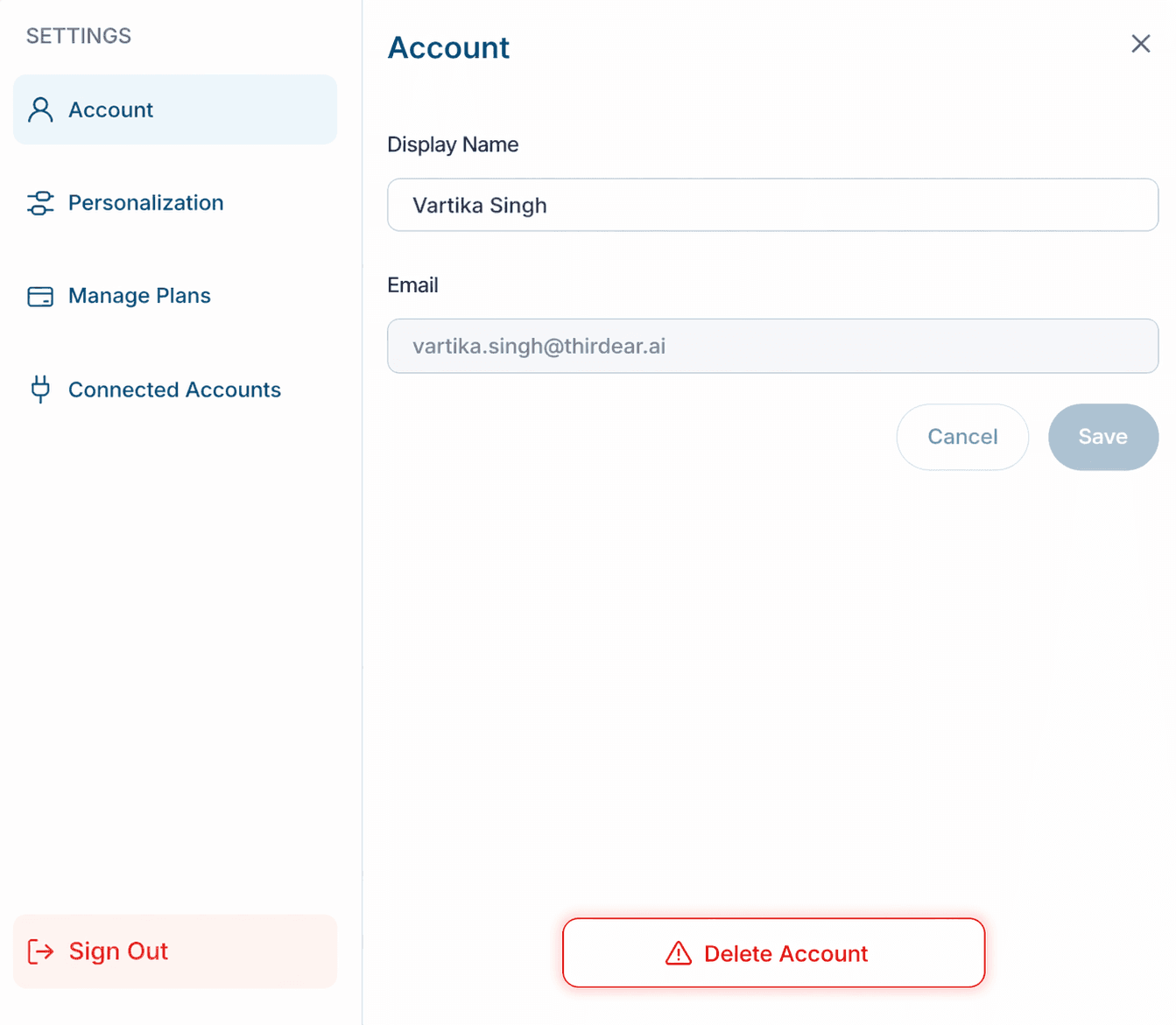
Please note that this action is irreversible.
Please note that this action is irreversible.
How can I disconnect my account from the Email Assistant?
How can I disconnect my account from the Email Assistant?
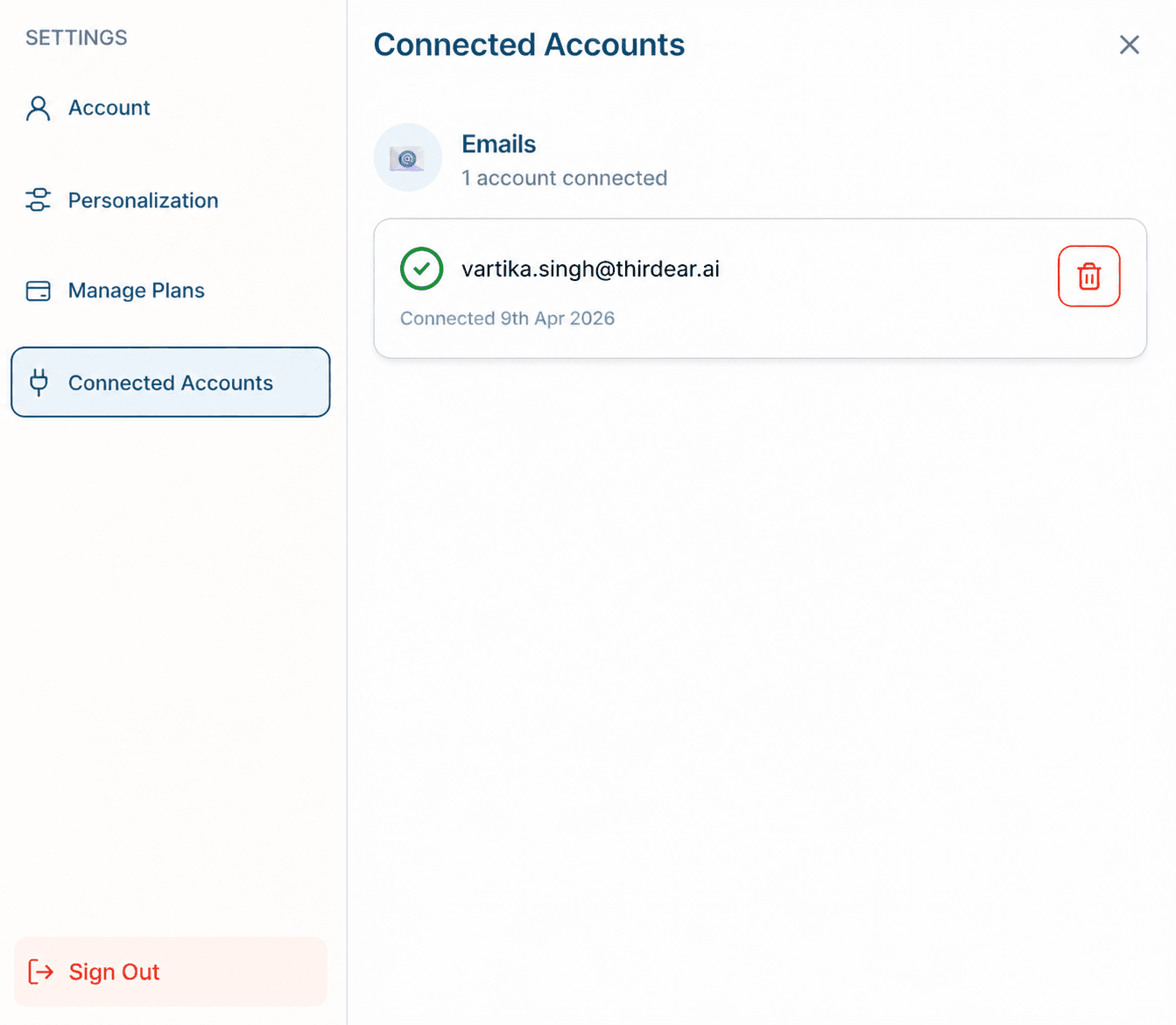
You can disconnect your Email Assistant from the TwinMind web app.
Go to app.twinmind.com → Settings → Connected Accounts, and remove your email from there.
You can disconnect your Email Assistant from the TwinMind web app.
Go to app.twinmind.com → Settings → Connected Accounts, and remove your email from there.
Calendar & Integrations
Calendar & Integrations
How do I connect, remove, or manage multiple calendars in TwinMind (including hiding unwanted events)?
How do I connect, remove, or manage multiple calendars in TwinMind (including hiding unwanted events)?
To connect the calendar of your choice you can visit and refer to this site- twinmind.ai/calendars for a detailed step by step guide.
To connect the calendar of your choice you can visit and refer to this site- twinmind.ai/calendars for a detailed step by step guide.
Does TwinMind integrate with Gmail, Slack, Trello, or other apps?
Does TwinMind integrate with Gmail, Slack, Trello, or other apps?
Yes TwinMind can be integrated to multiple platform. Please refer to this article for futher help-twinmind.ai/mcp
Yes TwinMind can be integrated to multiple platform. Please refer to this article for futher help-twinmind.ai/mcp
Data Sync & Storage
Data Sync & Storage
My memories are missing, what should I do?
My memories are missing, what should I do?
This usually happens due to a login method mix-up. Here's what to try:
Check your login method – If you originally signed in with Google, make sure you're using Google again (not Apple or email). Apple creates a separate account, which is the #1 cause of this issue.
Turn on Backup Data – Go to Settings and make sure "Backup Data" is enabled so your memories can sync.
Force a refresh – Pull down on the home screen to sync, then wait 30 seconds.
Check the web – Visit app.twinmind.com and log in with your original credentials. Your data often shows up there first!
If the issue still persists please reach support
This usually happens due to a login method mix-up. Here's what to try:
Check your login method – If you originally signed in with Google, make sure you're using Google again (not Apple or email). Apple creates a separate account, which is the #1 cause of this issue.
Turn on Backup Data – Go to Settings and make sure "Backup Data" is enabled so your memories can sync.
Force a refresh – Pull down on the home screen to sync, then wait 30 seconds.
Check the web – Visit app.twinmind.com and log in with your original credentials. Your data often shows up there first!
If the issue still persists please reach support
What is the difference between local mode and cloud mode?
What is the difference between local mode and cloud mode?
In local mode, all data is stored exclusively on your device, ensuring maximum privacy and control over your information. Cloud mode allows your data to be securely backed up on our encrypted Private Cloud, so you don't lose your memories if your device breaks. Even in cloud mode, your audio is always processed on-the-fly and never stored anywhere.
In local mode, all data is stored exclusively on your device, ensuring maximum privacy and control over your information. Cloud mode allows your data to be securely backed up on our encrypted Private Cloud, so you don't lose your memories if your device breaks. Even in cloud mode, your audio is always processed on-the-fly and never stored anywhere.
Are my recordings saved to the cloud?
Are my recordings saved to the cloud?
Audio recordings are processed in real time and are not stored by default — they are deleted after transcription unless you choose to save them.
Your transcripts, summaries, and notes may be stored to enable features like search and syncing across devices. On iOS, you can control this using the “Backup Data” setting:
If enabled, your data is securely backed up to the cloud for sync and recovery
If disabled, your data stays only on your device
You have full control to manage or delete your data at any time, and your data is never sold.
Audio recordings are processed in real time and are not stored by default — they are deleted after transcription unless you choose to save them.
Your transcripts, summaries, and notes may be stored to enable features like search and syncing across devices. On iOS, you can control this using the “Backup Data” setting:
If enabled, your data is securely backed up to the cloud for sync and recovery
If disabled, your data stays only on your device
You have full control to manage or delete your data at any time, and your data is never sold.
How do I enable Local mode?
How do I enable Local mode?
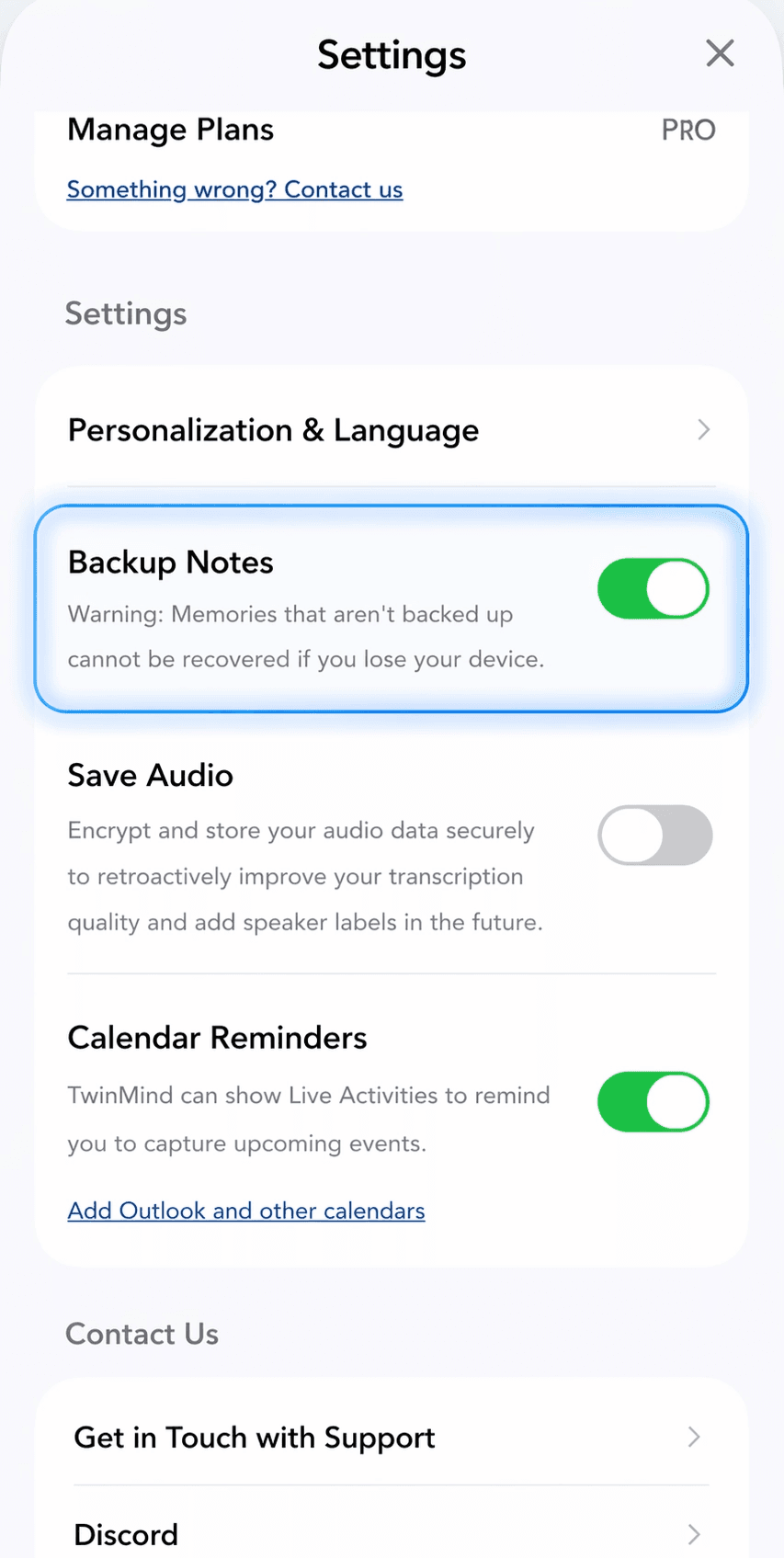
Local mode is currently available only on iOS. You can enable it by going to Settings and toggling the “Backup Notes” option. To use Local mode, simply turn this option off.
Local mode is currently available only on iOS. You can enable it by going to Settings and toggling the “Backup Notes” option. To use Local mode, simply turn this option off.
How does TwinMind protect my privacy, and does it share my data or use it to train AI?
How does TwinMind protect my privacy, and does it share my data or use it to train AI?
TwinMind prioritizes your privacy by not recording or storing your audio. It transcribes on-the-fly, and audio data is deleted every few seconds, so it cannot be played back. TwinMind also does not sell your data, use your content for advertising, or allow third-party AI providers to train on your data. Your recordings, transcripts, and content are processed only to provide features like transcription, summaries, and search. For more details, see TwinMind’s privacy policy at twinmind.com/legal/privacy-policy.
TwinMind prioritizes your privacy by not recording or storing your audio. It transcribes on-the-fly, and audio data is deleted every few seconds, so it cannot be played back. TwinMind also does not sell your data, use your content for advertising, or allow third-party AI providers to train on your data. Your recordings, transcripts, and content are processed only to provide features like transcription, summaries, and search. For more details, see TwinMind’s privacy policy at twinmind.com/legal/privacy-policy.
Does TwinMind for Chrome see all my browsing history?
Does TwinMind for Chrome see all my browsing history?
No. Only the information in the tabs you add manually is sent to LLMs which have zero data retention policies. Your data is never shared with any third party or used for training AI models.
No. Only the information in the tabs you add manually is sent to LLMs which have zero data retention policies. Your data is never shared with any third party or used for training AI models.
What happens if I lose or break my device? Can I recover my data?
What happens if I lose or break my device? Can I recover my data?
In cloud mode, your data is securely backed up on our servers, allowing you to recover it and sync across new devices seamlessly. However on local Mode, your data is encrypted and stored only on your device, and you may lose it if the device is lost or damaged.
In cloud mode, your data is securely backed up on our servers, allowing you to recover it and sync across new devices seamlessly. However on local Mode, your data is encrypted and stored only on your device, and you may lose it if the device is lost or damaged.
I'm capturing all these memories, will this app be around for a long time?
I'm capturing all these memories, will this app be around for a long time?
Yes, we have enough runway for 3+ years from today. Even if we were to discontinue the cloud service, we can assure you we will provide an option to export your data 3 months in advance.
Apart from TwinMind cloud backups, if you have the iPhone app, a local copy is saved on device and a 3rd copy is saved on your iCloud (if you have iCloud enabled).
Yes, we have enough runway for 3+ years from today. Even if we were to discontinue the cloud service, we can assure you we will provide an option to export your data 3 months in advance.
Apart from TwinMind cloud backups, if you have the iPhone app, a local copy is saved on device and a 3rd copy is saved on your iCloud (if you have iCloud enabled).
How do I delete my chat history or meeting notes, and how do I reduce app storage usage?
How do I delete my chat history or meeting notes, and how do I reduce app storage usage?
On iPhone / Android
Go to the Notes tab
Press and hold on any Note
A delete button will appear
Tap to remove the Note
On Chrome Extension:
Navigate to your History (by clicking on the history at top right)
Click on three dots against the notes you want to delete
Click Delete
On iPhone / Android
Go to the Notes tab
Press and hold on any Note
A delete button will appear
Tap to remove the Note
On Chrome Extension:
Navigate to your History (by clicking on the history at top right)
Click on three dots against the notes you want to delete
Click Delete
App Features & Usage
App Features & Usage
Can I keep TwinMind ON the whole day?
Can I keep TwinMind ON the whole day?
Yes! TwinMind is optimized for 12 hours of battery life based on our internal testing. It will continue transcribing even when your screen is off. Just look for the yellow mic icon in the iPhone notch to confirm it's running. You can always start, pause and stop capturing anytime.
Yes! TwinMind is optimized for 12 hours of battery life based on our internal testing. It will continue transcribing even when your screen is off. Just look for the yellow mic icon in the iPhone notch to confirm it's running. You can always start, pause and stop capturing anytime.
How is TwinMind different from other AI note-taking tools?
How is TwinMind different from other AI note-taking tools?
A key difference is TwinMind’s focus on personalized memory rather than treating your entire knowledge base as a flat set of identical notes. TwinMind organizes each file in chronological order and weights it by importance. As a result, your notes and transcripts form a dynamic timeline that the AI references for context and relevancy. This structure lets you ask pinpoint queries like “What did I discuss with ___ last month?” or broader requests such as “Summarize last week’s wins and areas I need to work on.” Thanks to this personalization layer, TwinMind can deliver far more context-aware and higher-quality responses over time.
A key difference is TwinMind’s focus on personalized memory rather than treating your entire knowledge base as a flat set of identical notes. TwinMind organizes each file in chronological order and weights it by importance. As a result, your notes and transcripts form a dynamic timeline that the AI references for context and relevancy. This structure lets you ask pinpoint queries like “What did I discuss with ___ last month?” or broader requests such as “Summarize last week’s wins and areas I need to work on.” Thanks to this personalization layer, TwinMind can deliver far more context-aware and higher-quality responses over time.
Does the Chrome Extension work with Arc or Brave browsers?
Does the Chrome Extension work with Arc or Brave browsers?
The extension is designed for Google Chrome and may work with Chromium-based browsers like Brave or Arc, but full compatibility is not guaranteed — contact support if you experience issues.
The extension is designed for Google Chrome and may work with Chromium-based browsers like Brave or Arc, but full compatibility is not guaranteed — contact support if you experience issues.
Can I use TwinMind offline?
Can I use TwinMind offline?
Yes, you can continue recording even without an internet connection. Your recording will be saved locally and will automatically sync once you’re back online. Transcripts and summaries are generated only after internet is available.
Yes, you can continue recording even without an internet connection. Your recording will be saved locally and will automatically sync once you’re back online. Transcripts and summaries are generated only after internet is available.
Can I edit a transcript or summary after it is generated?
Can I edit a transcript or summary after it is generated?
Yes, you can add or edit your notes and summary directly using the “Edit Notes” or "Edit Summary" option. Once your notes are updated, you can even regenerate the summary and TwinMind will create an updated version based on your notes.
Yes, you can add or edit your notes and summary directly using the “Edit Notes” or "Edit Summary" option. Once your notes are updated, you can even regenerate the summary and TwinMind will create an updated version based on your notes.
How do I ask questions about my memories?
How do I ask questions about my memories?
To ask questions, you can navigate to the "Chat with all your memories" option on the home screen. If you want to ask question from a specific memory, go that memory and click on "Chat with this note".
To ask questions, you can navigate to the "Chat with all your memories" option on the home screen. If you want to ask question from a specific memory, go that memory and click on "Chat with this note".
Can I transcribe phone calls?
Can I transcribe phone calls?
Yes. Please refer to this how to transcribe phone calls- twinmind.ai/phone-call
Yes. Please refer to this how to transcribe phone calls- twinmind.ai/phone-call
Can TwinMind perform actions like emailing me the summaries from meetings?
Can TwinMind perform actions like emailing me the summaries from meetings?
At the moment, you can open any summary, transcript, or AI chat response and then tap “Share” to send that output via Gmail or other apps. Direct “agentic” actions such as having the AI automatically email you the output like summaries or blog posts are in development. We plan to introduce these features in a future update so you can complete tasks more seamlessly within TwinMind.
At the moment, you can open any summary, transcript, or AI chat response and then tap “Share” to send that output via Gmail or other apps. Direct “agentic” actions such as having the AI automatically email you the output like summaries or blog posts are in development. We plan to introduce these features in a future update so you can complete tasks more seamlessly within TwinMind.
How do I change the AI model used for summaries?
How do I change the AI model used for summaries?
AI model selection is available to Pro users — tab on the dropdown in the chat box and choose your preferred AI model from the list.
AI model selection is available to Pro users — tab on the dropdown in the chat box and choose your preferred AI model from the list.
Does TwinMind capture the full system audio stream?
Does TwinMind capture the full system audio stream?
TwinMind iOS/ Android app can only capture from the microphone whereas TwinMind's Chrome Extension can capture full system audio in a video meeting.
TwinMind iOS/ Android app can only capture from the microphone whereas TwinMind's Chrome Extension can capture full system audio in a video meeting.
Can TwinMind identify different speakers in a conversation / meeting?
Can TwinMind identify different speakers in a conversation / meeting?
Speaker identification (diarization) is available but a more advanced and accurate version is currently in development. You can also manually label speakers in the summary.
Speaker identification (diarization) is available but a more advanced and accurate version is currently in development. You can also manually label speakers in the summary.
How do I share notes and summaries?
How do I share notes and summaries?
To share, open a note or summary and look for the share summary link option — you can even copy to clipboard, or share directly over the email to the meeting attendees (in case of calendar event).
To share, open a note or summary and look for the share summary link option — you can even copy to clipboard, or share directly over the email to the meeting attendees (in case of calendar event).
Is there a way to export my data/memories in bulk?
Is there a way to export my data/memories in bulk?
Bulk export isn’t available yet. This is an upcoming feature — we’re currently working on it.
Bulk export isn’t available yet. This is an upcoming feature — we’re currently working on it.
How do I merge two meetings if one recording ended midway?
How do I merge two meetings if one recording ended midway?
TwinMind doesn’t currently support native meeting merging. However, you can copy the transcript from one memory and paste it into the notes section of the other memory, then regenerate the summary so TwinMind can use both contexts together.
TwinMind doesn’t currently support native meeting merging. However, you can copy the transcript from one memory and paste it into the notes section of the other memory, then regenerate the summary so TwinMind can use both contexts together.
How do I make my summaries shorter, longer, or more detailed?
How do I make my summaries shorter, longer, or more detailed?
You can customize summary style by going to Settings → Personalization & Language.
Then add your preference in the open text field under “About You”
For example, you can mention:
“Keep summaries concise”, “Make summaries more detailed”, “Focus on action items”
You can customize summary style by going to Settings → Personalization & Language.
Then add your preference in the open text field under “About You”
For example, you can mention:
“Keep summaries concise”, “Make summaries more detailed”, “Focus on action items”

How do I add custom vocabulary, names, or domain-specific words to improve transcript accuracy?
How do I add custom vocabulary, names, or domain-specific words to improve transcript accuracy?
You can add custom vocabulary by going to Settings → Personalization & Language.
Then enter the words, names, acronyms, or technical terms in the field labeled “Custom Vocabulary”
This helps TwinMind recognize and transcribe those terms more accurately.
You can add custom vocabulary by going to Settings → Personalization & Language.
Then enter the words, names, acronyms, or technical terms in the field labeled “Custom Vocabulary”
This helps TwinMind recognize and transcribe those terms more accurately.
Technical Issues
Technical Issues
The app is crashing, freezing, or the microphone is not being detected — what should I do?
The app is crashing, freezing, or the microphone is not being detected — what should I do?
For crashes/freezing: try force-closing and restarting the app. If the issue persists, uninstall and reinstall the latest version. Ensure your device OS is up to date. Contact support if the issue persists.
For microphone not detected: go to your device's Settings and ensure TwinMind has microphone access. On desktop, check browser microphone permissions. Restart the app after granting permissions.
For crashes/freezing: try force-closing and restarting the app. If the issue persists, uninstall and reinstall the latest version. Ensure your device OS is up to date. Contact support if the issue persists.
For microphone not detected: go to your device's Settings and ensure TwinMind has microphone access. On desktop, check browser microphone permissions. Restart the app after granting permissions.
I'm getting a 'transcription paused' error — how do I fix this?
I'm getting a 'transcription paused' error — how do I fix this?
Check internet connectivity error: check your Wi-Fi or mobile data connection, switch networks if possible, and try regenrating the summary once connectivity is restored.
Check internet connectivity error: check your Wi-Fi or mobile data connection, switch networks if possible, and try regenrating the summary once connectivity is restored.
Calendars are not visible in TwinMind.
Calendars are not visible in TwinMind.
Calendar integration issues usually stem from permission or configuration problems:
Log out and Login would fix majority of the issues
Make sure calendar access is provided during the login.
For more help visit this support doc — twinmind.ai/calendars
Calendar integration issues usually stem from permission or configuration problems:
Log out and Login would fix majority of the issues
Make sure calendar access is provided during the login.
For more help visit this support doc — twinmind.ai/calendars
For technical or product support, email us at support@twinmind.com