Capture meetings, ideas, reminders, and important moments directly from your wrist. With a single tap, TwinMind starts recording, syncs to your iPhone, transcribes everything automatically, and adds it to your growing AI twin.
Whether you're walking, commuting, exercising, or away from your phone, your twin is always within reach.
1. How to Install TwinMind on Apple Watch
Getting started takes less than a minute.
Open the Watch app on your iPhone.
Scroll to Available Apps.
Find TwinMind and tap Install.
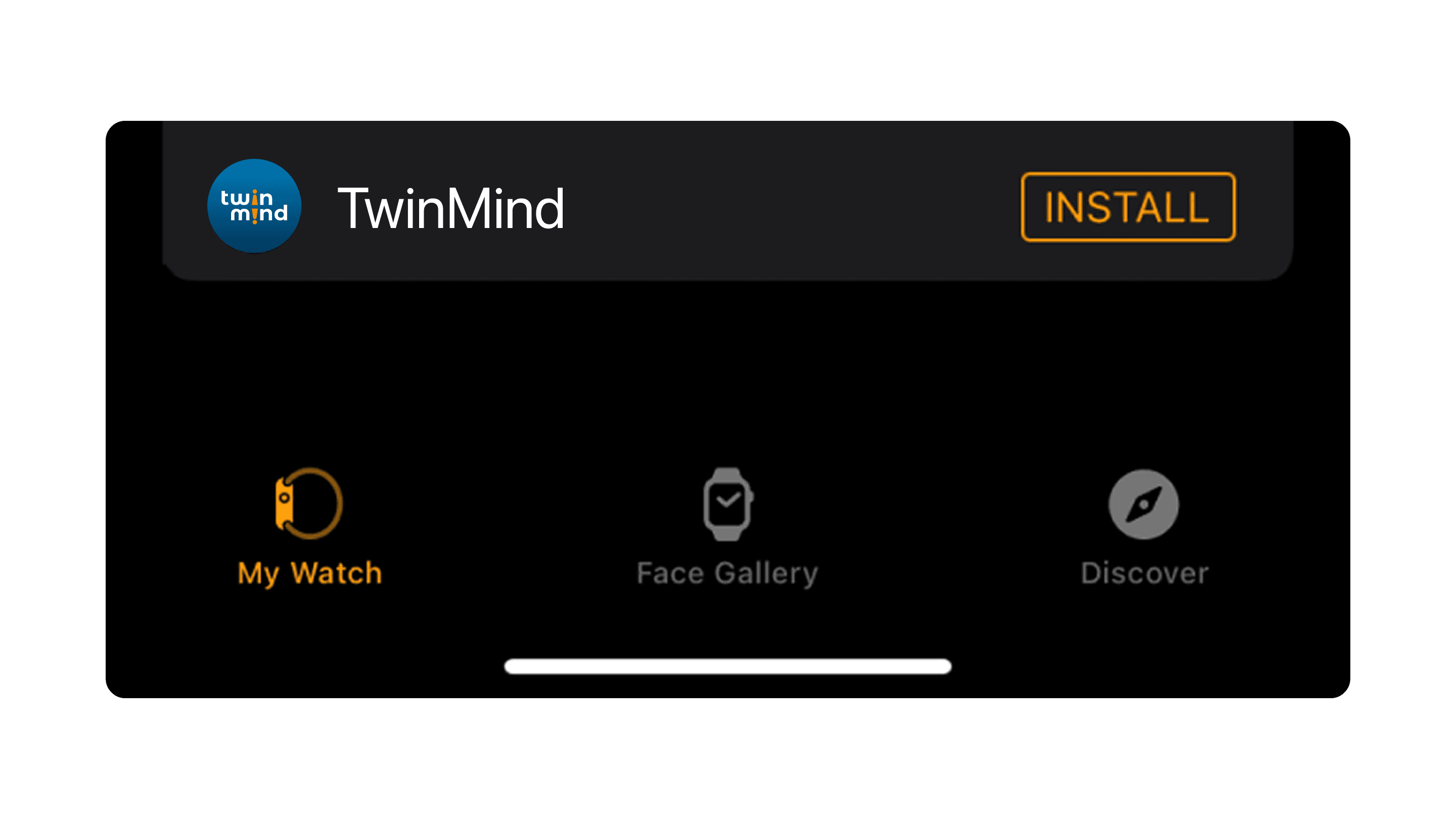
Once installed, open TwinMind on your watch and tap Capture to start recording.
💡 Tip: You can also launch TwinMind directly from a watch face complication or the Smart Stack widget (watchOS 10 and later), so it's always one glance away.
2. Understanding the Capture Controls
Using TwinMind on Apple Watch is simple. You'll see three controls:
Capture: Start a new recording instantly.
Pause: Need a break? Pause the capture and resume whenever you're ready.
Stop: End the capture and begin syncing it to your iPhone.
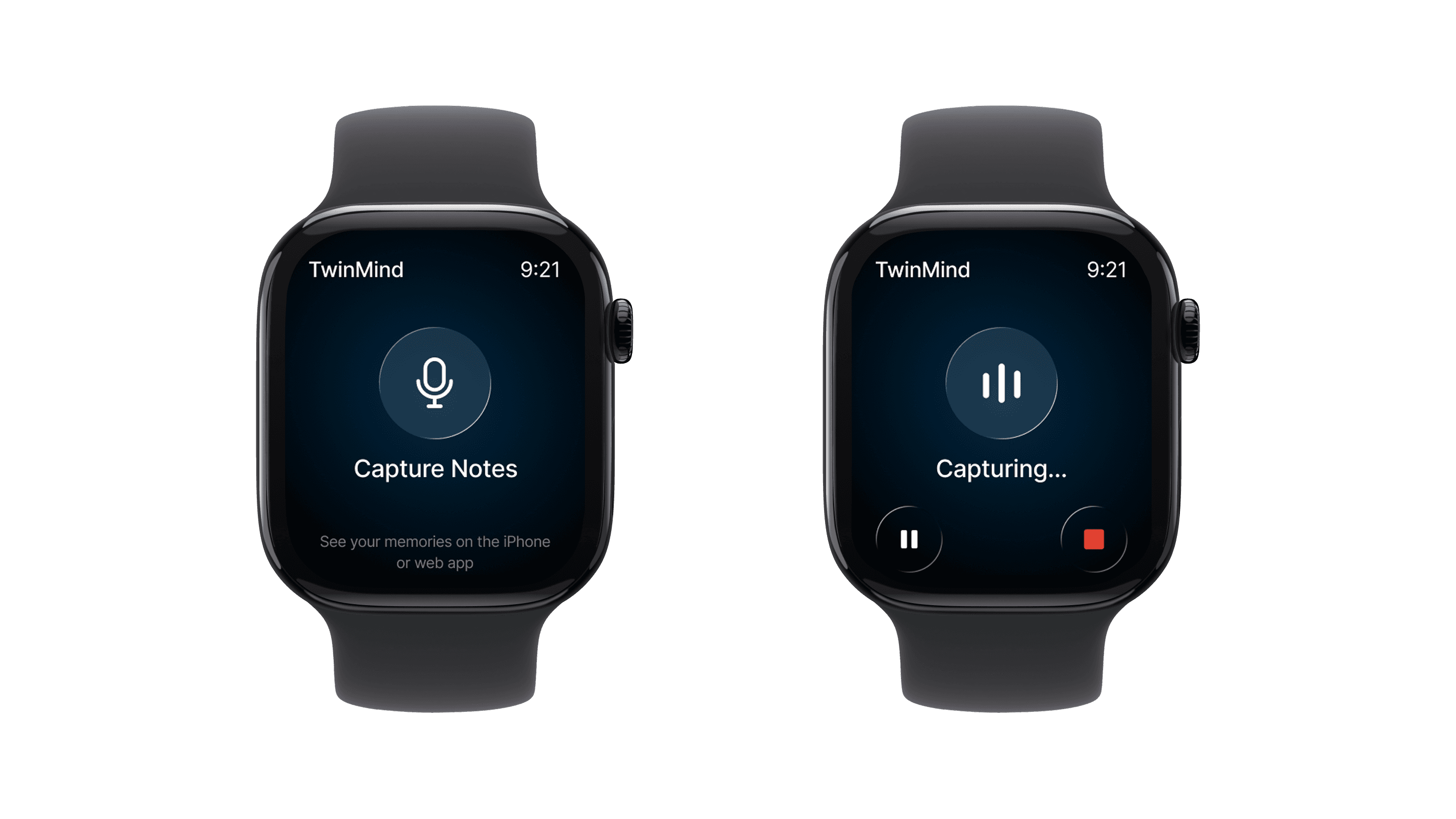
That's it. Once a capture reaches your phone, TwinMind takes over from there: transcript, summary, and adding it to your twin all happen on the phone.
3. What the Sync Indicator means
After you stop a capture, TwinMind transfers it from your watch to your iPhone.
During this process, you'll see a sync indicator on the watch.
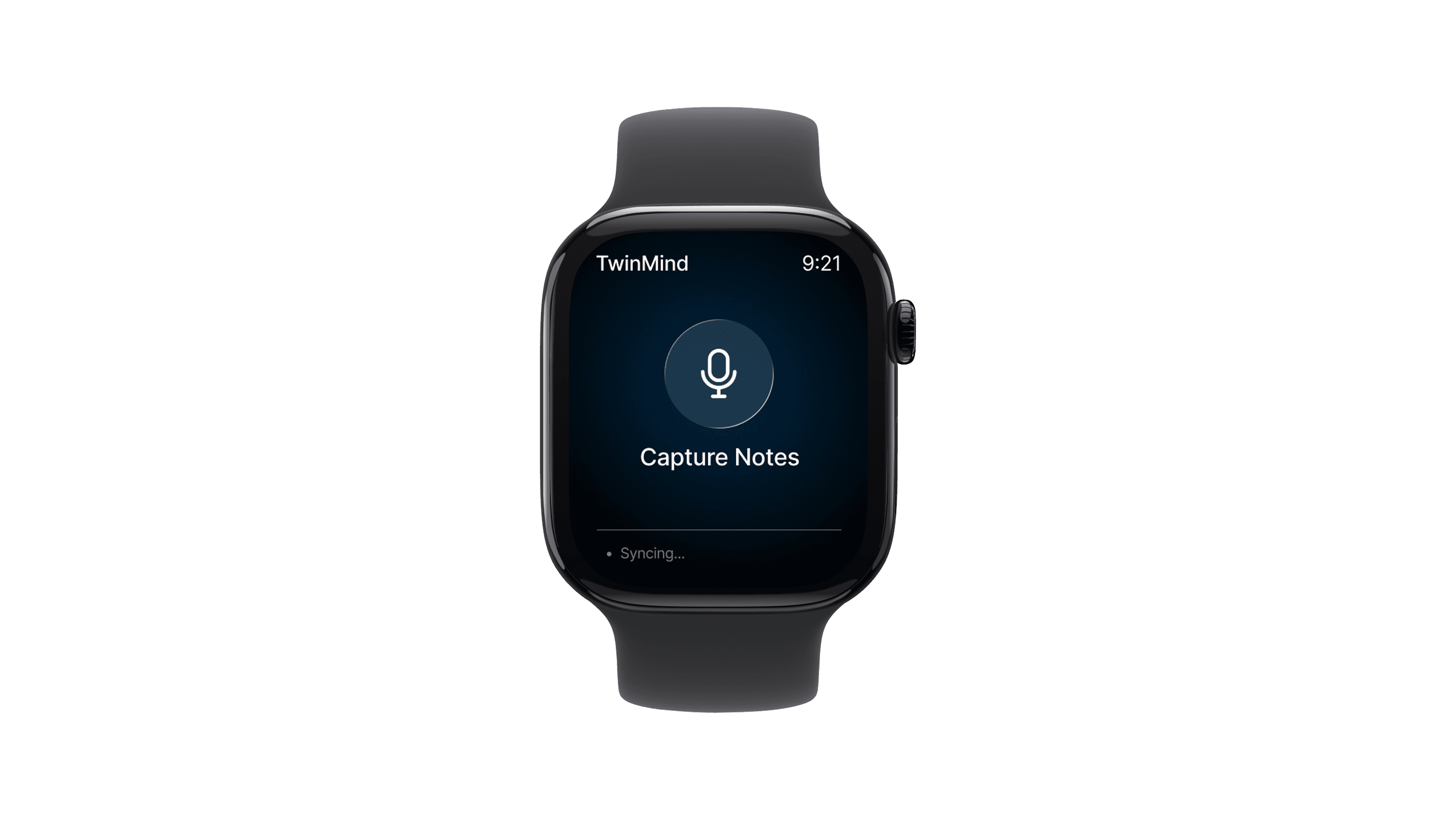
It’s purely informational. There's nothing you need to tap or manage.
Your capture is safe. Once syncing completes, it’s available in TwinMind on your phone and ready for transcription.
💡 Tip: Keeping your iPhone nearby helps captures sync faster.
4. Capture directly from the Watch face
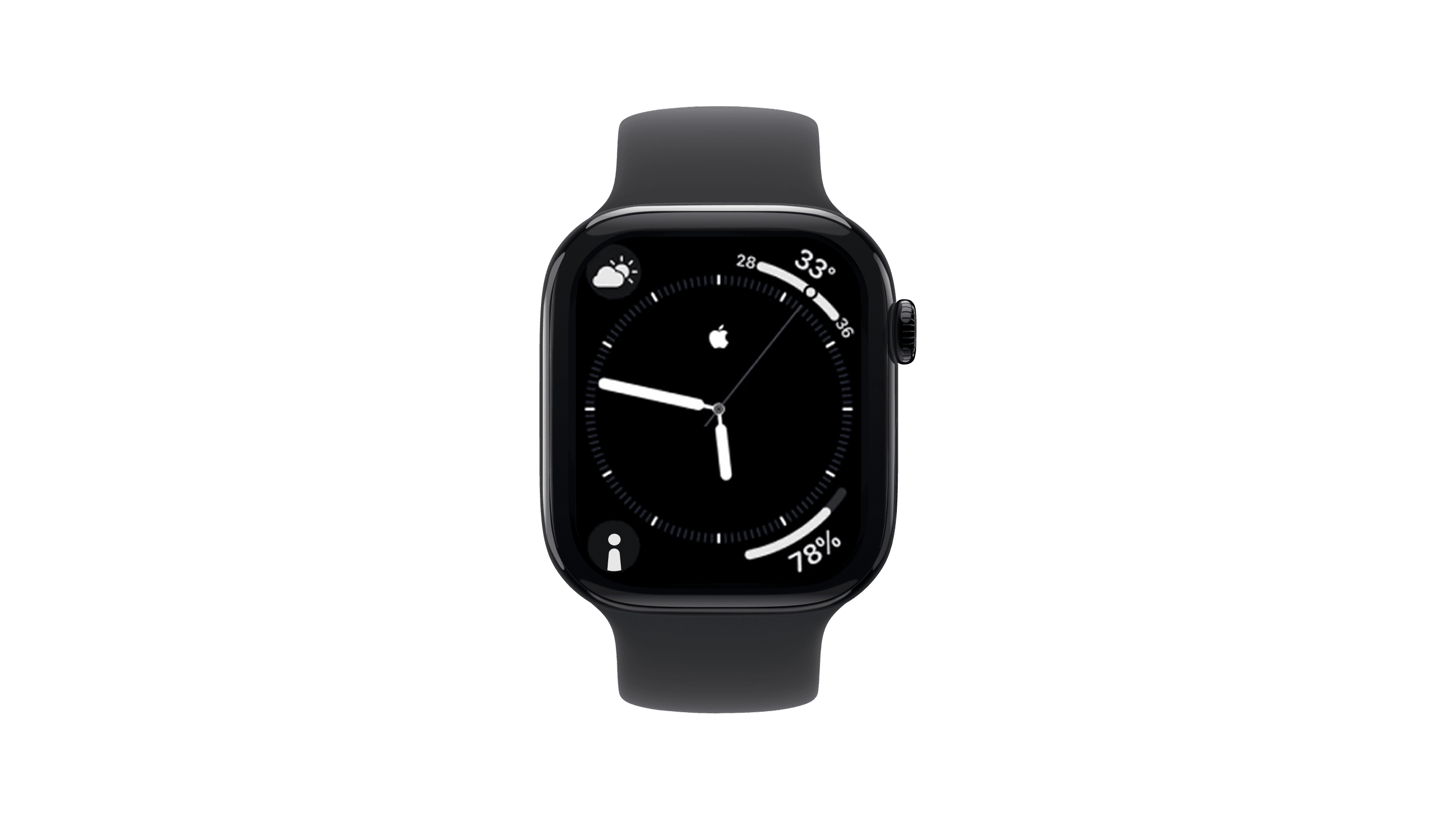
You don't even need to open the app. Add TwinMind to your Watch face and start capturing in seconds.
Press and hold the Watch face to enter edit mode
Tap Edit
Swipe to the Complications screen
Tap the complication slot you want
Scroll or search for TwinMind
Tap to select, then press the Digital Crown to save
5. Advanced: Double Tap to Capture
If you're using Apple Watch Series 9, Series 10, or Apple Watch Ultra 2, you can start captures using Apple's Double Tap gesture.
Open the Watch app on your iPhone.
Go to General → Gestures → Double Tap.
Turn Double Tap on.
Set the Smart Stack action to Select.
💡 Tip: For the best experience, pin the TwinMind widget to the top of your Smart Stack. Then a simple double-tap can help you start capturing without touching the screen.
6. Troubleshooting First-Time Sync
If your first capture doesn't appear on your phone right away, run through this quick checklist:
Keep your Apple Watch and iPhone close together.
Make sure Bluetooth is enabled.
Ensure Wi-Fi is turned on.
Open TwinMind on your iPhone.
⚠️ Important Note: The first sync may take a little longer while the devices establish the connection. After the first successful transfer, future captures will sync automatically in the background.
Facing Any Issues? We're Here to Help!
💬 Contact Us!
If you have any questions, run into issues, or have feedback, please join our community and contact us on Discord ! We'd love to hear from you.
Helpful Links
Written by

UI/UX Designer
Share this