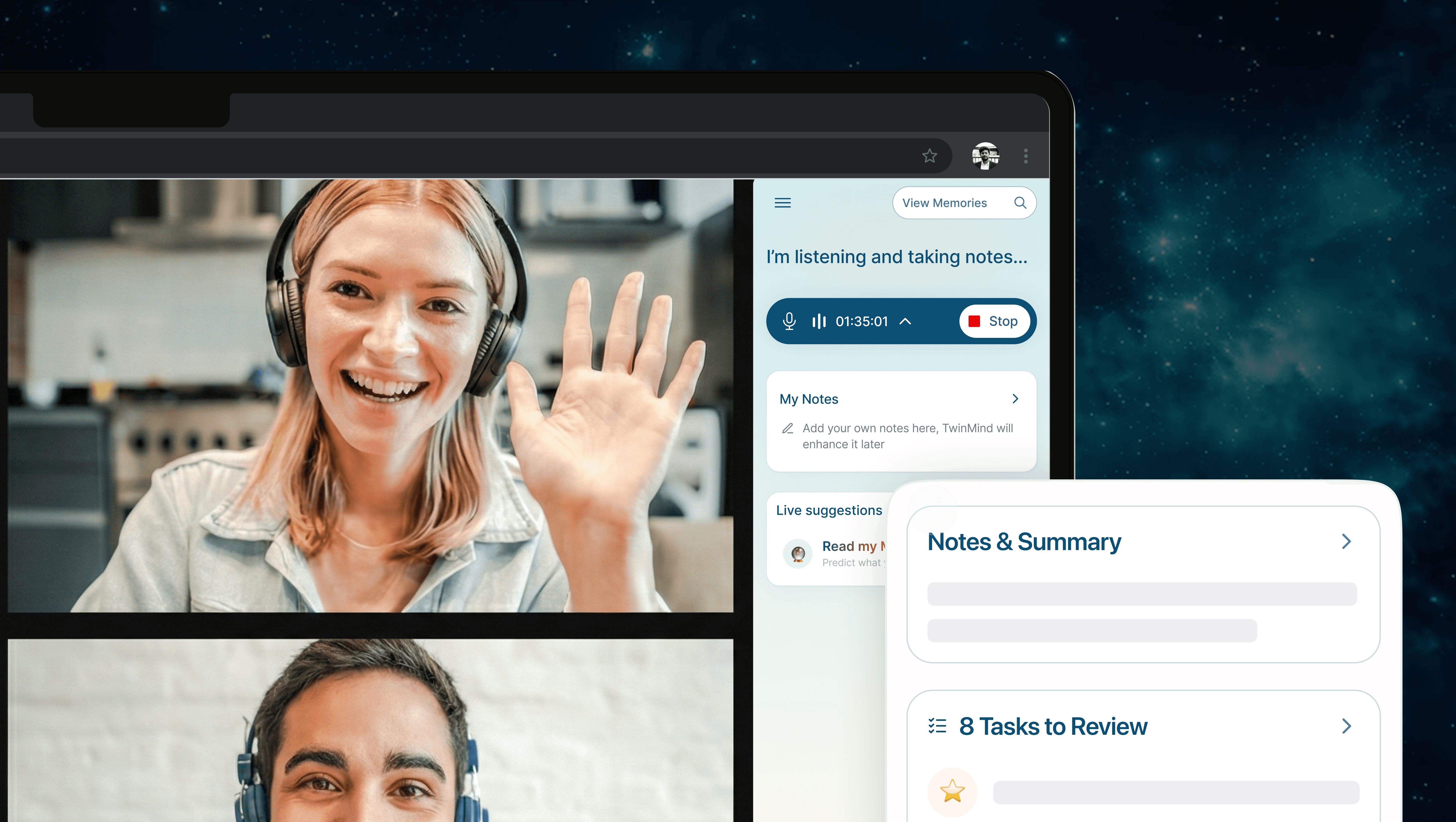
A simple guide to using TwinMind on desktop with the Chrome Extension and Web App.
Install the Extension
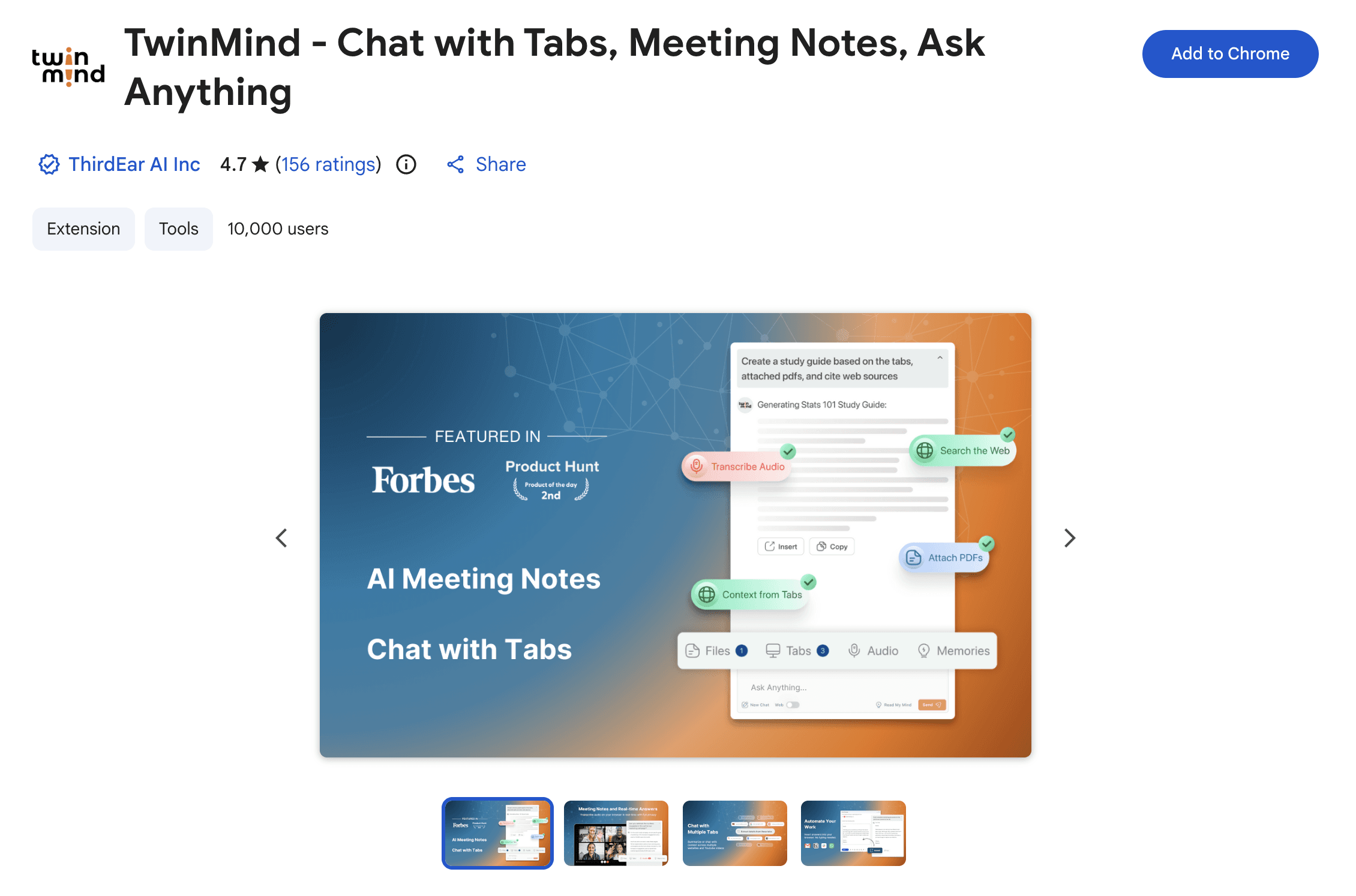
Go to the Chrome Web Store and search for TwinMind.
Click Add to Chrome.
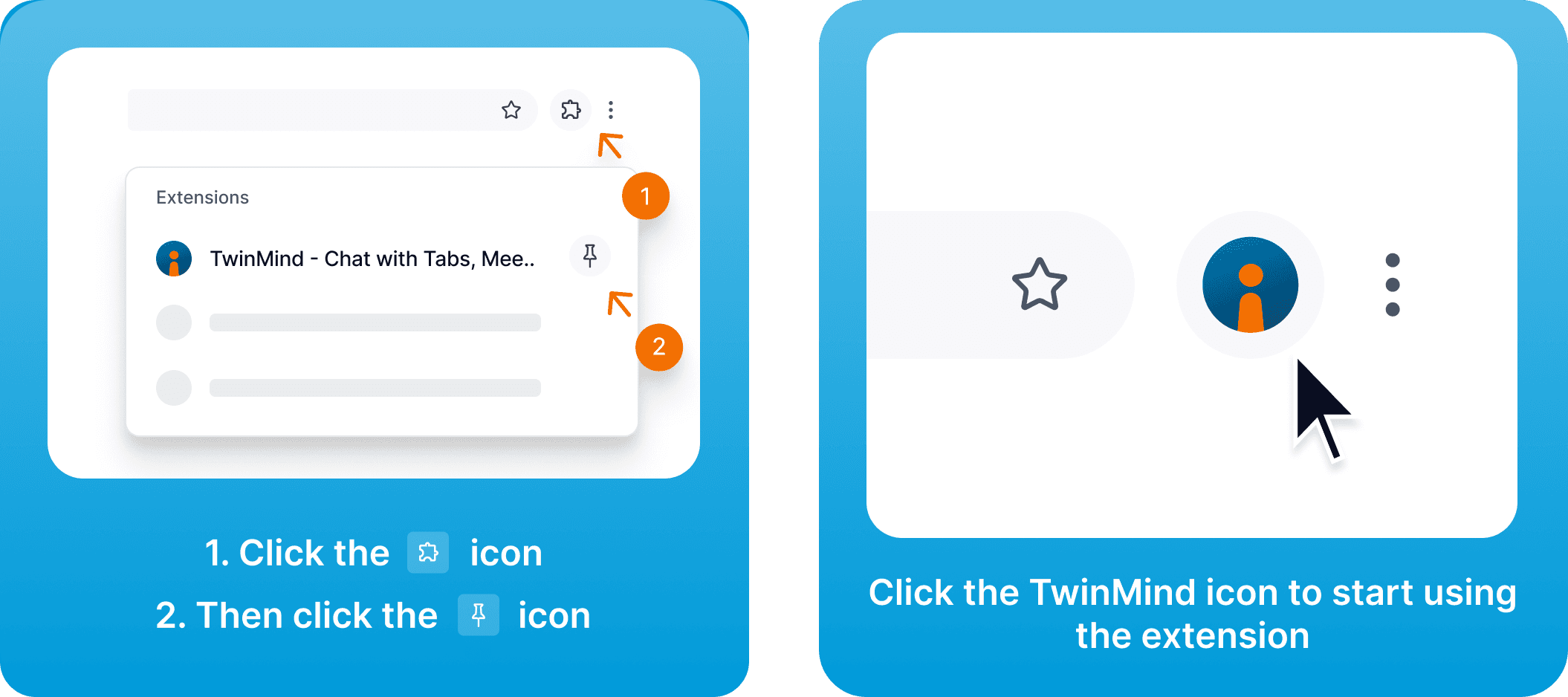
Pin the TwinMind icon to your toolbar so it's easy to find.
Click the icon any time you want to start capturing audio from your browser.
How to Capture Audio
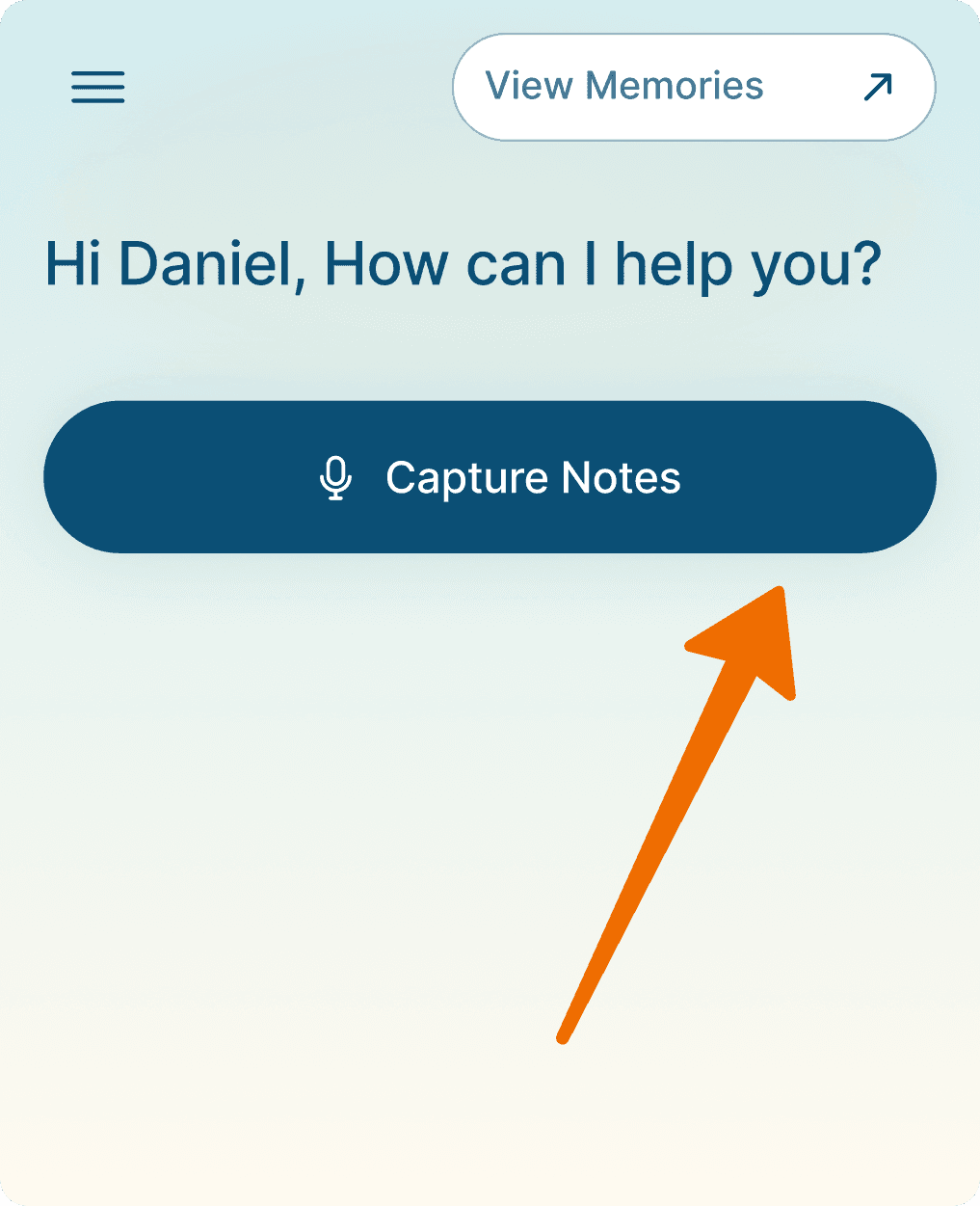
1. Start capturing mic audio
Open the TwinMind Chrome Extension and click Capture Notes. This captures your microphone only.
Use this when you just want to capture your own voice or an in-person conversation.
2. Also capture a tab (calls, videos, etc.)
If you switch to a tab that's playing sound (Google Meet, Zoom, YouTube, or a podcast), TwinMind can capture that tab audio too.
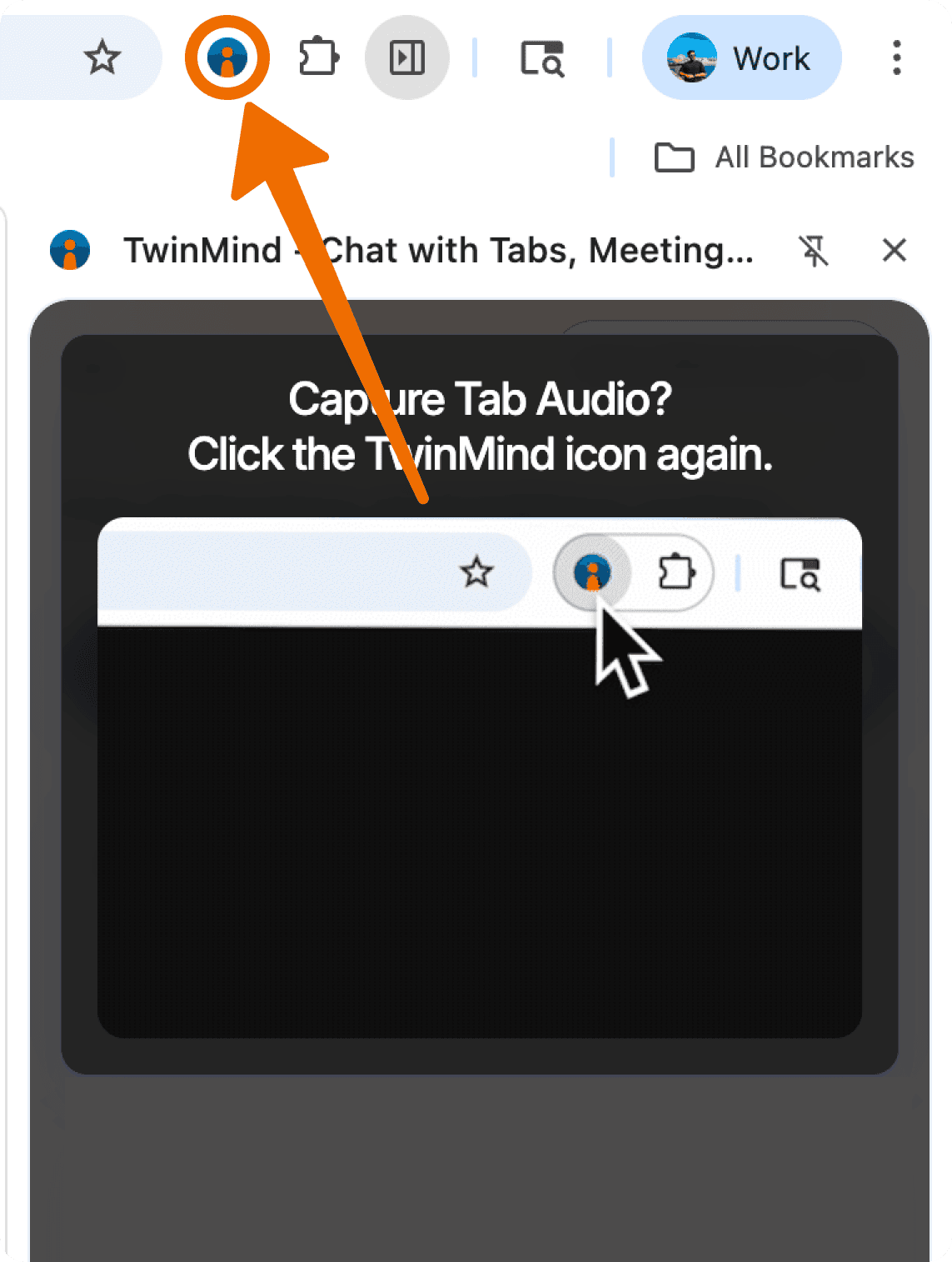
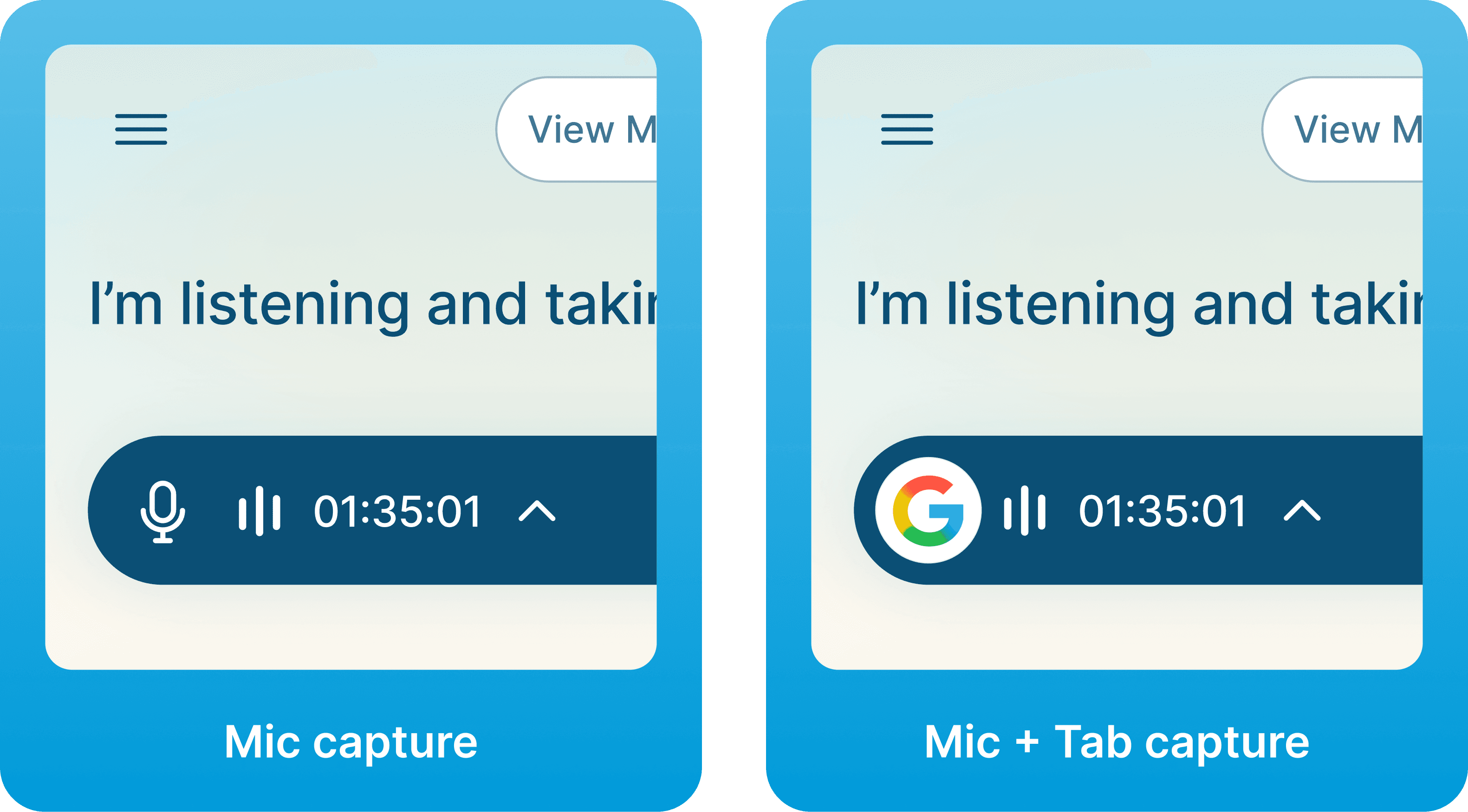
Go to that tab and click the TwinMind icon in your Chrome toolbar. You'll see the tab's icon appear next to the timer (for example, the Google Meet or YouTube icon). That means TwinMind is now capturing both the tab and your microphone.
3. If only your microphone is being captured
If you only see a microphone icon next to the timer, the tab audio is not being captured yet. Go to the tab you want to capture and click the TwinMind toolbar icon to add it.
4. Pause or end capture
Click Pause to take a break and Resume to continue. Click Stop when you're done. TwinMind will stop capturing and process your note.
Capture beyond the browser
With the Chrome Extension you're limited to capturing a single browser tab at a time. The TwinMind Desktop App lets you capture anything, anytime across any app, conversation, or audio source. You can also dictate in any text field, making it up to 4x faster than typing. Download it here.
Quick summary
Click Capture Notes → captures your microphone.
Go to a tab with sound → TwinMind can capture that tab audio.
Click the toolbar icon → captures the tab and your microphone together.
Click Stop → your note is saved and processed in the Web App.
After You Stop Capturing
TwinMind opens your memory in the Web App, where you can:
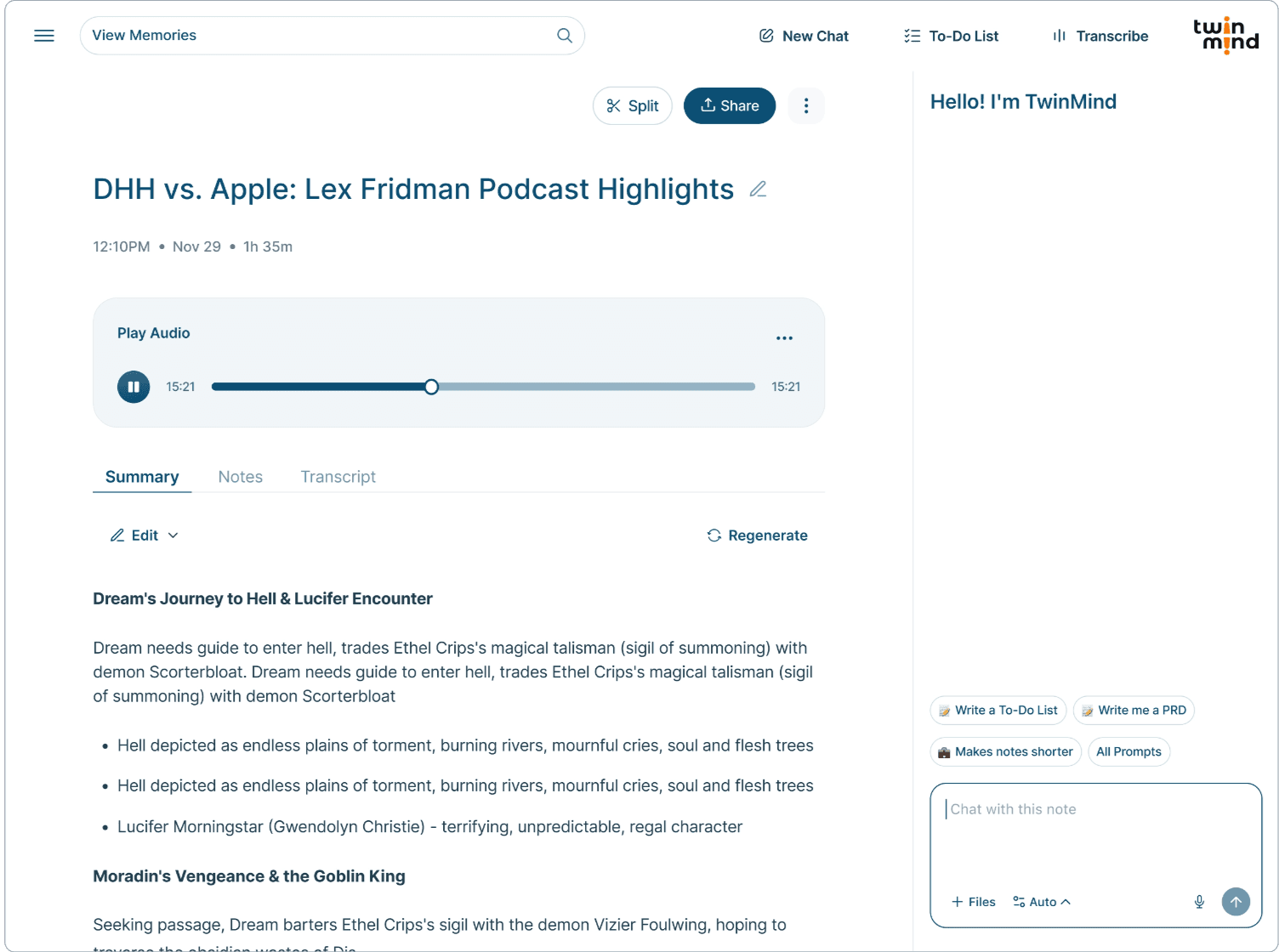
Read your summary: TwinMind automatically generates a clear, organized summary of your conversation, highlighting key points and important information.
View action items: Quickly see tasks, follow-ups, and important next steps.
Check the transcript: Review the full conversation whenever you need more detail.
Chat with your memory: Ask questions about the note directly from the Web App.
Play back your audio: If you've turned on Save Audio Data in Advanced Settings, you can replay the captured audio from any memory on the Web App.
Pro Tip: Save Audio for Better Transcripts!
Turn on Save Audio in settings to get better transcripts with speaker labels, so you can clearly see who said what.
View Memories
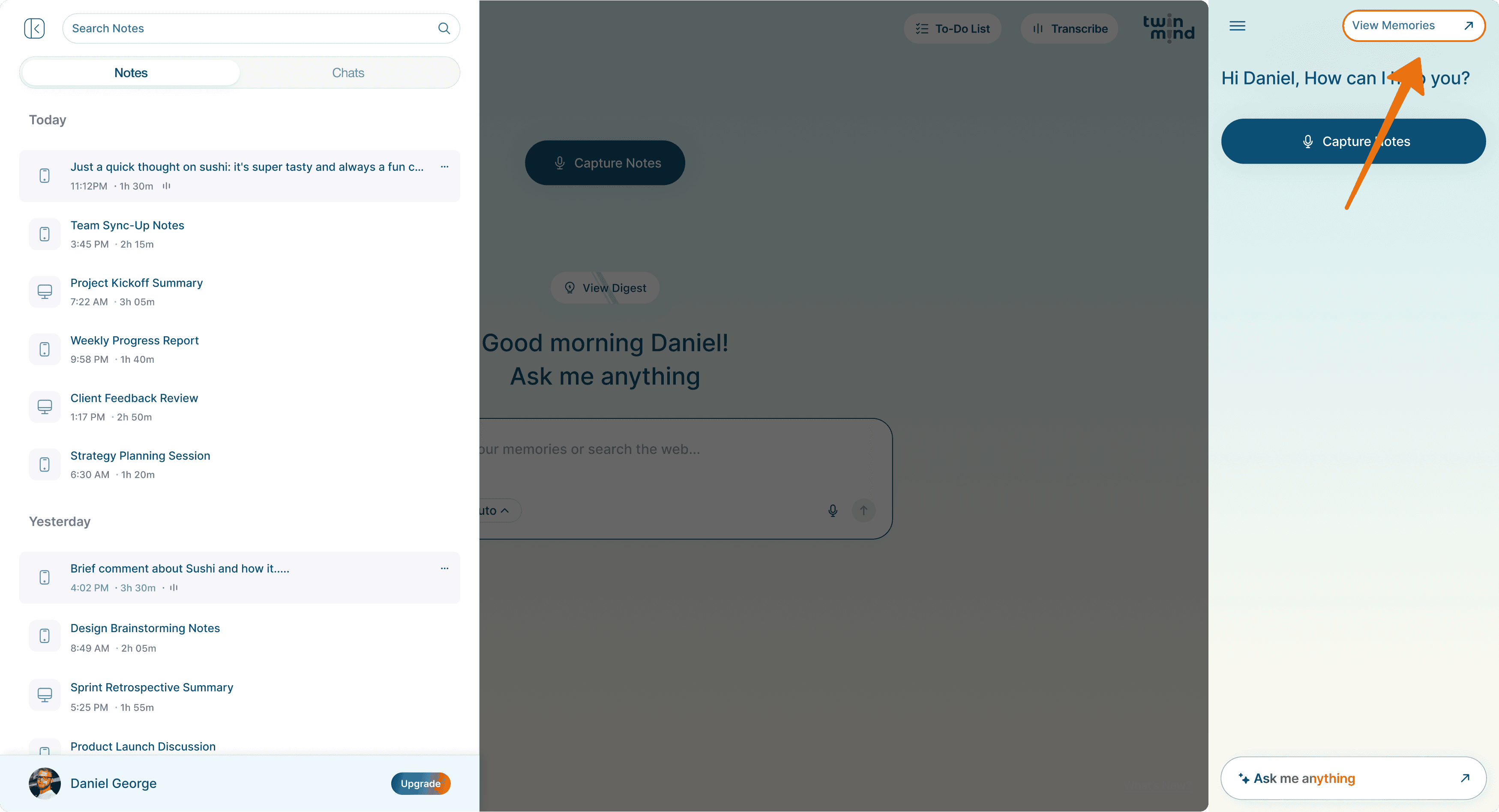
To see your past recordings and chats, click View Memories in the top-right corner of the Extension. This opens app.twinmind.com in a new tab, where you can:
See every recording you've made.
Search through your memories.
Open any memory and chat with it.
Review summaries, transcripts, and action items.
The Web App
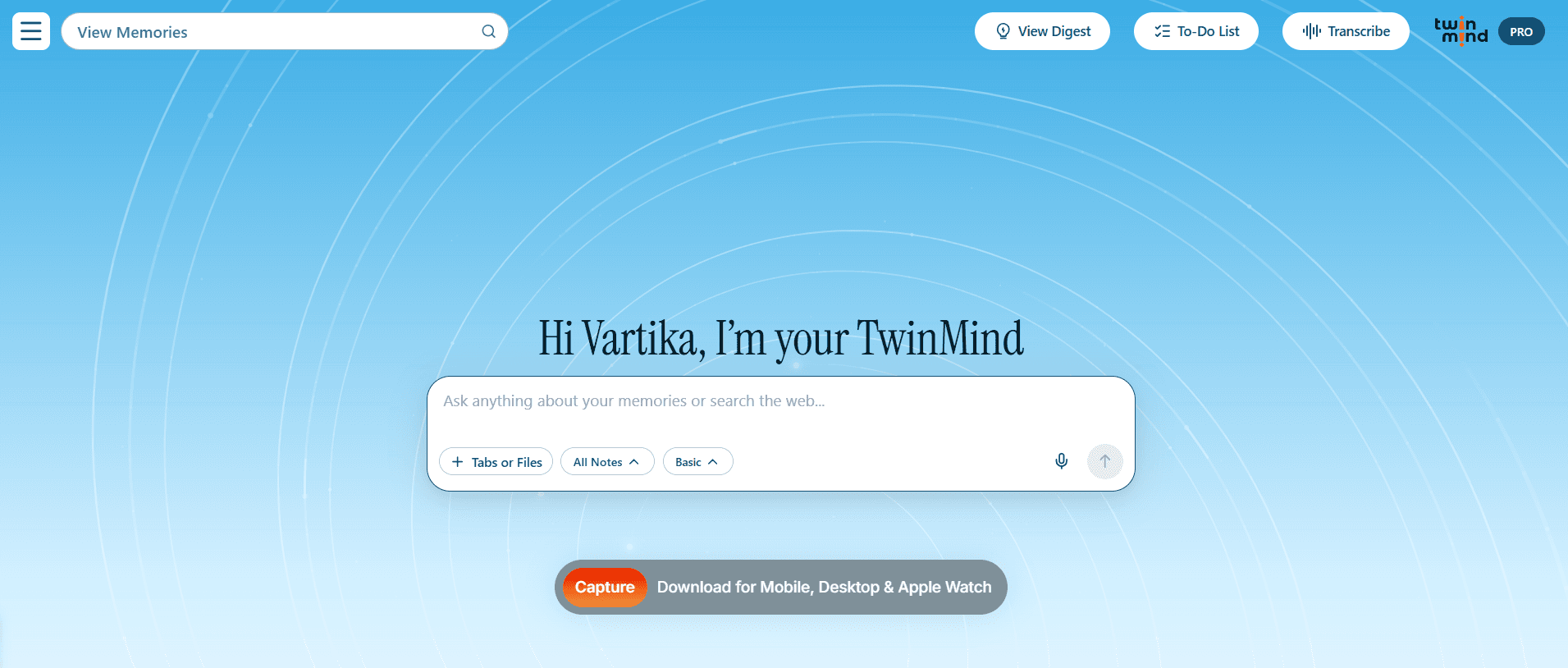
Chat with your memories: Use the main chat input to ask anything about your memories or search the web. You can attach files, narrow your chat to a specific note, and more.
Along the top bar you'll find quick access to View Memories, View Digest, To-Do List, and Transcribe (for uploading audio or video files, available on paid plan).
Access Settings
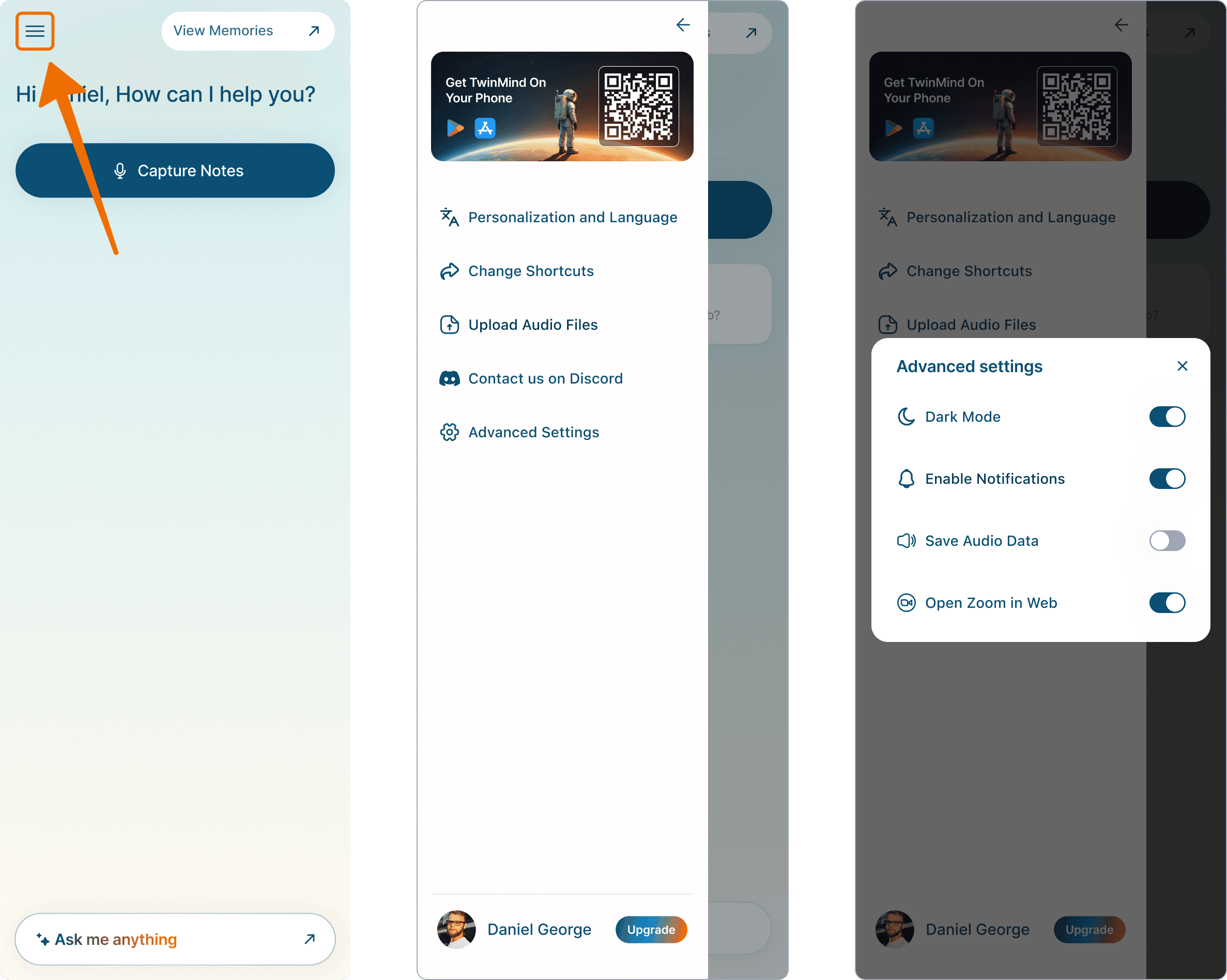
In the Chrome Extension, open the sidebar menu to access:
Phone app - Scan the QR code to install TwinMind on your phone.
Personalization - Set your name, role, language, and preferences; you can also translate transcripts.
Advanced settings - Manage dark mode, notifications, audio storage, and Zoom in browser.
Shortcuts - Customize keyboard shortcuts.
Upload audio - Opens the Web App's Transcribe page, where you can upload existing audio or video files for transcription and summaries.
Discord - Contact the team for help or feedback.
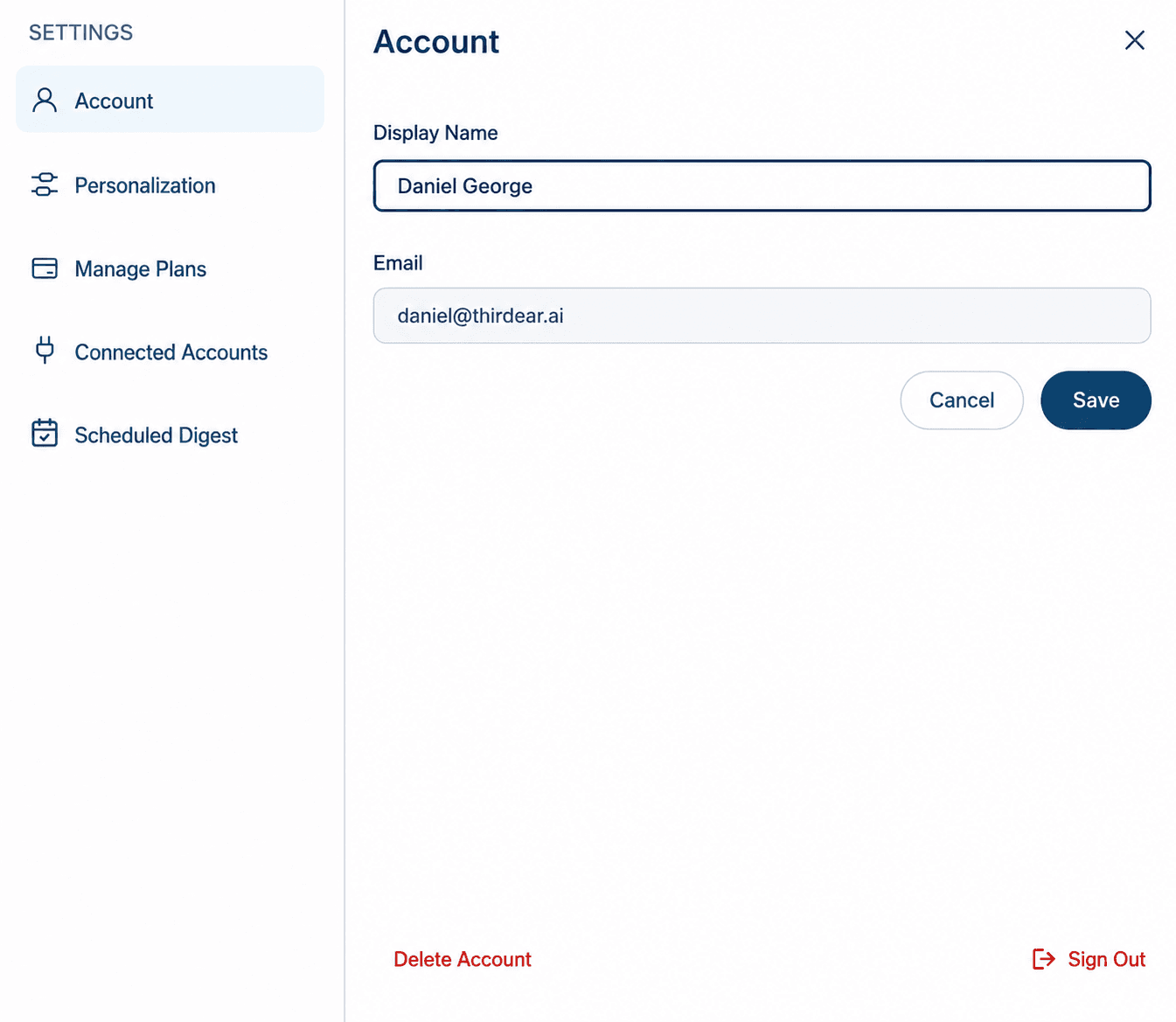
In the Web App, click the ☰ menu in the top-left corner to access Settings, where you can manage:
Account - View your display name and email.
Personalization - Update your preferences.
Plans - View or manage your subscription.
Connected Accounts - Connect or manage your email, phone number, and WhatsApp number.
Scheduled Digest - Customize how your daily digest is written.
Delete Account / Sign Out - Manage account access options.
Facing Any Issues? We're Here to Help!
💬 Contact Us!
If you have any questions, run into issues, or have feedback, please join our community and contact us on Discord!
We'd love to hear from you.
Written by

UI/UX Designer
Share this