TwinMind for desktop turns what you say into clean text wherever you're working, and takes the notes for you during conversations. This guide explains how it works and how to get started.
What Does TwinMind for Desktop Do?
Talk instead of typing. Speak and TwinMind drops clean text right where your cursor is, in any app.
Skip taking notes. Start a capture and it listens to the conversation, then writes up the notes afterwards.
Everything it captures syncs to your account, so it's on your phone and the web too.
Getting Started and Setting Up
Download TwinMind for your desktop (available for Mac and Windows), install it, then open it and sign in with your account. This also connects your calendar, so TwinMind can see your upcoming events and remind you before they start.
The first time you open it, it asks for a few permissions:
Allow microphone
Allow capturing meeting audio
Allow detecting meetings & inserting dictation

Note: You can change any of them later in Settings.
How to Use the Desktop App
Once TwinMind is running, a small widget floats on your screen. Hover it for three options: open TwinMind, start a dictation, or capture notes. It's the quickest way to start either, and you can turn it off in Settings whenever you like.

1. Dictate Anywhere
Works in any text field and all your apps like email, docs, Slack, or search bars.
Press and hold your dictation hotkey, speak, then let go. The text drops straight in.
Double-tap it for hands-free mode. Single-tap to stop.
Perfect text appears. It cleans up what you said first, so the text reads the way you'd write it.
Two dictation modes
You can switch between two modes depending on what you need:
Fastest. About twice as quick, English only. Good for firing off a quick message.
Most Accurate. A multilingual model that handles 140+ languages. You can also add a custom prompt that formats what you say, for example turning a quick note into a clean email.

2. Capture Conversations
A capture listens to the whole conversation, your side and everyone else's, then writes up the notes. There are three ways to start one:
Hover the floating mic and click Capture Notes.
Double-tap your capture hotkey.
Hit Capture Notes on the Home tab.
TwinMind can also capture conversations for you automatically, two ways:
Before a scheduled event. Since it's connected to your calendar, TwinMind pings you about a minute before each event. The notification has a Join & start TwinMind button, so one click opens the call and starts capturing at the same time.
When you join any call. Jump on a call in any app and TwinMind notices within a couple of seconds and asks if you want to capture notes. Click Capture Notes and it starts.
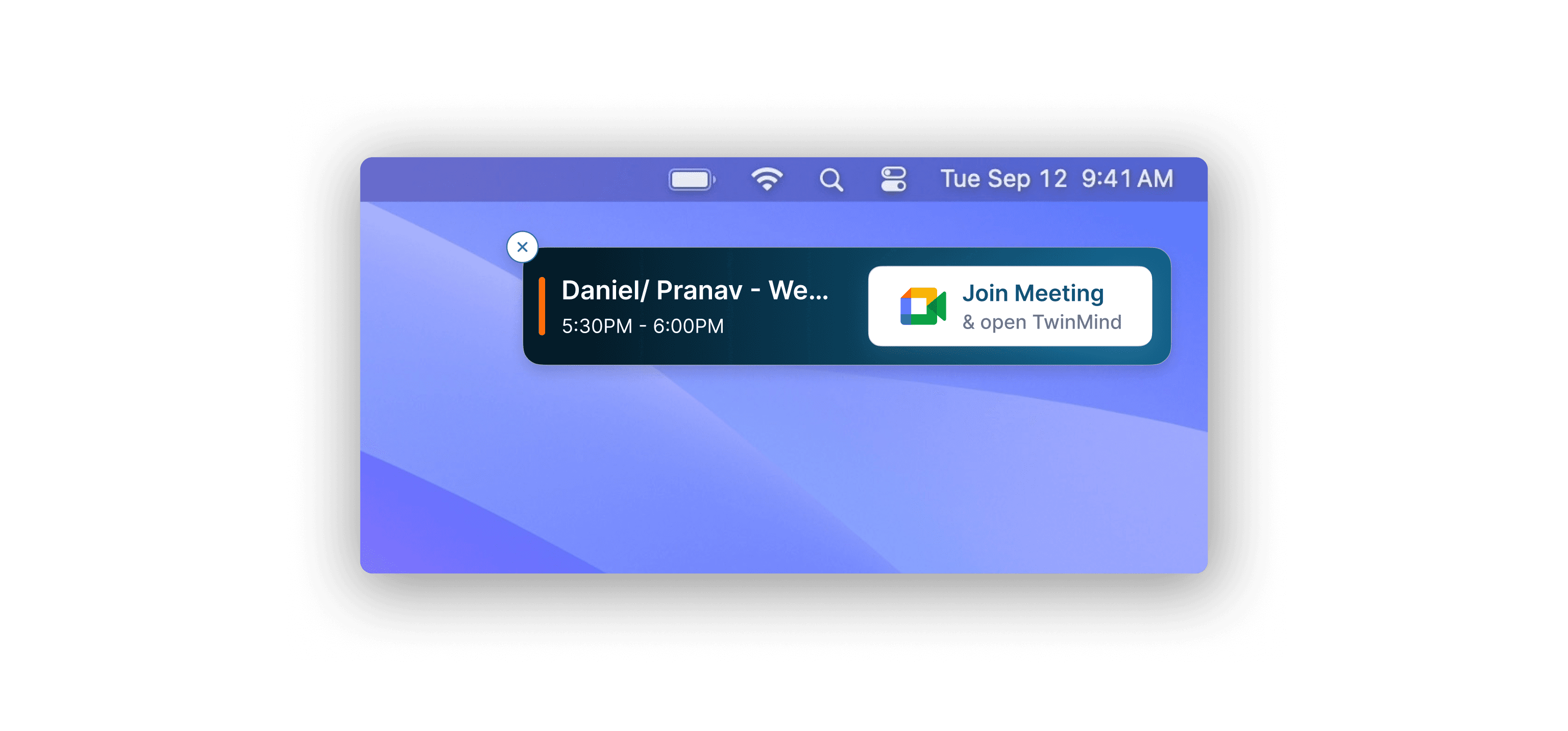
Note: You can turn either prompt on or off under Permissions in Settings.
Your Notes and Memories
Notes live in your account, not on one machine. Capture on your desktop, your phone, or your Apple Watch, and view your notes from any of them.
At the top of the app, click View Memories from Other Devices or Ask Anything to open the Web App, where you can browse everything you've captured across all your devices or ask questions across all your notes and memories.

Settings Worth Knowing
Open the Settings tab in the desktop app to customize your experience.

Account
Custom Vocabulary & Language - Tell TwinMind what language you speak and a bit about yourself, so dictations and notes come out right.
Save Audio & Separate Speakers - Enable this to replay audio from any memory and separate speakers in your transcripts (available on the paid plan).
Manage subscriptions - View or change your plan.
Customize
Microphone - Switch your input device (defaults to auto-detect).
Calendar notifications - Get a reminder 1 minute before calendar events.
Floating widget - Show or hide the floating mic icon on your screen.
Auto detect conversations - TwinMind notices when you join a call and asks if you want to capture notes.
Launch at Login - Open TwinMind automatically when your computer starts.
Change Hotkeys
Dictation (Voice Typing) - Choose your hotkey. Hold for short dictation, double-tap for hands-free mode.
Capture (Notes) - Choose your hotkey. Double-tap to start capturing, single-tap to stop.
Customize Dictation Model
Choose between Fastest (English only) or Accurate with Edits (140+ languages).
Add custom instructions to polish your dictation output, for example turning a quick note into a clean email.
That's the whole app. Set it up once, and it's there in the background whenever you need it.
Facing Any Issues? We're Here to Help!
💬 Contact Us!
If you have any questions, run into issues, or have feedback, please join our community and contact us on Discord! We'd love to hear from you.
Written by

Vartika Singh
Product Growth & User Comms
Share this