
Voice notes pile up fast. You record something important, listen back once, and a week later, you can’t remember a single detail. TwinMind on WhatsApp fixes that. It turns your voice notes into searchable, readable notes you can actually use.
What Does TwinMind on WhatsApp Do?
It focuses on three things:
recording or forwarding voice notes
creating transcripts and summaries
helping you ask questions about your saved notes
1. Record or Forward Voice Notes
You can send a new voice note to TwinMind on WhatsApp, or forward an existing one.
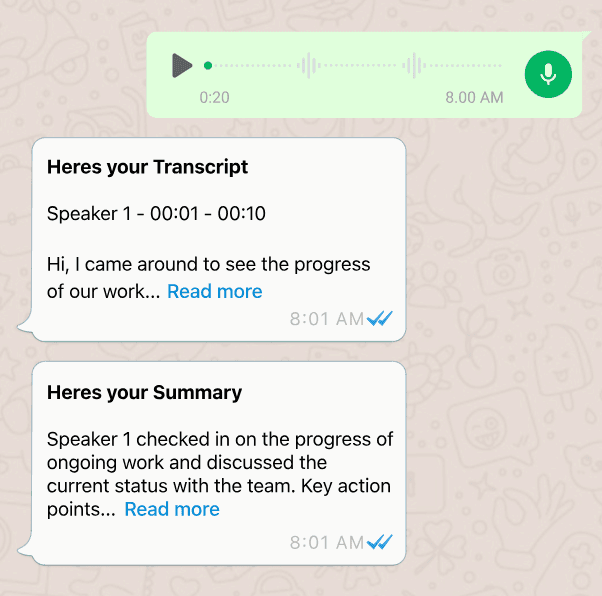
TwinMind listens to the voice note and turns it into text, so you don’t have to replay the audio again and again.
2. Get the Transcript and Summary
After you send a voice note, TwinMind gives you a transcript and a summary.
The transcript helps you read exactly what was said, while the summary helps you quickly understand the main points.
3. Ask About Your Past Notes
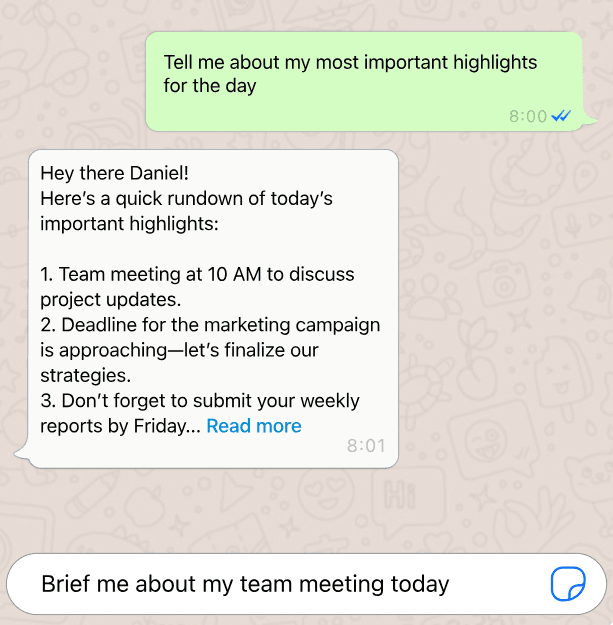
Once your notes are saved, you can ask TwinMind questions about them.
For example, you can ask about your last meeting, key highlights from the day, or details from a past conversation.
How to Use TwinMind on WhatsApp?
Getting started is simple and takes just a few minutes.
Step 1: Connect Your WhatsApp Number
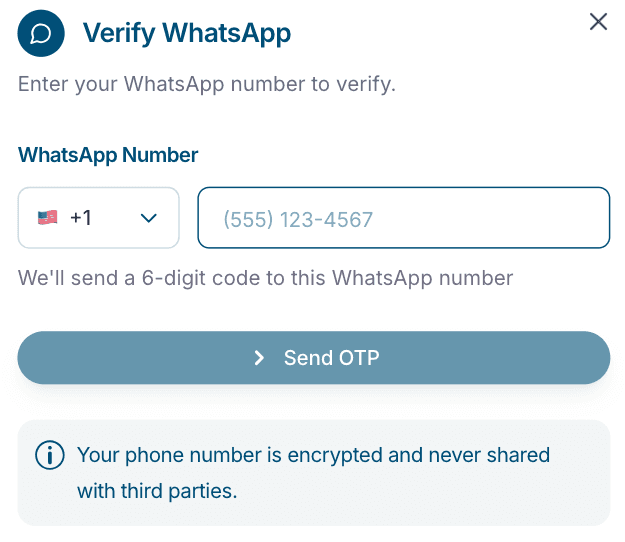
Go to the app.twinmind.com/settings/whatsapp , choose your country code, and enter your WhatsApp number.
Once verified, you’re connected and ready to start using TwinMind on WhatsApp
Step 2: Send or Forward a Voice Note
Open WhatsApp and send a voice note to TwinMind.
You can record a new note or forward an existing voice note from another chat.
Step 3: Get Your Notes and Summary
TwinMind will send back the transcript and summary of your voice note. From there, you can come back to it anytime or move on to asking questions about it.
Step 4: Ask Follow-Up Questions
You can also ask TwinMind questions about your saved notes.
For example:
“Summarize my last five meetings”
“What were the key points from today?”
“Brief me about my team meeting”
TwinMind will use your saved memories to answer.
Frequently Asked Questions
How do I start using TwinMind on WhatsApp?
Connect your WhatsApp number from the TwinMind WhatsApp page. Once connected, you can start sending voice notes to TwinMind.
Can I forward existing voice notes?
Yes. You can forward voice notes to TwinMind and get a transcript and summary.
What do I get after sending a voice note?
TwinMind gives you a transcript and a summary, so you can quickly review what was said.
Can I ask questions about old notes?
Yes. You can ask TwinMind about your saved notes, past meetings, and previous conversations.
Does TwinMind support multiple languages?
Yes. TwinMind can transcribe voice notes in 140+ languages.
Is my data safe?
Yes. TwinMind keeps your WhatsApp notes securely encrypted and uses them only to help create transcripts, summaries, and answers from your saved notes.
Facing Any Issues? We’re Here to Help!
💬 Contact Us!
If you have any questions, run into issues, or have feedback, please join our community and contact us on Discord! We’d love to hear from you.
Written by

UI/UX Designer
Share this